
How to Use Pinterest Trends - Simple Pinterest Trends Tutorial
13 June 2026
Did you know there’s a free Pinterest tool that shows you exactly what people are searching for? If you haven’t started using Pinterest Trends yet, or you want to get started with a Pinterest marketing strategy, then you’re going to love this article.
Pinterest Trends is a free tool that shows which keywords and topics are trending at any given time, whether that’s a current growing trend, a seasonal spike, or a monthly trend year over year. It helps you to plan your content, products, and affiliate links so your pins reach the right people at the right time.
With over 578 million monthly users, Pinterest is the third-largest search engine in the world and continues to grow every year. If you run a blog, online shop, or affiliate business, you should absolutely be leveraging this platform.
Most people don’t realize how many free tools Pinterest gives you to help get your content seen. And today, we’re explaining everything you need to know about Pinterest Trends, including how to navigate the dashboard, understand the graphs, and two tools that can’t be skipped when planning your content.
What is Pinterest Trends?
Pinterest Trends is a free tool offered by Pinterest that shows how keywords and topics rise and fall in popularity over time. You can search by year, quarter, or month, and explore past trends, current trends, and even predicted ones for certain keywords.
The reason this tool is so useful is because once you understand how to use the dashboard and read the graphs, you can estimate which topics are likely to become popular in the coming weeks or months. That means if you have a blog, online shop, or promote affiliate products, you can plan your content ahead of time and get seen before everyone else.
This works across all niches. For example:
- Food bloggers can plan ahead for seasonal recipes, like publishing soup content at the end of summer so it’s already ranking by fall
- Digital product sellers can time launches strategically, like promoting Christmas printables in late October when searches start to spike
- Fitness creators can spot demand shifts around New Year’s resolutions or springtime outdoor workouts
Today we’re walking through the basics of how to use Pinterest Trends so you can get started without feeling overwhelmed. If you’d rather watch this instead of read, check out our full YouTube tutorial linked below.
How to Use the Pinterest Trends Dashboard
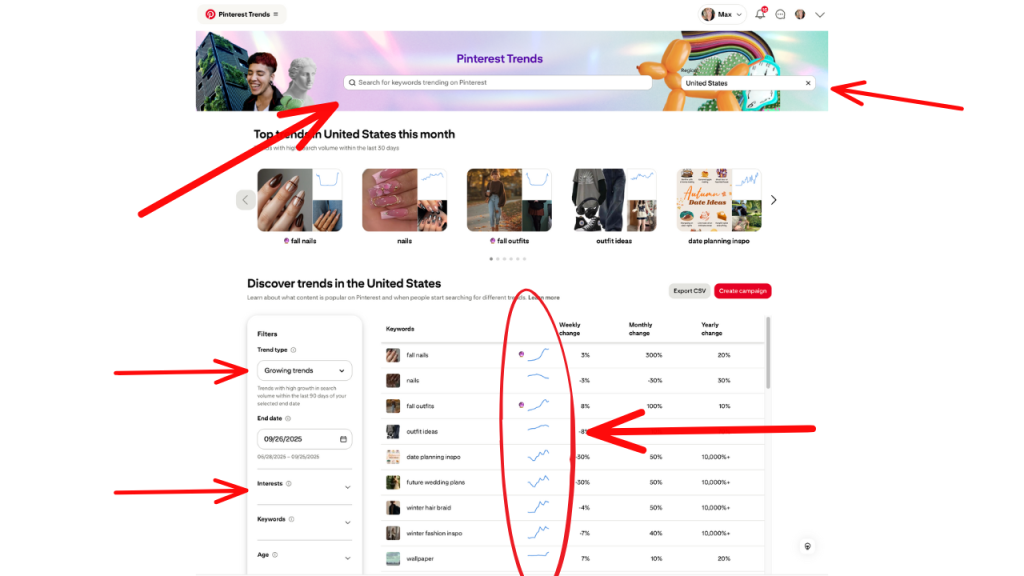
To start, go to trends.pinterest.com. You’ll see a search bar at the top, a region selector to the right, and a list of popular, currently trending keywords below. You may find something useful keywords right away, but most of the time, you’ll need to refine your search to find the best keywords for your niche. There are two simple ways to do this:
- Type a keyword into the search bar to see related terms generated in the table below
- Use the Interests filter on the left-hand side to choose a niche or category
On the left-hand side of the dashboard, you’ll also see four main filters that change how trends are displayed:
- Top Monthly – Shows what’s trending this month. These keywords might be rising or falling, so they’re best if you want quick ideas for what to publish right now.
- Top Yearly – Displays keyword performance across the entire year. This is the easiest view for spotting seasonal spikes and planning content months in advance.
- Growing Trends – Highlights the biggest search increases over the past 90 days. Great for catching new ideas early, but you’ll need to act fast.
- Seasonal – Surfaces recurring events like holidays or annual themes, ideal if your niche aligns with specific times of year.
You can adjust the industry to match your niche (for example, food, travel, fashion, or fitness) and set the date range to focus on a specific period.
When you look at the table, pay close attention to the small graphs next to each keyword. These mini charts show how interest has changed over time. The far-right edge of each graph represents the most recent week. If the line starts curving upward on the right, that keyword is trending again, meaning searches are increasing. These are the opportunities you want to note for future content.
Most creators use Top Yearly as their default view because it gives the clearest picture of when certain topics peak. However, you can adjust this based on your needs and how far ahead you plan content.
Once you find a few keywords that stand out, click any one of them to open a more detailed graph. We’ll explain how to read that in the section below.
Understanding Pinterest Trends Graphs
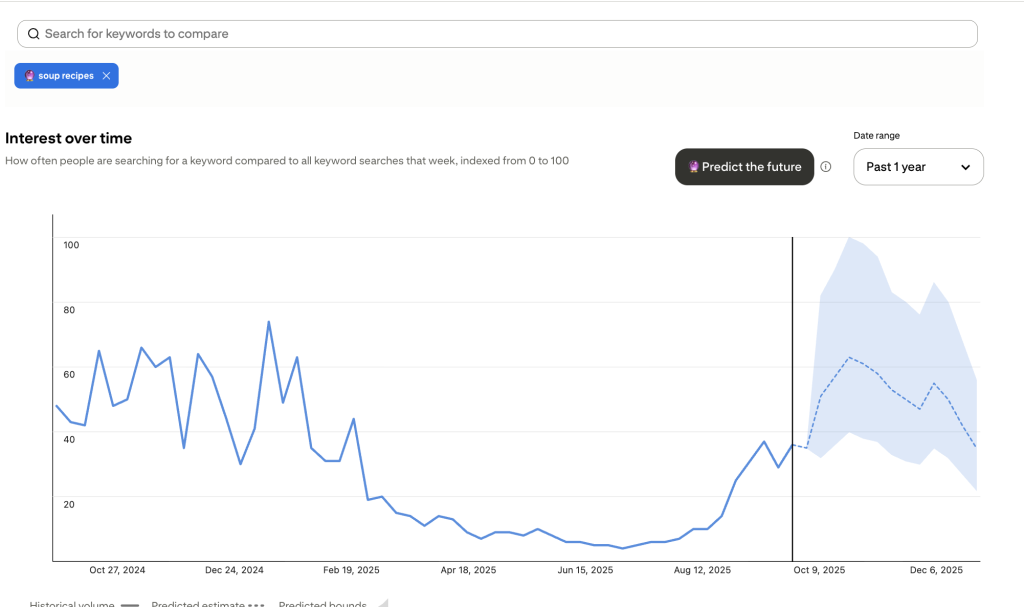
Once you click into a keyword, you’ll be redirected to a detailed graph that shows how search interest changes over time, usually across the year, indicated by weeks or months along the bottom. Any steady upward line shows that a keyword is gaining traction, while a sharp spike means searches are climbing quickly (usually tied to seasonal or viral moments). If you notice a consistent rise around the same time each year, that’s a seasonal keyword worth planning ahead for.
You might also notice that some keywords display a small magic ball icon to the left of the word. This means Pinterest has the ability to predict future trends, whether positive or negative. Just note that this is only a prediction, and not all keywords include it.
As an example, if you search for “soup recipes,” you’ll see interest start climbing in August, peak during the colder months, and taper off by February. That means if your niche is food or meal planning, you’d want to publish or refresh that content in July so it’s ranking and ready when searches spike.
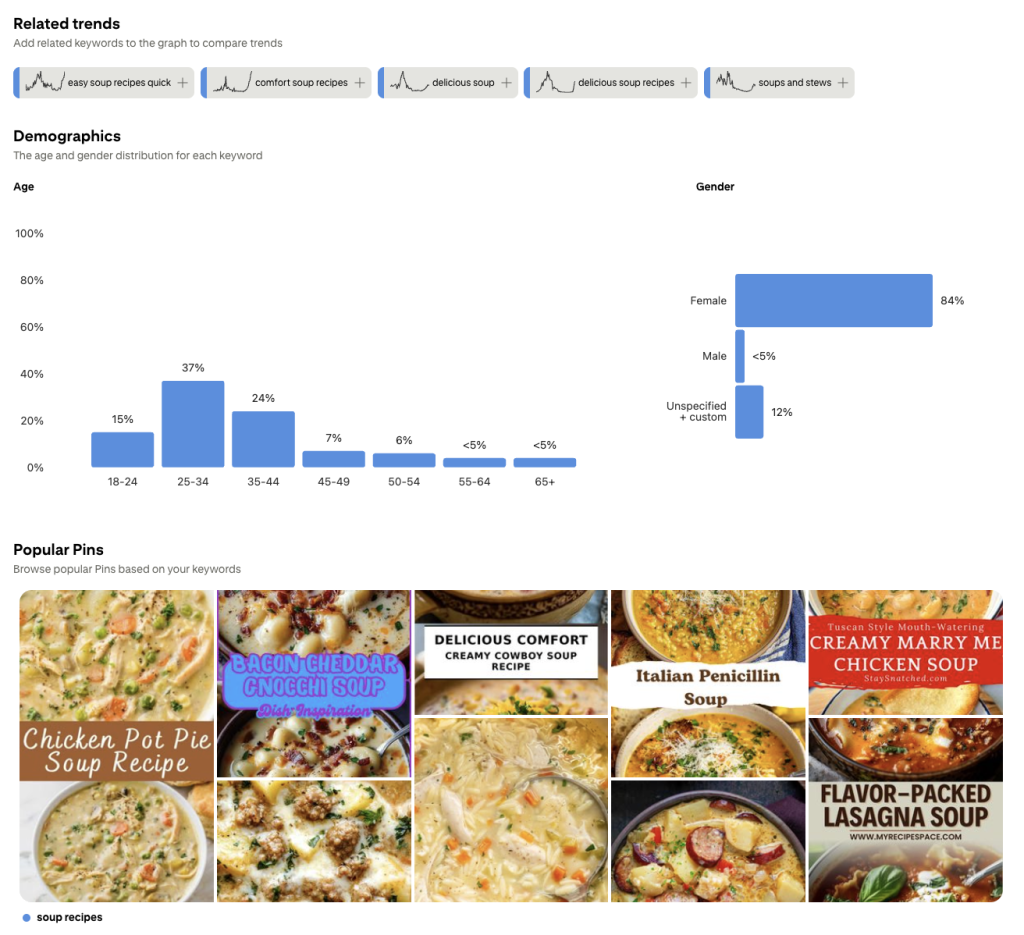
Also on this page, you’ll see three more sections:
- Related Trends – Keywords that share similar audience interest or timing (for example, “hamburger soup” or “chicken noodle soup”).
- Demographics – General info on who’s searching (helpful, but not always necessary).
- Popular Pins – A quick look at top-performing pins for that keyword. Use this to notice color palettes, image types, and text overlays that seem to perform well.
You can compare up to four keywords on one chart to see which ones have stronger search patterns. Just remember that Pinterest scales the lines relative to each other, so a smaller line doesn’t mean the keyword performs poorly, it just gets fewer searches than the top one selected. Deselecting some of the keywords will give you a more clear view at how each keyword performs on its own.
Once you’ve found a few keywords you want to keep an eye on, the next step is adding them to the Pinterest Trends Alerts Tool.
Using the Pinterest Trends Alerts Tool
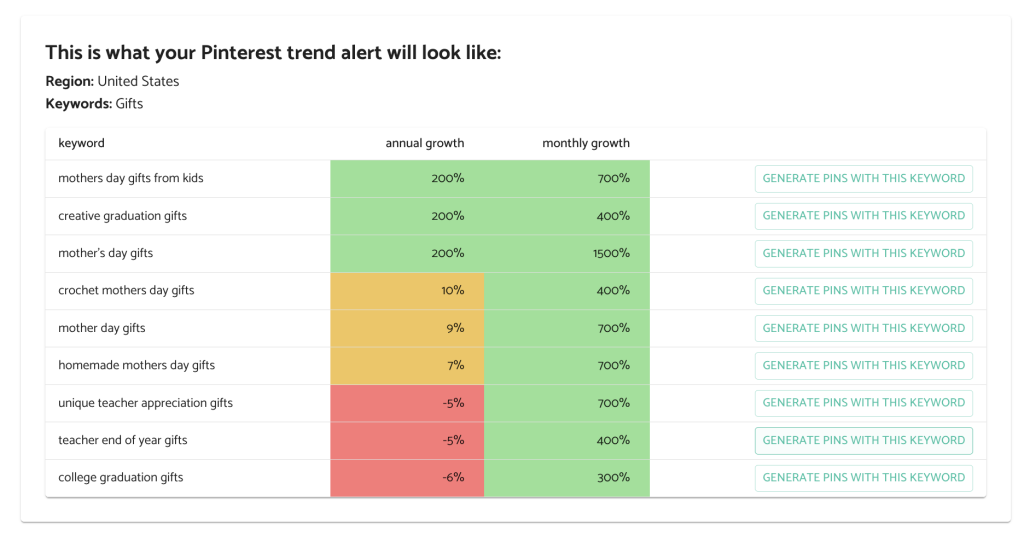
The Pinterest Trends Alerts Tool is a free resource from Pin Generator that helps you track the keywords you’ve found without constantly checking the Pinterest Trends dashboard.
Once you’re on the page, select your region (for example, the United States) and type in the keywords you want to track, like soup recipes, holiday desserts, or home workout ideas. You can also choose how often you’d like to receive updates. We recommend weekly alerts, as Pinterest trends don’t shift dramatically from day to day.
Depending on the frequency you select, you’ll receive an email indicating which of your saved keywords are currently trending. Each email will include:
- Your chosen keywords and related search terms
- Monthly and annual growth data showing when searches are increasing or decreasing
- Keywords highlighted in green to show strong spikes and upward trends for easy identification
We still can’t believe more people aren’t talking about the Pinterest Trends Alerts Tool. It’s one of our favorite free tools, and we definitely recommend adding it to your workflow when doing Pinterest keyword research or planning your Pinterest marketing strategy.
We’ve also got one more free tool that we think is a game-changer for your toolbox, and that’s the Pin Generator Keyword Research Tool.
Using the Pin Generator Keyword Research Tool
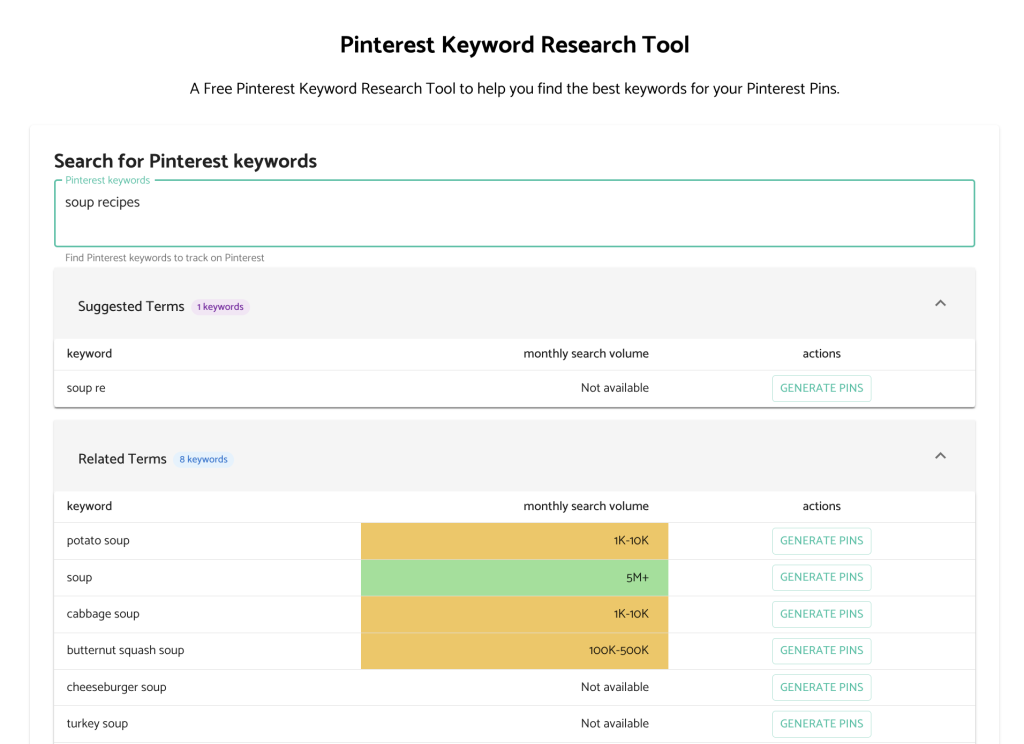
The Pin Generator Keyword Research Tool is another free resource that pairs perfectly with Pinterest Trends. While Pinterest Trends shows you when people are searching, this tool shows you the monthly search volume for that keyword, as well as related keywords and their search volumes too.
This is perfect for quantifying your search terms, validating new opportunities, and deciding where to focus your time. For example, if two similar topics like “home office ideas” and “desk setup” are trending, the Keyword Research Tool helps you confirm which one has stronger traction before you start creating content or pins.
We love using all three tools together:
- Use Pinterest Trends to spot what’s on the rise.
- Add those keywords to the Pinterest Trends Alerts Tool to track when interest spikes.
- Use the Keyword Research Tool to confirm search volume and discover new related ideas.
Pinterest Best Practices and Automation
Once you’ve found the right keywords, it’s time to create optimized pins. Another thing we love about using Pin Generator is the ability to click “Generate Pins” directly from either the Trend Alerts or Keyword Research Tool. It automatically turns your chosen keywords into ready-to-go pins with SEO-friendly titles, descriptions, and stock images available for use.
Of course, this is just the first step in creating unique pins for your brand. You can easily customize everything in the tool, from adjusting brand colors to rewriting titles, updating descriptions, and even using AI to generate new variations of copy and images. Simply add your URL, make your edits, and you are ready to go.
If you’d like to try it out, both the Pin Generator Trend Alerts and Keyword Research Tool are completely free to use. You can also test creating pins for free using your own website URL or any of the tools mentioned above.
Give it a try and see how much easier Pinterest marketing can be.
Let’s get generating!