
Pinterest Templates for Non-Designers - How to Create Better Pins
13 June 2026
If you’ve ever stared at your Pinterest pins and thought, “this just doesn’t look right,” this article will help.
Design is one of the biggest hurdles for creators trying to grow on Pinterest. Most of us are bloggers, online sellers, or affiliate marketers, not expert graphic designers or content marketers. And while your content may be valuable, getting someone to see it takes more than a solid headline and a few well-placed keywords.
Pinterest is a visual search engine, meaning design matters. Strong, eye-catching pins are necessary to get noticed by both Pinterest and pinners. And the more Pinterest pushes your pins, the more impressions, saves, and clicks your content will get.
As the third most-used search engine in the world, behind Google and YouTube, Pinterest reported 570 million monthly active users and Q1 revenue of $855 million, making it one of the most important platforms for driving traffic to content, products, and services. So, if you’re not naturally design-savvy (or simply don’t have the time), now’s the time to find a solution to your pin creation problem.
This is where Pinterest templates come in.
And today, we’re showing you exactly how to use them.
Why Pinterest Templates Work (and Why Design Matters)
Pinterest is a visual-first platform. What stops the scroll isn’t a clever headline, it’s eye-catching design. High-quality, aesthetic pins consistently outperform others in both impressions and clicks. If your content is strong but your pin design skills aren’t, you’ll see crickets on your site.
So, how do we fix that?
Pinterest pin templates allow you to build a consistent, professional-looking aesthetic without having to design from scratch every time. By reusing fonts, colors, layouts, and visual elements, you can create branded graphics that look polished, convert well, and save you hours each week.
And the best part? You don’t have to start from scratch. Whether you’re browsing Canva or using a tool like Pin Generator, there are thousands of high-performing templates available and ready to plug-and-play.
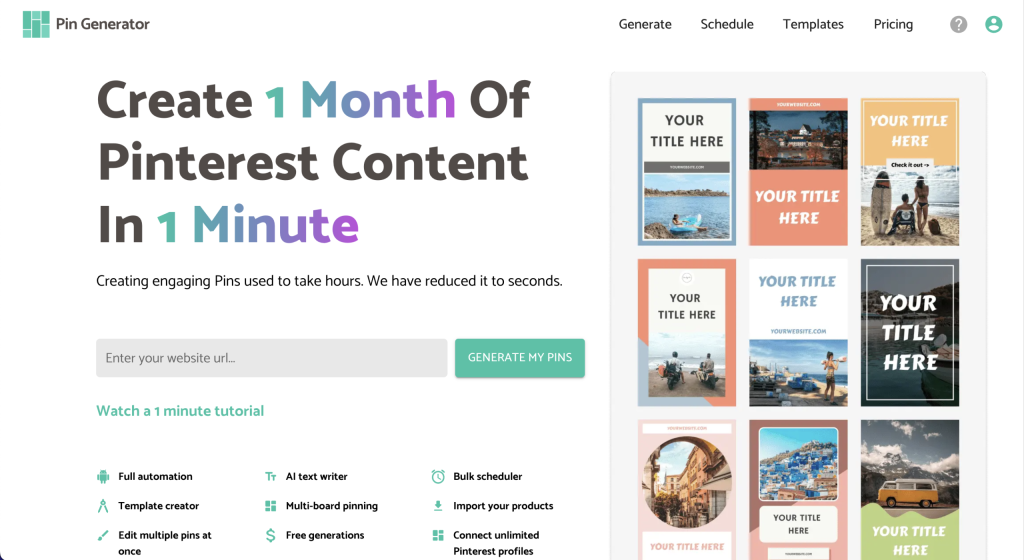
Let’s say you’ve found a great design in Canva, but you need to make updates for every pin title, description, and URL. Even with a feature like Bulk Create, you’ll still need to manually edit each file. At 5-10 minutes per pin, 20 pins a day quickly becomes 2-3 hours spent formatting, tweaking, and publishing content.
Pinterest templates are the first step, but automation is what actually makes your workflow sustainable.
And that’s what we’re sharing today.
Whether you’re brand new to design, someone who likes to tweak visuals, or a Canva power-user with folders of templates, this article will show you how to manage your templates more efficiently and how to fully automate them so your Pinterest marketing takes minutes, not hours.
Sounds too good to be true? We’ll walk you through exactly how it works.
We’ve got a quick 5-minute video showing you how to use Pin Generator’s template features whether you’re a beginner, casual designer, or full-on Canva lover. Check it out here:
Now, let’s look at how Pin Generator supports three different types of users.
Pin Generator Templates for Non-Designers
If you’re not a designer (and have no interest in becoming one), Pin Generator was practically built for you. Pin Generator eliminates the overwhelm of starting with a blank canvas and replaces it with pre-designed, plug-and-play templates that are ready to go.
To get started, all you need is a blog post or product URL. Enter your URL into Pin Generator and it will automatically pull in your images, titles, descriptions, and links, and apply them across a selection of pre-made pin designs.
There’s a feature most people don’t leverage nearly enough, which is that instead of randomly applying design templates, you can curate exactly which templates you want the system to use.
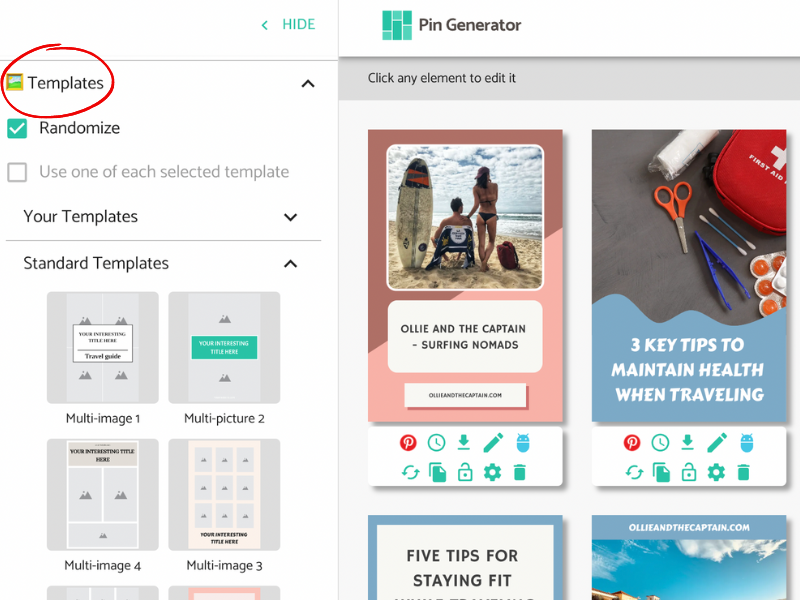
In the left hand panel, under the Templates tab, you’ll see the option to select templates. Click this and you’ll find dozens of high-performing layouts grouped into categories. Spend a few minutes browsing and “heart” your favorites. Then, under the Favorites tab, select a handful to activate, typically 10-20 is a good number for variation without losing consistency.
Once selected, Pin Generator will only use these approved templates moving forward. No design skills required, just set your preferences once and generate dozens of pins with branded, polished designs every time. This makes it incredibly easy for non-designers to stay consistent on Pinterest without ever opening Canva.
Pin Generator Templates for Light Designers and Customizers
If you enjoy tweaking designs, adjusting colors, swapping fonts, or fine-tuning layouts, Pin Generator template designer gives you full creative control without the clutter of traditional design tools.
You can start with any of the pre-made templates, and customize them to match your brand. You can adjust fonts, colors, image placement, and even layout spacing directly inside the editor. There’s also a built-in brand color tool that makes it easy to apply your palette across every design in seconds.
For those who want more flexibility, you can also build your own templates from scratch. Click Add New Template under the Templates tab and start designing. Drag and drop your preferred elements, style them your way, and let Pin Generator autofill the titles, descriptions, and links from your content.
This is perfect if you want to maintain a consistent look but still make it your own. Once your templates are created, you can set them as favorites, just like the built-in options, and use them in all future pin generations without needing to recreate your designs each time.

For Canva Users Who Want to Automate Templates
If you’re a dedicated Canva user with designs you already love, you don’t have to give them up, as Pin Generator makes it easy to integrate your existing templates into an automated workflow.
To get started, simply export your Canva designs as SVG files. These vector formats retain your layout and style while allowing for dynamic fields to be added. Once exported, upload your SVGs into Pin Generator and tag the dynamic fields (like title, description, and URL) where content should auto-fill.
We’ve got a video tutorial here:

From there, Pin Generator will treat your Canva designs just like its native templates, meaning you can scale output, shuffle content, and even combine your templates with AI-generated titles and descriptions. You keep your aesthetic, and the tool handles the manual grunt work.
This setup is ideal for creators who’ve already invested time in building branded designs in Canva but want to move past the repetitive scheduling and copy-pasting.
Will You Use Pinterest Templates?
Pin design doesn’t have to be the bottleneck in your Pinterest strategy.
Whether you’re starting from scratch, customizing existing layouts, or importing Canva templates you already love, Pin Generator helps you streamline the design process and scale your content output without compromising your aesthetic.
Templates give you a strong visual foundation, and automation turns that foundation into a time-saving system that runs in the background.
If you’ve been spending hours each week creating and scheduling pins, it’s time to rethink your workflow. With Pin Generator, you can create branded, engaging pins in minutes and automate the publishing process so your content shows up consistently, even when you’re off the clock.
Try Pin Generator for free and explore what’s possible when you combine beautiful templates with smart automation.
Your pins deserve to be seen, let’s make that happen.