
Bulk Create Pinterest Pins: Canva + ChatGPT vs. Pin Generator
13 June 2026
Trying to scale your Pinterest strategy, but stuck making pins one at a time? If you’ve ever tried to consistently create and post 10-20 pins per day, you already know how quickly that adds up. Even at five minutes per pin, you’re looking at 100 minutes a day just designing and scheduling. Most of us don’t have this time to spare.
So, what’s the fix?
When you search YouTube looking for help to create pins faster or “bulk create pins”, most tutorials point to Canva Bulk Create + ChatGPT as the ultimate shortcut, but does it really save time in a practical workflow?
We put Canva Bulk Create + ChatGPT to the test, watching popular videos on YouTube and trying the workflow firsthand to see how much time it really saves.
The results may surprise you.
Before you invest hours on setup, you’ll want to know which tool delivers real speed, and real results. If you’re serious about scaling without burning out, here’s everything you need to know.
Why Bulk Creating Pins Matters
Creating pins one by one is both time-consuming and unsustainable. Pinterest rewards consistency, and that means showing up daily with fresh pins and engaging content. But when you’re juggling a blog, product creation, and everything else, spending over an hour a day designing and scheduling pins is a fast track to creator burnout.
With over 570 million monthly users and 85% of weekly users making a purchase from a pin, Pinterest is thriving as both a search engine and product discovery platform. If you’re trying to grow traffic, sell digital products, or promote affiliate links, it’s still one of the best places to do it.
So, what’s the most efficient way to create and schedule pins?
Bulk creating pins solves two major problems: time and consistency. Instead of creating pins reactively every day, you can batch them in one focused session, giving you more time for strategy, content, and running your business. You can also test different angles, layouts, and calls to action much faster, which means better insights and faster growth.
We put the popular Canva Bulk Create + ChatGPT method to the test alongside one of our favorite tools, Pin Generator, to see which one was faster, more efficient, and actually held up in a real workflow.
Prefer to watch instead of read? Check out our full side-by-side video breakdown on YouTube:
Canva Bulk Create + ChatGPT: How It Works
From first glance, Canva Bulk Create looks like a dream come true to create hundreds of Pinterest pins in just a few clicks. And when paired with ChatGPT, it almost feels like the possibility of full automation is a reality. However, after trying it firsthand, we’ve found it takes a bit more time and oversight than most YouTube tutorials let on.
Here’s what the typical process looks like:
- Start by designing your templates. You’ll need to create (or copy) multiple pin templates in Canva, ideally more than a few, so your pins don’t all look the same.
- Use ChatGPT to generate your content. That means titles, subtitles, maybe even URLs or descriptions. Note: It has to be formatted properly, especially if you’re creating two- or three-line headers.
- Copy and paste your outputs into a spreadsheet. Each element needs to be broken into its own column such as: title line 1, title line 2, description, image file name, URL, and more.
- Upload your images manually. Canva doesn’t allow you to pull from their stock libraries. You’ll need to upload and tag your photos manually and add them in the spreadsheet.
- Map each column to each template. This is where things get time-consuming. If you have 10 templates, you’ll be repeating the mapping process 10 times (or more), matching every text and image field.
- Click to create your pins. Canva will fill in your templates based on the spreadsheet, but you’ll likely need to adjust font sizes, spacing, and formatting.
- Manually schedule each pin. Canva’s scheduler does connect to Pinterest, but you’ll still need to add in your descriptions, URLs, and timing manually.
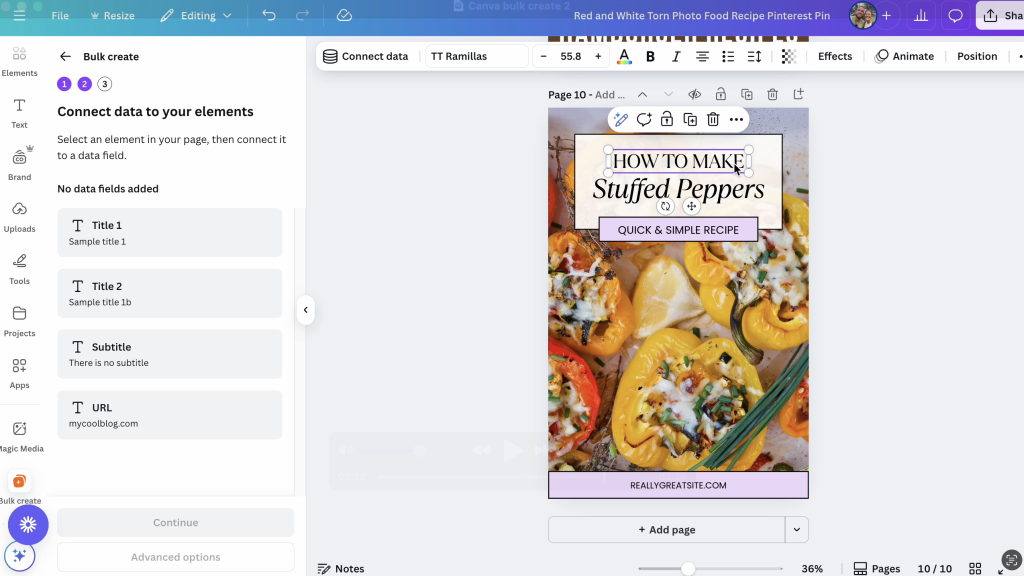
While Canva offers excellent design tools, the manual effort to prepare templates and link everything properly adds up, especially if you’re juggling dozens of layouts. There’s also little room for error, as one wrong column header or a misaligned field can cause the whole import to break.
Canva Bulk Create is useful in some scenarios such as repurposing quotes, static headlines, or uniform graphics, but it’s far from a plug-and-play system. You’ll still need a Canva Pro subscription, a working knowledge of spreadsheet formatting, and enough time to manually handle both content prep and scheduling.
So, is there a better way?
We think so.
Pin Generator: A More Streamlined Alternative
Instead of designing templates, formatting spreadsheets, uploading images, and mapping fields manually, Pin Generator takes a different approach. You simply enter a blog post URL, product page, or even an affiliate link, and the tool pulls in everything you need, including titles, descriptions, images, and links. From first glance, it’s already significantly faster.
Here’s how it works:
- Drop in your URL. This could be your homepage, a blog post, or a product listing.
- Click Generate. Pin Generator scans your page and pulls in the text, metadata, and images available.
- Choose your templates. Select from dozens of professionally designed layouts, all of which are pre-linked to your content.
- Edit or customize. Want to tweak the font, color, or layout? You can do that inside the tool or upload your own custom templates (including Canva templates).
- Use built-in AI tools. Generate fresh titles, descriptions, and alt text variations with one click, powered by OpenAI. No need to open ChatGPT or manually copy and paste, Pin Generator does it for you automatically and within the same interface.
- Publish or schedule. Pins can be scheduled directly from the dashboard with smart spacing, board selection, and automation options.
- Turn on AutoPin. This feature automatically creates and schedules future pins for you based on your existing content and preferences.
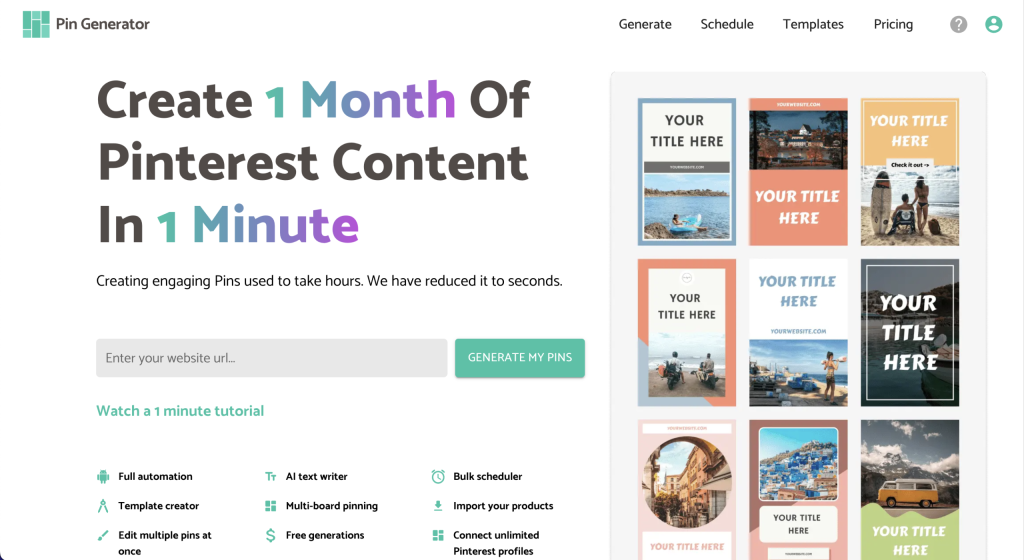
Pin Generator excels in its ease of use, especially for beginners or those who don’t have strong design skills. The fact that it automatically pulls your titles, descriptions, images, and links from your website, as well as integrated AI tools to generate new variations menas the process is streamlined from the start.
Canva does have the upper hand when it comes to design flexibility and variety, but you can upload your custom Canva templates into Pin Generator too. While that may require some initial setup, once your templates are linked, the platform will still handle all the tedious parts for you.
Once it’s set, it’s set, and that’s a huge win if you’re trying to scale your workflow without adding hours back onto your plate.
How Will You Bulk Create Pins?
If you’re creating simple pins with minimal text or repeatable graphics, Canva Bulk Create + ChatGPT may be a solid setup. However, if your goal is to scale sustainably, streamline your workflow, and reduce the amount of manual setup involved, Pin Generator might be a better fit.
There’s no “perfect” tool – it depends on your goals, your content, and how much time you’re willing to spend on prep. What matters is finding a system that supports consistency and frees up your time to focus on growth.
If you want to test out Pin Generator for yourself, you can try it free. No setup required, just drop in a blog post or product page and see what it creates.
Happy pinning.