
Create A Pin
27 July 2026
Want to create a pin that actually gets noticed on Pinterest instead of vanishing into the digital sock drawer? Good. Because Pinterest is not just a place where people collect sourdough dreams, wedding centerpieces, and suspiciously perfect pantry makeovers. It is a visual search engine where people actively look for ideas, products, tutorials, recipes, outfits, printables, travel plans, and “how do I make my living room look expensive without selling a kidney?” inspiration.
That means a Pinterest pin is not just a pretty image. It is a tiny traffic machine. Or at least, it can be. A strong pin combines scroll-stopping design, keyword-rich text, a clear destination, and consistent publishing. Miss one of those ingredients and your pin may still look cute, but so does a cupcake with no sugar. Technically there, emotionally disappointing.
In this guide, we will walk through how to create a pin from scratch: choosing the right size, designing the image, writing titles and descriptions, using keywords, selecting boards, scheduling strategically, and scaling the whole process without gluing yourself to your laptop. We will also show where tools like PinGenerator can help you create Pinterest content faster, especially if you need more than one heroic little pin per month.
What Is a Pinterest Pin, Really? Tiny Billboard, Big Ambitions
A Pinterest pin is a visual bookmark that links to a destination, usually a blog post, product page, recipe, landing page, or video. Unlike a standard social media post that gets a brief moment in the feed and then retires to the content graveyard, Pinterest pins can continue surfacing in search results and recommendations for months or even years.
This is one reason Pinterest is powerful for businesses and creators. People go there with intent. They are planning, comparing, saving, shopping, and researching. According to Pinterest Business audience data, hundreds of millions of people use the platform monthly to discover ideas and products. That makes Pinterest less like a chaotic group chat and more like a search engine wearing a fashionable scarf.
When you create a pin, you are building a discoverable asset. Each pin can include:
- A vertical image or video
- A title
- A description
- A destination URL
- An assigned board
- Optional alt text
- Product details if connected through shopping features
The goal is simple: help Pinterest understand what your pin is about, help users understand why they should care, and make the click feel irresistible but not clickbaity. “10 Cozy Bedroom Ideas for Small Spaces” works. “You Won’t Believe What This Pillow Did Next” should probably be escorted from the premises.
Before You Create a Pin: Start With the Destination
Before you open a design tool, choose where your pin will send people. A pin without a useful destination is like a taxi driver who says, “I don’t know, vibes?” Not ideal.
Your destination could be:
- A blog post answering a specific question
- A product page for an e-commerce item
- A recipe page with ingredients and instructions
- A lead magnet landing page
- A portfolio page or service page
- A YouTube video or tutorial
The best pins match the promise of the image and text to the page users land on. If your pin says “Free Printable Budget Planner,” the link should not go to a generic homepage where visitors must hunt for the planner like it is buried treasure guarded by raccoons. Send them directly to the relevant page.
For bloggers, this means each major article can become multiple pins with different designs, headlines, and angles. For example, a blog post about “healthy lunch ideas” could produce pins targeting:
- Healthy lunch ideas for work
- Meal prep lunches for beginners
- High-protein lunch recipes
- Easy lunch boxes for kids
- Budget-friendly healthy lunches
Same content. Different search intent. More chances to be discovered. If you want a deeper walkthrough of turning content into Pinterest visuals, this guide on how to create a Pinterest pin is a helpful companion read.
Choose the Right Pin Size: Because Pinterest Loves Tall, Not Tiny
Pinterest is a vertical platform. Tall images take up more space in the feed, which gives your design more room to wave its tiny digital arms and say, “Hello! I am useful!”
The commonly recommended Pinterest pin ratio is 2:3, with 1000 x 1500 pixels being a popular size. Pinterest itself recommends using high-quality vertical images and notes that other ratios may be truncated in feeds. You can review the official guidance in Pinterest’s creative best practices.
Good standard sizes include:
- 1000 x 1500 px for standard pins
- 1080 x 1920 px for idea-style or story-like vertical creative
- 1000 x 2100 px for longer infographic-style pins, used carefully
Long pins can work well for step-by-step tutorials or infographics, but do not make them absurdly tall. A pin that requires users to scroll for three business days may get cut off or ignored. Keep it useful, readable, and focused.
If you use PinGenerator, the templates are already designed around Pinterest-friendly formats, which saves you from accidentally creating a square image and wondering why it looks like a postage stamp in a parade. The platform includes 100+ professional templates, so you can choose layouts built specifically for Pinterest rather than generic social graphics that need awkward resizing later.
Design a Pin That Stops the Scroll Without Screaming at People
Design matters. Pinterest is visual, and users decide quickly whether to save, click, or keep scrolling. But good pin design is not about cramming every color, font, sticker, arrow, sparkle, and emotional support cactus into one image. It is about clarity.
Start with a strong image. If you are promoting a product, show the product clearly in use. If you are promoting a recipe, show the finished food looking edible enough to make someone briefly forget their grocery budget. If you are promoting a blog post, use a relevant lifestyle image, mockup, or clean graphic background.
Then add text overlay. Text overlay helps users understand what the pin offers before they read the title or description. Keep it short and specific. Compare these:
- Bad: “Tips”
- Better: “7 Small Patio Ideas”
- Best: “7 Small Patio Ideas That Look Expensive”
The best version gives a clear topic, number, and benefit. It tells the user what they get and why they should care.
Use fonts that are readable on mobile. Pinterest users are often browsing on phones, possibly while standing in line, avoiding laundry, or pretending to watch a documentary. If your font requires squinting, it is too fancy. Script fonts can be lovely in small accents, but they should not carry the main message.
Design tips that usually work:
- Use high contrast between text and background
- Keep text large and easy to read
- Limit yourself to two or three fonts
- Use brand colors consistently
- Leave breathing room around the edges
- Add your logo or website subtly
- Make the main benefit obvious within two seconds
According to Sprout Social’s social media image size guide, platform-specific sizing and visual formatting are critical for making content display properly. Translation: Pinterest has rules, and ignoring them makes your pin look like it got dressed in the dark.
Write a Pin Title That Uses Keywords and Human Brain Magic
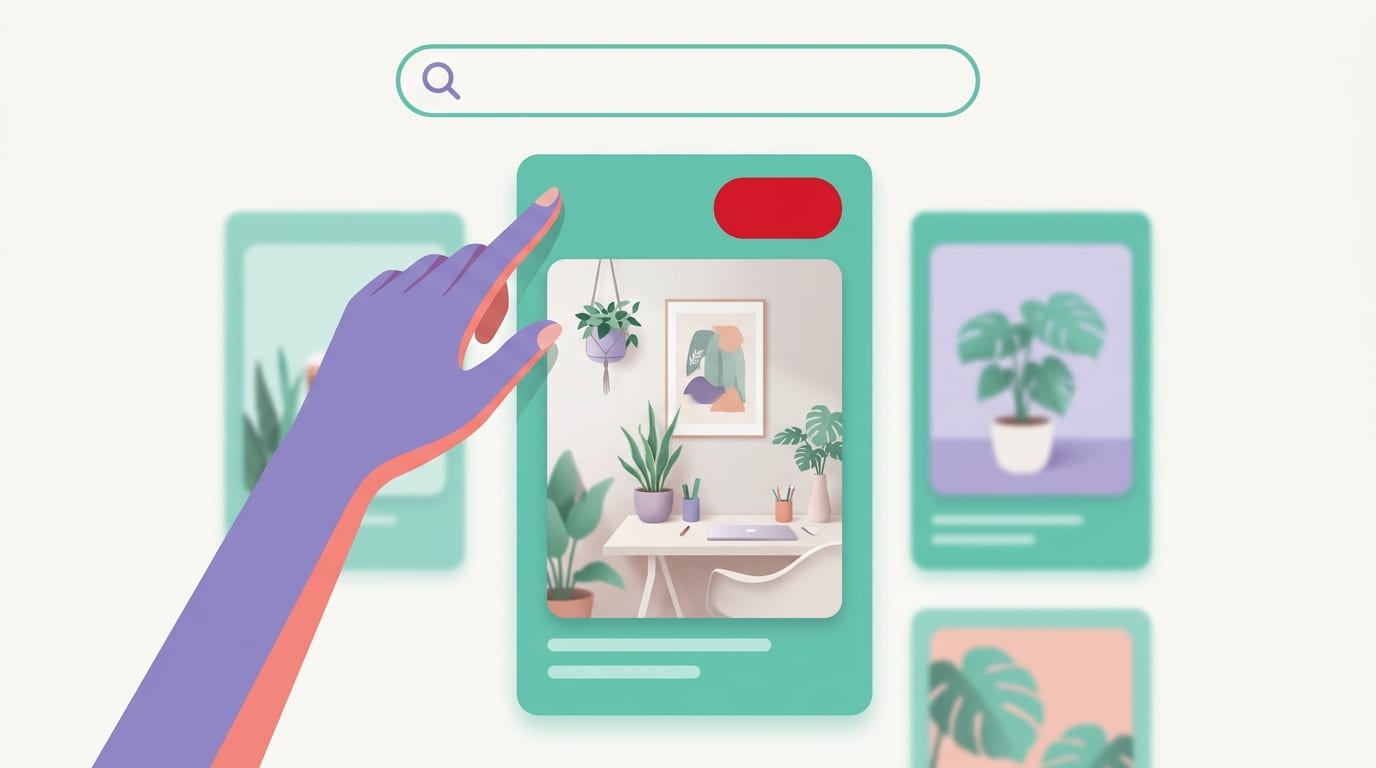
Your pin title is one of the most important SEO fields when you create a pin. It helps Pinterest understand the topic, and it helps users decide whether your pin is relevant.
A good pin title should be:
- Clear
- Keyword-rich
- Specific
- Benefit-driven
- Not stuffed with nonsense
For example, if your post is about organizing a small kitchen, a weak title might be “Kitchen Ideas.” That is vague. A stronger title would be “Small Kitchen Organization Ideas for More Counter Space.” Now Pinterest knows the topic, and users know the benefit.
Try title formulas like:
- “How to [Achieve Result] Without [Pain Point]”
- “[Number] [Topic] Ideas for [Audience or Situation]”
- “Best [Product/Idea] for [Specific Need]”
- “Beginner’s Guide to [Topic]”
- “Easy [Topic] Tips That [Benefit]”
Examples:
- How to Create a Pin That Drives Blog Traffic
- 12 Easy Spring Outfit Ideas for Work
- Best Etsy SEO Tips for Handmade Sellers
- Beginner’s Guide to Container Gardening
- Easy Meal Prep Tips That Save Weeknight Sanity
Notice that these titles are not trying to be mysterious. Pinterest is not the place for vague poetry unless your niche is literally vague poetry, in which case, carry on, moody cloud person.
If writing fresh titles for dozens of pins makes your soul leave your body, PinGenerator’s built-in AI writer can generate optimized titles and descriptions from a URL or product listing. That is especially useful when you are creating multiple pin variations for the same page and need each one to feel fresh instead of copy-pasted by a tired robot wearing slippers.
Craft the Description: Keywords, Context, and a Tiny Nudge
Your pin description gives Pinterest more context and gives users another reason to click. It should explain what the content is, who it helps, and what benefit the user will get. It should also include natural keywords.
A solid pin description usually includes:
- The main keyword or topic
- Related phrases people might search
- A clear benefit
- A soft call to action
- Natural, readable language
Here is a weak description:
“Great tips for Pinterest.”
Here is a better one:
“Learn how to create a pin for Pinterest with the right image size, readable text overlay, keyword-rich title, and optimized description. Use these Pinterest design tips to improve visibility, drive clicks, and promote your blog or products more consistently.”
That description includes the target keyword, related terms, and a clear value proposition. It sounds human. It does not read like someone dumped a bag of keywords into a blender.
Keyword stuffing is not necessary and can make your content look spammy. Pinterest works more like a visual search and discovery engine than a traditional social network, so relevance matters. If you need help researching Pinterest keywords, PinGenerator’s keyword research and trend alert features can help you spot what people are searching for before you build your content calendar. That is much better than guessing based on “I feel like people might want mushroom lamps this season.” They might. But data is less weird.
For broader context on social search and content discovery, Hootsuite’s guide to social SEO explains how platforms increasingly use keywords and content signals to surface relevant posts. Pinterest fits beautifully into that trend because search behavior has always been part of its DNA.
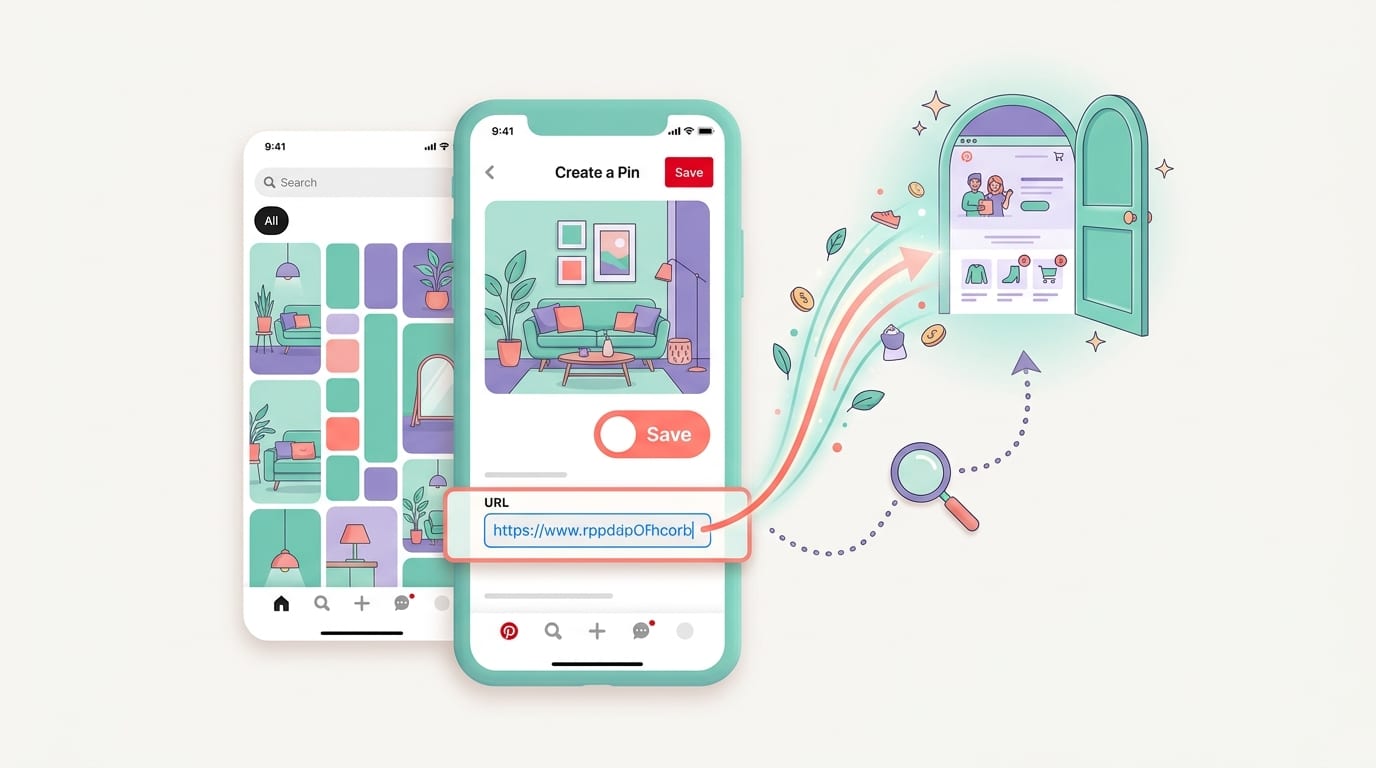
Add a Destination URL That Deserves the Click
Once your pin earns a click, the landing page has one job: deliver what the pin promised. If your pin says “DIY Wedding Centerpieces Under $20,” the landing page should not be a 2,000-word personal essay about your cousin’s parakeet before finally mentioning a mason jar. Respect the click.
Make sure your landing page is:
- Fast-loading
- Mobile-friendly
- Relevant to the pin topic
- Easy to navigate
- Clear about the next action
If you are sending traffic to a product page, include strong images, pricing, availability, shipping details, reviews, and a clear buy button. If you are sending traffic to a blog post, make the content easy to skim with headings, images, and helpful internal links. If you are sending people to a lead magnet, keep the form simple. Nobody wants to provide their blood type just to download a checklist.
This matters because Pinterest users may be in planning mode, not immediate buying mode. Your landing page should support discovery and decision-making. According to HubSpot’s marketing statistics, high-quality content and clear user experiences remain central to digital marketing performance. In plain English: getting the click is only half the sandwich. The page has to taste good too.
Pick the Right Board: Do Not File Cupcakes Under Lawn Equipment
When you create a pin, you need to choose a board. Boards help organize your content and give Pinterest additional clues about what your pin is about. A relevant board can improve your chances of being understood and distributed correctly.
If your pin is about “vegan chocolate cake,” pin it to a board called “Vegan Desserts” or “Chocolate Cake Recipes,” not “Random Stuff I Like” or “Business Growth Hacks.” Pinterest is smart, but it should not need a detective hat.
Good board practices include:
- Create boards around specific topics in your niche
- Use keyword-rich board names
- Write clear board descriptions
- Keep boards focused and relevant
- Pin fresh content regularly
Examples of strong board names:
- Small Business Marketing Tips
- Easy Weeknight Dinner Recipes
- Printable Wall Art for Home Decor
- Shopify Product Photography Ideas
- DIY Wedding Planning on a Budget
If you manage multiple brands or clients, board selection can become surprisingly time-consuming. PinGenerator supports multiple Pinterest profiles and multi-board publishing, which is handy for agencies, e-commerce sellers, and creators juggling more boards than a pirate ship convention.
Create Multiple Pin Variations: One URL, Many Tiny Traffic Boats
One of the biggest mistakes people make is creating one pin per page and calling it done. Pinterest rewards fresh content, and different users respond to different visuals and headlines. One person may click on “10 Budget Bedroom Ideas,” while another may prefer “Small Bedroom Makeover Tips That Save Space.” Same topic. Different angle.
For each important blog post, product, or landing page, consider creating several pin variations. Change the:
- Headline
- Image
- Color palette
- Template layout
- Callout text
- Description angle
- Target keyword variation
For example, if you sell handmade candles, one product listing could become pins such as:
- “Cozy Vanilla Candle for Fall Home Decor”
- “Handmade Soy Candle Gift Idea”
- “Minimalist Candle for Relaxing Evenings”
- “Best Candle for a Cozy Bedroom Aesthetic”
This is where automation becomes your best friend. Not your “texts you at 1 a.m. with drama” best friend. Your useful best friend. PinGenerator can generate dozens of unique pins from a single URL or product listing, shuffling templates and creating design variations at scale. If you want to compare workflows, this breakdown of bulk creating Pinterest pins with Canva, ChatGPT, and PinGenerator shows why manual one-by-one pin creation can get old faster than a banana in July.
You can also explore how AI fits into the process in this guide on how to create Pinterest pins with AI. AI will not replace your strategy, but it can absolutely help with the repetitive parts: titles, descriptions, variations, and faster creative testing.
Use AI Carefully: Helpful Assistant, Not Chaotic Goblin
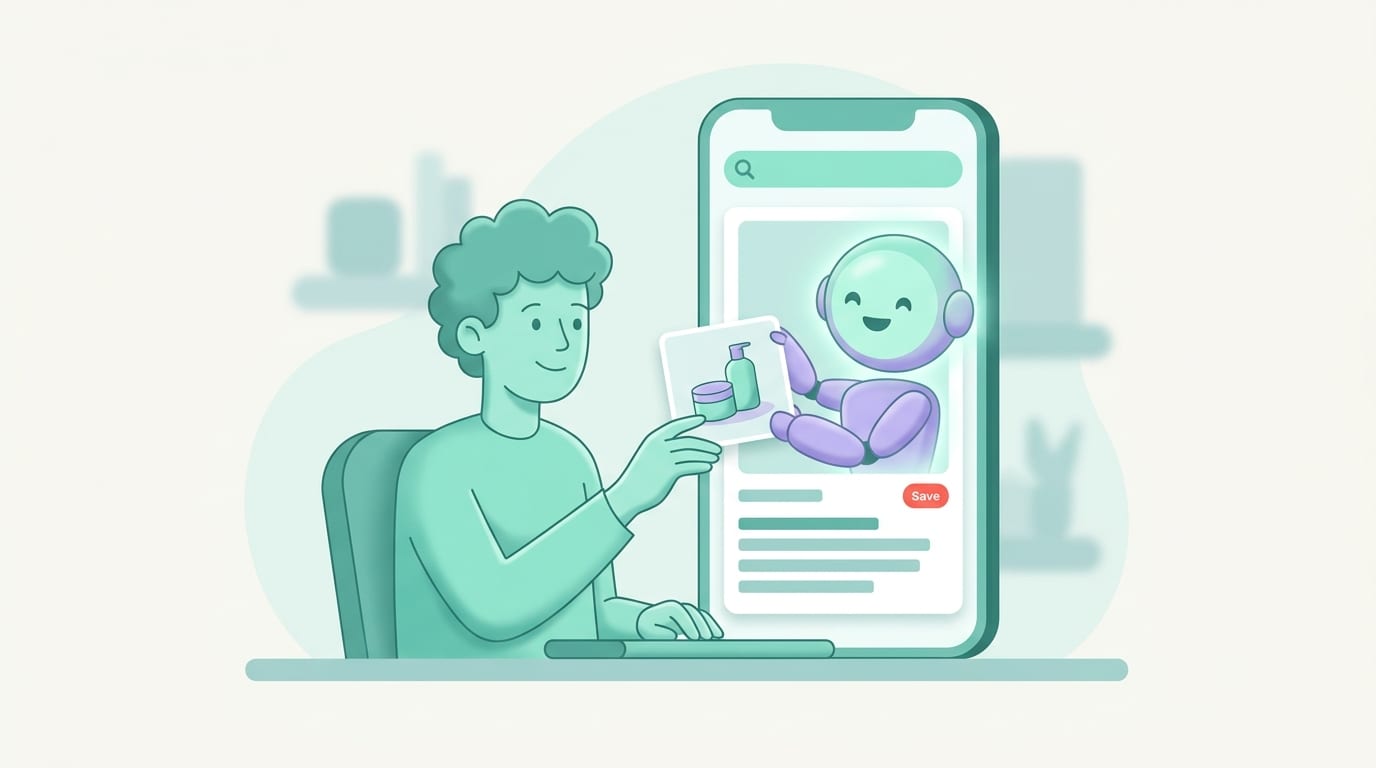
AI can make it much faster to create a pin, especially if you are producing content at scale. It can suggest titles, rewrite descriptions, generate keyword variations, create alt text, and even help brainstorm visual concepts. But AI works best when you guide it.
Instead of asking, “Write a pin description,” provide details:
- What the page is about
- Who the audience is
- What keyword you want to target
- What tone you want
- What action you want users to take
For example:
“Write a Pinterest description for a blog post about beginner container gardening for apartment balconies. Target keywords: container gardening, balcony garden ideas, beginner gardening tips. Tone: friendly and practical. Include a soft call to action.”
That prompt gives AI something useful to chew on. Without context, it may produce generic oatmeal.
PinGenerator’s AI writer is designed specifically for Pinterest content, which is different from generic AI writing. It can create pin titles, descriptions, alt text, and variations based on your URL or product data. That matters because Pinterest content needs keyword relevance, click appeal, and variation. If you want a broader look at AI tools for this exact workflow, check out this post on using AI to create Pinterest pins.
Schedule Consistently: Pinterest Likes Fresh Snacks
Creating a great pin is important. Creating great pins consistently is where Pinterest growth usually happens. One pin every six months is not a strategy. It is a postcard.
Pinterest tends to reward fresh, relevant content published regularly. That does not mean you need to post 100 pins a day while whispering affirmations to your analytics dashboard. It means building a sustainable rhythm. For some creators, that might be 3-5 fresh pins per day. For others, it may be fewer. The key is consistency over time.
A practical weekly workflow might look like this:
- Choose 3-5 URLs or products to promote.
- Create 3-5 pin variations for each.
- Write optimized titles and descriptions.
- Assign each pin to relevant boards.
- Schedule them throughout the week.
- Review performance monthly and create more of what works.
Scheduling helps you avoid the “panic pinning at midnight” lifestyle, which sounds glamorous until you realize you are eating cereal from a mug and naming your templates things like “final_FINAL_reallyfinal_7.”
PinGenerator includes bulk scheduling, direct publishing to Pinterest, repeating pins, and RSS feed automation. That means you can turn blog posts into pins automatically, schedule content across boards, and keep your best content circulating without manually babysitting every publish button. For e-commerce sellers, integrations with Shopify, Etsy, and WooCommerce make it possible to import products and create pins directly from listings.
Measure What Works: Analytics, Not Vibes in a Trench Coat
After you create a pin and publish it, do not simply hope for the best and wander into the mist. Track performance. Pinterest analytics can show impressions, saves, outbound clicks, engagement, and top-performing pins.
Important metrics include:
- Impressions: how often your pin was shown
- Saves: how often users saved your pin to boards
- Outbound clicks: how often users clicked through to your website
- Engagement rate: how actively users interacted with the pin
- Top boards: which boards are helping distribution
Do not judge a pin too quickly. Pinterest content can take time to gain traction. Some pins start slowly and pick up speed later as Pinterest understands the content and tests it with relevant audiences. Give your pins enough time before declaring them flops and dramatically staring out a rainy window.
Look for patterns. Are list-style headlines performing better? Are product lifestyle photos getting more clicks than plain product images? Do darker backgrounds underperform? Are seasonal pins taking off two months before the holiday? Use that information to create better future pins.
For general social media measurement principles, Buffer’s guide to social media analytics is a useful resource. The platform may differ, but the idea is the same: measure, learn, improve, repeat. Preferably with snacks.
Common Pin Creation Mistakes: The Tiny Gremlins of Pinterest Marketing
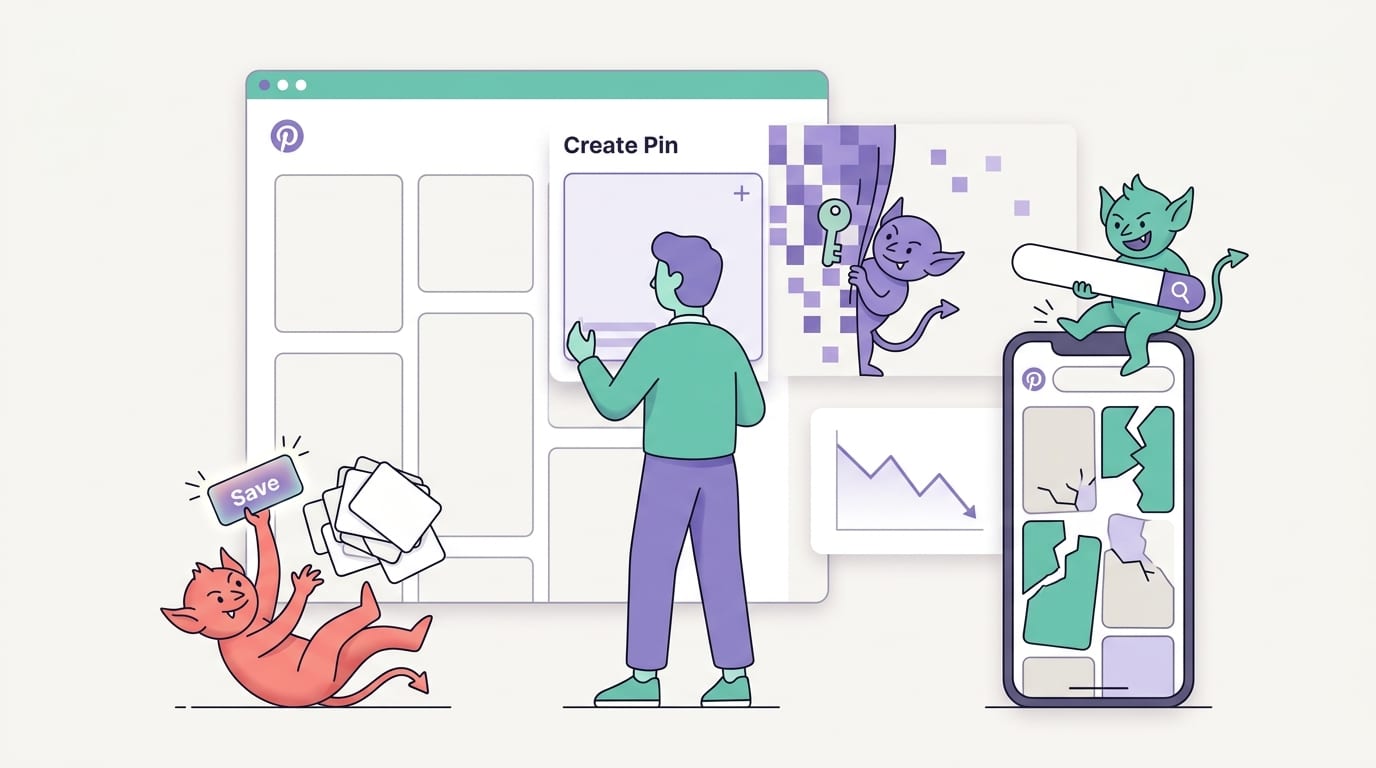
Even smart marketers make Pinterest mistakes. The good news is that most are fixable. The bad news is that some of them are wearing tiny hats and hiding in your workflow.
Here are common mistakes to avoid:
- Using unreadable text: If users cannot read it on mobile, they will scroll past.
- Choosing weak images: Blurry, dark, or irrelevant images reduce trust.
- Skipping keywords: Pinterest needs textual clues to understand your content.
- Linking to irrelevant pages: Misleading pins hurt user experience and trust.
- Pinning inconsistently: Bursts of activity followed by silence make growth harder.
- Using only one design: Multiple variations help you test what resonates.
- Ignoring analytics: Data tells you what your audience actually likes.
Another sneaky mistake is designing pins only for aesthetics. Pretty is nice. Clear is better. A beautiful pin that fails to communicate its value is like a gorgeous restaurant menu with no food names. “Velvet moonbeam reduction” sounds fancy, but am I getting pasta?
Design should serve the click. Your pin should quickly answer: What is this? Who is it for? Why should I save or click it? If your design answers those questions, you are on the right path.
A Simple Step-by-Step Workflow to Create a Pin Today
Let’s bring everything together into a practical workflow. If you want to create a pin today, follow these steps:
- Choose your destination URL. Pick a blog post, product page, or landing page that provides real value.
- Identify the main keyword. Use Pinterest search suggestions, keyword tools, or PinGenerator’s keyword research feature.
- Select a vertical format. Use a 2:3 ratio, such as 1000 x 1500 pixels.
- Choose a strong image. Make sure it is clear, relevant, and high-quality.
- Add readable text overlay. Focus on the benefit or specific topic.
- Write a keyword-rich title. Keep it clear and compelling.
- Write a helpful description. Add context, related keywords, and a soft call to action.
- Assign the pin to a relevant board. Match the board topic to the pin topic.
- Publish or schedule it. Add it to your consistent Pinterest schedule.
- Review performance later. Use analytics to guide future pin variations.
If you only need one pin, you can do this manually. If you need ongoing Pinterest content, which most serious bloggers, sellers, and marketers do, automation will save a ridiculous amount of time. PinGenerator lets you paste a URL, import products, choose templates, generate AI titles and descriptions, and schedule pins in bulk. It is designed for people who want Pinterest traffic but do not want to spend their afternoon nudging text boxes three pixels to the left.
Final Thoughts: Create a Pin, Then Create a System
Learning how to create a pin is step one. Building a repeatable Pinterest workflow is where the magic gets less magical and more profitable. And honestly, that is the best kind of magic. The kind with analytics.
A successful pin needs the right size, strong visuals, readable text, keyword-rich titles, helpful descriptions, relevant boards, and a destination page that delivers on the promise. But one good pin is only the beginning. Pinterest success usually comes from consistent publishing, testing multiple variations, and improving based on data.
If you are a blogger, each article can become a collection of fresh pins. If you are an e-commerce seller, each product can become several visual angles. If you are an agency, each client can have a repeatable pin creation engine instead of a weekly design marathon fueled by coffee and mild panic.
And if you want to speed all of that up, PinGenerator can help you create, write, schedule, and publish Pinterest pins at scale. It is trusted by over 34,000 companies, offers a free plan to test the waters, and combines templates, AI writing, keyword research, scheduling, and e-commerce integrations in one Pinterest-specific platform.
So go create a pin. Better yet, create twenty. Make them clear, useful, searchable, and pretty enough to earn a second glance. Your future website traffic may thank you with a tiny parade. Probably no confetti cannons, but on the internet, we take what we can get.