
A Guide On How To Delete A Pinterest Account
6 August 2023
Whether you’re using it for business or personal use, there is no doubt that Pinterest is an incredible tool. However, if, for some reason, you find yourself wanting to get off the platform, we’re here to show you how to delete a Pinterest account.
Deleting a Pinterest account means that you’re erasing your profile and all of the boards you’ve created or pinned — permanently. So, it’s important that you carefully assess the decision on whether you want to delete Pinterest account.
Luckily, the steps to follow are easy and straightforward, and we’re here to show you how to delete Pinterest permanently.

Reasons Why Someone May Delete a Pinterest Account
Did you know that Pinterest is a great tool for businesses?
Not only can it be used to make money, but it’s also an effective way for businesses to gain exposure. But what happens when your business no longer exists?
Below are common reasons that people decide to delete their Pinterest account.
- Lack of interest or decreased usage of the platform
- Concerns about privacy and data security
- Desire to take a break from social media or reduce online presence
- Need to declutter and simplify their online accounts
- Transition to other social media platforms that better suit their preferences
- Frustration with the platform’s features or user experience
- Personal reasons, such as life changes, time constraints, or shifting priorities
- Unwanted or harmful interactions with other users
- Annoyance with excessive advertising or promotional content
- Concerns about content ownership and copyright issues
- Company or business closure, leading to the need to shut down associated accounts
An active Pinterest account will lead users to think that they are still able to buy your products or services. Not only does this waste their time, but it also makes for a bad Pinterest experience.
In this case, you’d want to delete your account to prevent a bad user experience.
However, if you want to take a break from the platform, you may want to consider simply deactivating your account. If you’re unsure whether you want to lose your Pinterest account forever, then we recommend deactivating it instead.
How to Deactivate Your Pinterest Account
If you’ve read our blog post on how to delete a board on Pinterest, then you’ll know that deleting something on the platform means that it is gone for good. The same goes for deleting a Pinterest account.
If you’re still unsure whether you want to give it all up, another less permanent option exists.
If you want to choose a less permanent route, you’ll want to deactivate your account. Users cannot see your profile with this option, but all your data will be stored safely on the site.
So, what happens when you deactivate your account? Deactivating a Pinterest account means your profile is no longer visible to the public. However, should you change your mind, all you need to do is log in, reactivate your account, and pick up where you left off.
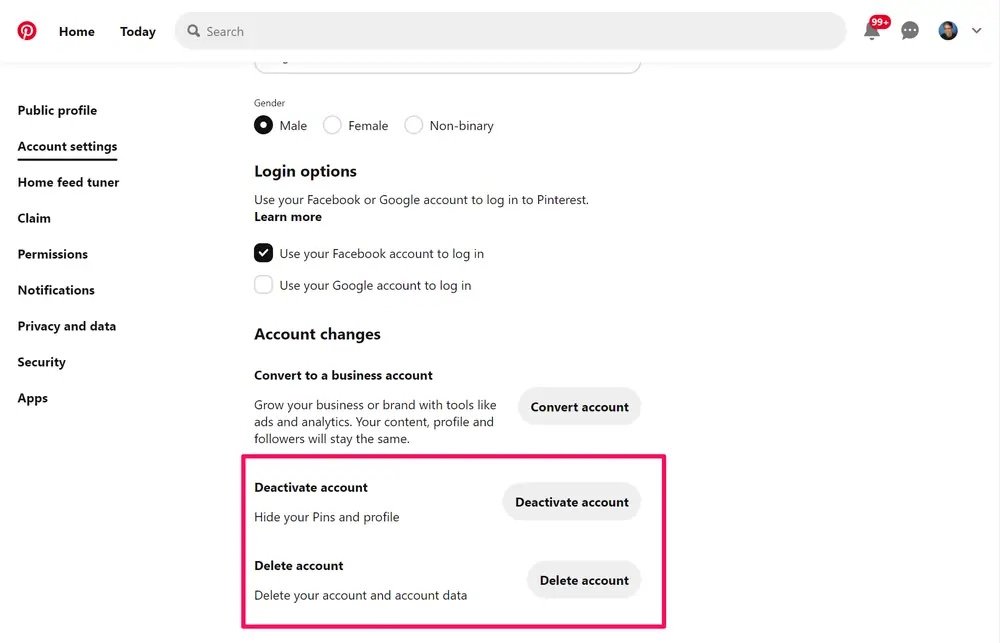
To deactivate your personal or business Pinterest account from a computer, all you need to do is follow these simple steps:
- Open and log in to Pinterest with your Pinterest login password
- In the top right-hand corner, click on the down arrow to bring up your menu
- From the menu, select settings
- Select account settings from the left-hand side of the screen
- Scroll down and select deactivate account under Account changes
- Click next and tell Pinterest your reason for deactivation
Once you’ve completed these simple steps, check to see that your account is no longer visible.
To do this, use your profile URL because logging in will reactivate your Pinterest account. A Pinterest URL example for an account is https://www.pinterest.com/username/.
If you’re interested in how to reactivate your Pinterest account, then we’ve got the answers. Simply log in with your existing credentials and follow the reactivation prompts provided by the platform.
Steps to Deleting Your Pinterest Account
The steps for deleting Pinterest accounts on a computer are just as simple as deactivating them!
If you’re certain that you want to remove your account and all of its data permanently, then all you have to do is:
- Open and log in to Pinterest
- In the top right-hand corner, click on the down arrow to bring up your menu
- From the menu, select Settings
- Select Account settings from the left-hand side of the screen
- Scroll down to account changes and select Delete account
- Tell Pinterest why you’re leaving the platform
- Click Continue for them to send an email with the final steps
Note that deleting a Pinterest business account used to create ads can be more complicated. If this is the case, you’ll need to contact Pinterest for assistance. Before they can help remove your account, be aware that you’ll need to settle any outstanding payments with them first. After that, your account will be deactivated immediately, but it may take up to 14 days for your account to be removed forever.
You can stop the process if you change your mind about deleting your Pinterest account within these 14 days. To do this, you’ll need to log in with your details, and Pinterest will send you a link to reactivate your account.
What Do You Lose Access to When Deleting Your Pinterest Account
Once you delete your account, this action is irreversible, and you won’t be able to recover any of the data or information associated with the deleted account.
The following data is lost when you delete a Pinterest account:
- Access to your profile and all the Pinterest boards you’ve created
- All the pins, Pinterest images, and content you’ve saved on your boards
- Your followers and following lists
- Any personalized recommendations and suggestions based on your activity
- All account settings and preferences, including notification preferences
- Collaborative boards that you were part of or managed
- Messages and conversations with other users
- Any data associated with your account, including analytics and insights
- Ability to log in with your deleted account and all related account history
If you’re asking yourself how to delete Pinterest boards or how to delete followers on Pinterest, then remember that these data points are lost when deleting an entire account.
Common Questions About Deleting Pinterest Data
Here are some common questions and answers to help you understand the process of deleting Pinterest data and its implications.
How to delete notifications on Pinterest
To delete notifications on Pinterest, follow these basic instructions:
- Log in to your Pinterest account on the web or mobile app
- Click on the bell icon at the top right corner of the screen to access your notifications
- Find the notification you want to delete and hover your cursor over it
- Click on the “three dots” icon (ellipsis) next to the notification
- Select the Delete option from the drop-down menu.
When deleting notifications, you are making a permanent decision that will leave no record of the notification. That may lead to missed information and limited context but also contribute to a cleaner notification feed.
How to delete followers on Pinterest
Unlike other social media platforms, Pinterest doesn’t provide a direct “remove follower” option.
If you want to limit someone’s access to your Pinterest content, you have a few options:
- Make Your Account private so you can control who can follow you and see your pins
- Block a user if there’s a specific follower you want to restrict from interacting with your account
- Remove a follower from a board, removing them from that specific board without directly deleting them as a follower
How to delete boards on Pinterest
To delete boards on Pinterest, follow these basic instructions:
- Log in to your Pinterest account on the web or mobile app
- Go to your profile by clicking on your profile picture or username
- Scroll down to view your list of boards
- Find the board you want to delete and click on it to open it
- Once the board is open, click the Edit button (pencil icon) in the top-right corner of the board cover image
- In the edit menu, select the Delete Board option
- Pinterest will ask you to confirm the deletion. Click on Delete again to delete the board permanently
When deleting boards, you’ll be making a permanent decision that can lead to the loss of pins and broken links. Deleting boards may impact followers and have a negative organizational impact. Take note that if a board is a collaborative board with multiple contributors, deleting it will remove their access and contributions.
How to delete Pinterest pins
To delete Pinterest Pins on Pinterest, follow these basic instructions:
- Log in to your Pinterest account on the web or mobile app
- Go to your profile by clicking on your profile picture or username
- Scroll down to view your list of boards
- Click on the board containing the pin you want to delete to open it
- Find the specific pin you wish to delete and click on it to open it in full view
- In the pin’s full view, click on the “three dots” icon (ellipsis) in the top-right corner of the pin
- Select the Delete option from the drop-down menu
- Pinterest will ask you to confirm the deletion. Click on Delete again to delete the pin permanently
You will lose the content by permanently deleting a pin and risk a broken link.
Keep in mind that if a pin is on multiple boards, then deleting it from one board will not affect its presence on other boards. However, if your pin was saved by other users to their boars, then deleting it will remove it from their boards as well.
Choose Pin Generator As Your Pinterest Automation Solution
As a starting point, this guide offers insight on how to delete your Pinterest account.
There are certain instances when you may want to delete a Pinterest account, such as a business closing down. However, if it’s because you don’t have the time or funds to create high-quality content, then we’d like you to head over to Pin Generator’s software before doing anything else.
Pin Generator is a Pinterest automation solution that solves all your content creation and posting problems. By creating high volumes of content in a matter of seconds, you can focus your energy on other aspects of your business.
Not only does Pin Generator give you an easy way to create content, but it is also a scheduler, meaning that your content will be posted at the time and day of your choosing, even if you’re not on your screen!
Running a Pinterest business account can be overwhelming, so let Pin Generator remove some of that stress. Start creating the pins of your dreams today with Pin Generator and enjoy all of their added benefits.