
How To Follow Topics On Pinterest
18 November 2021
Are you tired of seeing the same things on your Pinterest home feed and wanting to give it a revamp? Then we’d like to show you how to follow new topics on Pinterest.
Pinterest is an image-based platform that has over 200 billion pins already posted so the chances of you finding what you’re looking for are great! If you have the time, you could spend hours getting lost in all the content.
However, if your time is limited, searching through so many pins can be extremely overwhelming. This is where being able to follow Pinterest topics comes in handy!
By following different topics on Pinterest, your home feed will be riddled with the most popular pins from the topic you’re interested in. This means that you’ll find what you’re looking for a lot faster.
By doing this, you are saving precious time which is why Pin Generator would like to show you how to follow topics on Pinterest.
Steps on How to Follow Topics on Pinterest
How could one describe a Pinterest topic? Essentially, it’s a subject that you find interesting or inspiring. It could be anything from comic books to DIY projects.
Pinterest is constantly changing to make the platform experience as enjoyable as possible for all of its users. Since it began, Pinterest has been focusing more on the use of keywords to help the user find images that they’re looking for, faster.
Keyword research will show you which words the user is most likely to search when looking for a specific image. These keywords should then be incorporated into the pin’s title and description so that they will appear when those words are searched.
The use of keywords allows users to follow a topic instead of following pinners. Let’s take a look at how you follow a topic on Pinterest.

1. Open Pinterest
Open the link www.pinterest.com and log into your account. If you haven’t already got an account, you’ll need to sign up and fill in a few details.
2. Click on Categories
After logging in, click on the button that says “Categories”. The placement will vary according to your account but it should be found in the top right corner of your screen. If you’re unable to find it, use the link www.pinterest.com/categories.
3. Choose a Category That Interests You
You should see a number of different categories on your screen. Click on the one that you’re most interested in seeing on your page.
4. Click on a Topic That Falls Under the Category
After you’ve chosen your category, a list of topics that fall under the broad category should appear. Once you’ve chosen a topic that you enjoy, a list of subtopics will appear with a number of different pins.
5. Press ‘Follow’ to Add It to Your Home Feed
At this stage, you have the option to follow a topic or one of its subtopics. You can do this by clicking on the big, red ‘Follow’ button.

How to Create Pins for Your Own Topics Using Pin Generator
As the owner of a Pinterest business account, you should know the topics that interest your audience. This means that you’ll need to try and get your pins to appear on these topic pages.
How do you do that? By creating high-quality, eye-catching content and posting it consistently. Unfortunately, this can be an extremely time-consuming task, unless you’re using Pin Generator.
Pin Generator is a Pinterest automation solution that creates a high volume of quality pins in a matter of seconds. It does this by gathering images and information from your website and turning them into pins.
This software allows you to create very specific or general pins, depending on what you’re after. Once you’re on the Pin Generator website, you will need to:
- Copy and paste the URL into Pin Generator. To create more general pins, use your website’s URL and to create specific blog or product pins use their individual URLs from your website
- Pin Generator then scans your website, collecting information on its posts, pages and products
- After it has collected the information, it uses the photos, blog titles and meta data to create the perfect pins for you.
- If you’re not happy with the layout, you can click on the ‘shuffle’ button to try different templates
- Once you’re happy with your designs, you are given the options to post the pins directly, download them for later use or schedule them.
Start Creating With Pin Generator Today
If you’re trying to make money from Pinterest, your pins need to appear in topics and on the home feed of your audience. Pin Generator can help them get there by creating eye-catching content.
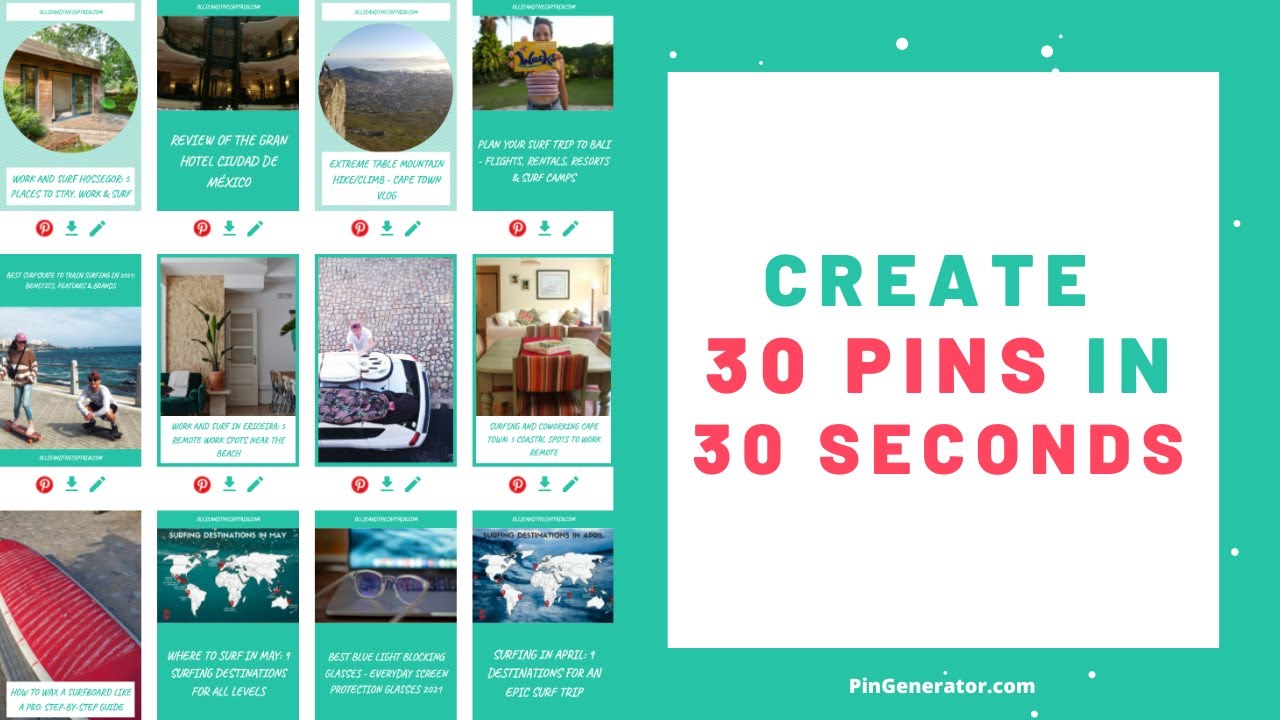
Not only will Pin Generator save you time, but its various design elements allow you to add a personal touch to each pin. So what are you waiting for? Start creating with Pin Generator today!