
How to Pin From a Website A Practical Guide
13 September 2025
So, you want to pin an image you found on a website? You've got a few ways to do it. The easiest is probably the official Pinterest browser button, which lets you save stuff with just one click. You can also go the old-school route: manually copy the website's URL and paste it into Pinterest, or even download an image and then upload it, making sure to add the source link back.
Each of these methods gets your content organized and saved straight from the source onto your Pinterest boards.
Why Pinning Directly From Websites Matters
Before we jump into the "how-to," let's talk about why this is such a big deal. Pinning content directly from a website does way more than just save a pretty picture. It creates a powerful, direct link right back to where it came from. This simple action is what fuels content discovery and drives a ton of referral traffic on the platform.
Think about it. A food blogger sees a massive wave of visitors hitting their new recipe right after people start pinning it. Or an interior designer puts together a client's mood board using specific products from a dozen different online shops. In both cases, pinning from the source website is a strategic move, not just a casual save.
The Real Impact on Discovery and Traffic
Getting the hang of pinning from a website isn't just a technical skill—it's a critical move for anyone looking to grow a brand, plan a project, or just curate the web's best content for their own inspiration. It's all about connecting fantastic content with Pinterest's super-engaged audience.
And that audience is huge. The platform's influence is massive and only getting bigger.
Here's why this matters so much:
- It Sparks Content Discovery: Every single Pin acts like a digital signpost, guiding new audiences back to the original blog post, product page, or article.
- It Drives High-Quality Traffic: People who click through from a Pin are usually genuinely interested in the content. This means they stick around longer on your site, leading to lower bounce rates and better engagement.
- It Builds Authority and Backlinks: When other people pin your content, it creates a whole network of backlinks. This signals to search engines that your content is valuable, which is great for SEO.
Pinterest isn't just another social network; it’s a visual discovery engine. Every Pin saved from a website is like a vote of confidence in that content, cranking up its visibility to a massive, purchase-ready audience.
The scale of this ecosystem is pretty staggering. As of early 2025, Pinterest has around 570 million monthly active users. These users are saving roughly 1.5 billion Pins every single week.
Even more impressive? A whopping 85% of weekly Pinners have bought something directly because of content they found on the platform. You can discover more insights about Pinterest user stats and their impact here. Learning to pin properly is what connects great web content to this massive, active community.
Using the Pinterest Browser Button for Easy Pinning
If you're looking for the absolute fastest way to pin something from a website, the official Pinterest browser button is your best friend. Seriously, it's a one-click tool that lives right in your browser's toolbar, always ready for when you stumble across a great idea.
Forget copying URLs or saving images to your desktop first. This little extension cuts out all the tedious steps and lets you save content seamlessly while you browse.
Getting the Browser Button Set Up
Getting started is a piece of cake. The extension is available for all the big browsers like Chrome, Firefox, and Safari. Just pop over to the official Pinterest browser button page and follow the prompts. The whole process takes less than a minute.
Once it’s installed, you’ll spot that classic red Pinterest "P" icon up in your toolbar. That's when the fun starts.
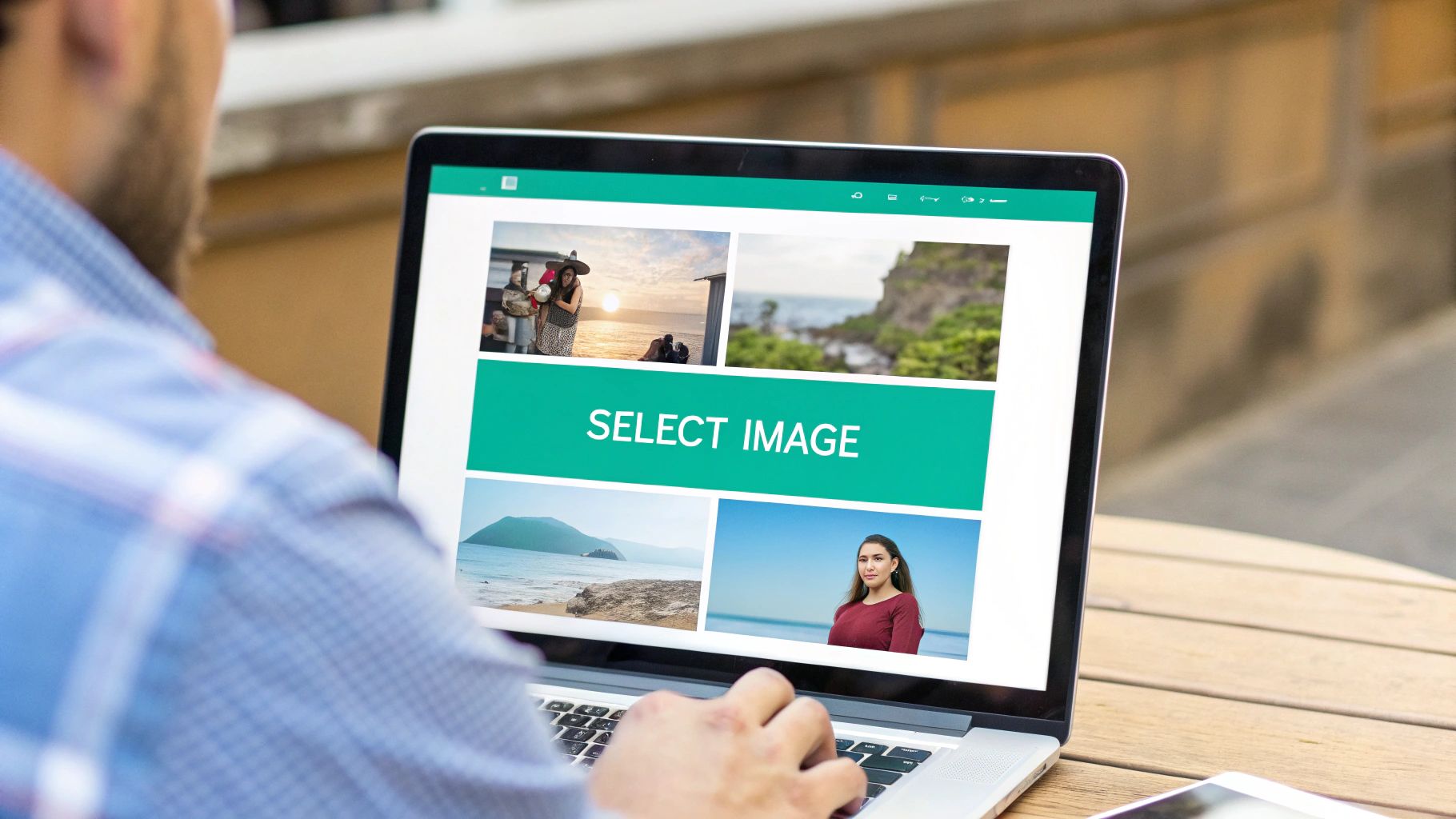
Now, as you're browsing the web, just click that icon whenever you find a page with an image you want to save. The extension immediately scans the page and pulls up a grid of all the pinnable images, just like in the screenshot above.
This visual grid is what makes it so powerful—you can see everything at a glance without ever leaving the site you're on. Just hover over the image you like best and hit "Save."
Pro Tip: If a page has multiple images, always go for the one that's high-quality and vertically oriented. Vertical images are a huge deal on Pinterest; they take up way more space on mobile feeds and get much better engagement. Trust me on this.
Fine-Tuning Your New Pin
Once you’ve picked your image, a pop-up window appears. This is where you can work your magic to make sure people actually find your Pin.
Don't skip these steps:
- Pick the Right Board: Don't just dump it into a generic "Cool Stuff" board. Be specific. A recipe for sourdough bread should go into your "Artisan Bread Baking" board, not just "Recipes." Niche boards perform better.
- Write a Killer Description: The button usually pulls some text from the page, but you should almost always tweak it. Sprinkle in relevant keywords and maybe a little call-to-action. Instead of a bland product name, try something like, "Spotted this amazing Scandi-style armchair—perfect for a cozy reading nook!"
Using the browser button this way doesn't just keep you organized. It primes every single Pin to get discovered by other people looking for the exact same thing. It’s hands-down the most efficient way to turn your casual browsing into a powerhouse of curated inspiration.
When to Use Manual Pinning for Better Control
The Pinterest browser button is a fantastic shortcut for quick pinning, but let's be real—it's not always perfect.
Sometimes a website's code just doesn't play nice with the extension. Other times, it might stubbornly refuse to pull the exact image you're trying to save. When you hit these roadblocks, knowing how to pin from a website manually is your secret weapon. It puts you back in the driver's seat.
Think of manual pinning as your go-to workaround. It guarantees you can save that perfect piece of inspiration from almost anywhere, even from sites that seem to block pinning tools. Yes, it takes a few more clicks, but the payoff is total control over what you're pinning and where it links.
Two Key Manual Pinning Methods
There are a couple of ways to tackle this, and each one is useful in different situations.
- Pinning by URL: This is the most straightforward manual approach. Just grab the URL of the page you love, pop over to Pinterest, and paste it right into the Pin creator. Pinterest then does the heavy lifting, scanning the page and showing you all the images it can find. You just pick the one you want. Simple.
- Saving and Uploading: This is your best bet when a site actively blocks direct pinning, or if you only want to use a small, specific part of a larger image. You start by saving the image directly to your computer. Then, you'll need to know how to upload pictures to Pinterest. The crucial final step? Manually adding the original source URL. Don't skip this!
This chart gives you a quick visual breakdown of the pros and cons of each method.
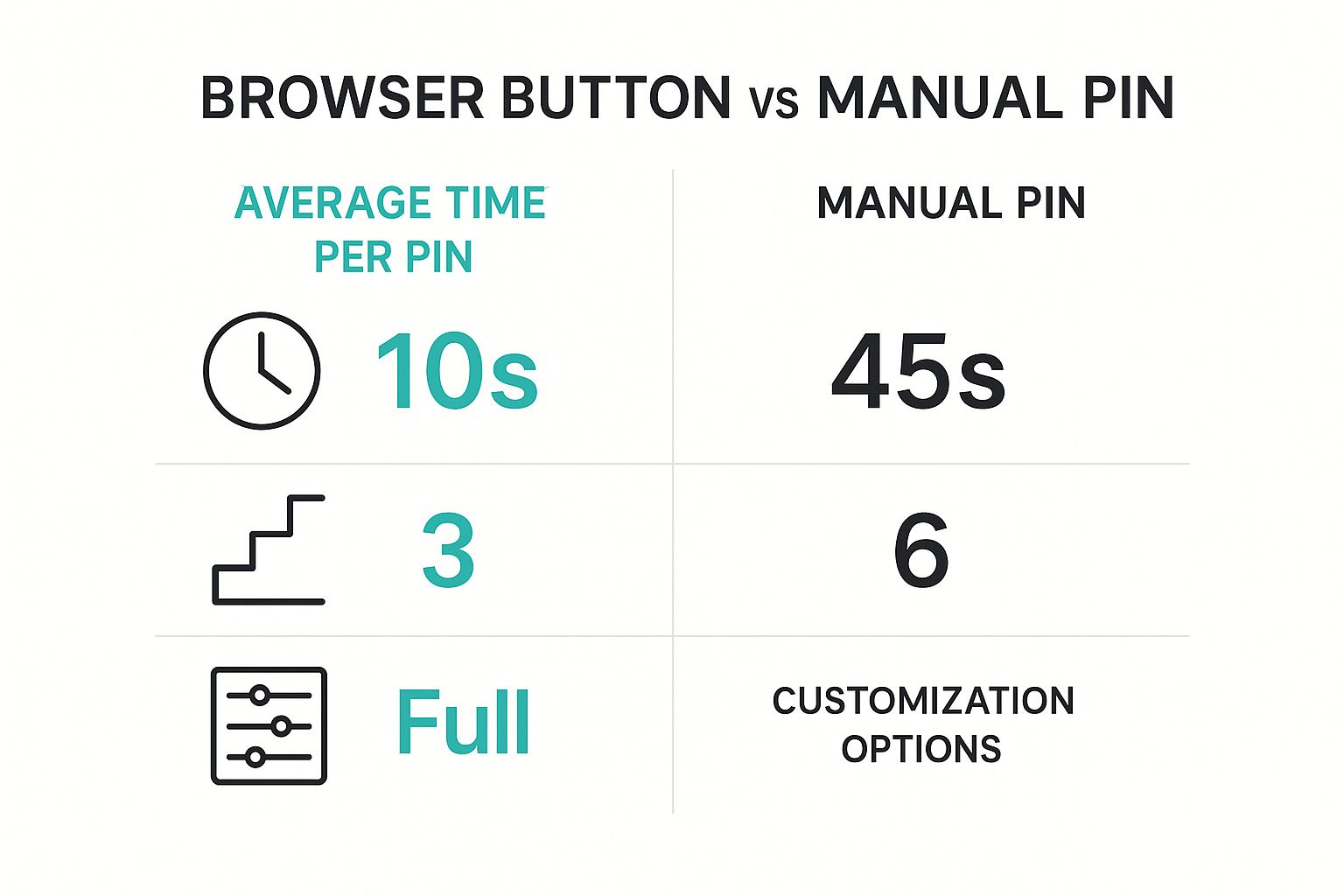
As you can see, what you trade in speed with manual pinning, you gain back in control and customization.
Comparing Pinning Methods
To help you decide which method to use on the fly, here's a quick comparison of the three main options for pinning from a website.
| Method | Speed & Ease | Control | Best For |
|---|---|---|---|
| Browser Button | Very Fast | Low | Quickly saving images from pin-friendly sites. |
| Pin by URL | Moderate | Medium | When the browser button fails but the site allows image scraping. |
| Save & Upload | Slowest | High | Tricky websites, or when you need to edit an image before pinning. |
Ultimately, having all three of these techniques in your toolkit means you'll never be stuck, no matter what a website throws at you.
Crucial Reminder: Always, always, always link back to the original source. Correctly attributing content is non-negotiable on Pinterest. It’s about respecting the creator's hard work and, just as importantly, giving your followers a path to discover the original article, recipe, or product. That’s what makes the platform so valuable.
Optimizing Your Pins to Maximize Their Reach
Alright, so you know how to get an image from a website onto Pinterest. But that's just the starting line. If you want your Pins to actually get discovered and drive traffic, you need to put in a little extra work.
A few simple optimization tweaks can be the difference between a Pin that sinks without a trace and one that goes viral. It's all in the details. A compelling, SEO-friendly description is non-negotiable. You have to think like your audience: what words would they type into the search bar to find what you're offering? Weave those right into your text.
Crafting a Powerful Pin Description
Think of your Pin description as its sales pitch. Leaving it blank or just using the default text from the website does absolutely nothing to help you get found. Your goal is to write something that speaks to both a real person scrolling their feed and the Pinterest algorithm.
Let's say you're pinning a recipe for vegan lasagna.
- Before (Bland): "Vegan Lasagna Recipe"
- After (Optimized): "Discover the best creamy vegan lasagna recipe! This easy, plant-based dinner idea is perfect for a cozy family meal. Made with simple ingredients, it's a healthy and delicious comfort food classic everyone will love."
See the difference? The "after" version is packed with keywords like "plant-based dinner idea," "easy," and "healthy comfort food" that will attract a much bigger audience. To really get the most out of your Pinterest efforts, it helps to see how pinning fits into your larger social media content planning strategies.
Strategic Board and Image Choices
Where you save your Pin is just as important as the Pin itself. When you save your content to a relevant, well-named board, you're giving Pinterest a massive clue about what your content is about. This helps the platform show your Pin to the right people.
Ditch generic boards like 'Food.' Get specific. Create boards like 'Quick Vegan Dinner Recipes' or 'Healthy Weeknight Meals.' This targeted approach helps your Pins rank higher in search results for those very specific topics.
The shape of your image is another huge factor. Vertical images are king on Pinterest because they take up more screen real estate on mobile feeds, which is where most users are. If you're not sure about the exact sizes, check out our guide on the ideal Pinterest image dimensions. It'll make sure your visuals are perfectly formatted for maximum impact.
Don't just pin and forget. Use Pinterest's own tools to see what's working. By checking your analytics, you can spot which Pins are driving the most traffic and engagement, allowing you to double down on what your audience loves.
The platform’s own analytics are a goldmine. You can track crucial metrics like impressions, engagement, top-performing Pins, and clicks through to your website. This creates a powerful feedback loop. I recommend checking this data at least once a month to fine-tune your strategy and get a better feel for what your audience is really into.
What to Do When Pinterest Won't Let You Pin
Ever tried to pin something from a website, only to hit a brick wall? It’s frustrating. The browser button might be missing, or you get a cryptic error message. Don't throw in the towel just yet. It's almost always a technical hiccup, not a dead end.
You might see a warning like "could not fetch images." This is super common on sites that use modern image formats (like WebP) or fancy code that the Pinterest extension just can't decipher. Other times, the only images you can grab are tiny, blurry thumbnails—completely useless for creating a scroll-stopping Pin.
Getting to the Bottom of It
Before you can fix the problem, you need to play detective. A few usual suspects are behind most pinning failures.
- "No-Pin" Tags: Some site owners deliberately block pinning. They add a snippet of code (
<meta name="pinterest" content="nopin" />) to their pages that tells Pinterest "hands off." This isn't a bug; it's an intentional choice. - Weird Web Design: The website's design might be the culprit. If images are embedded as background elements or hidden within a complex JavaScript gallery, the Pinterest extension often can't "see" them as separate, pinnable pictures.
- Tiny Images: The page might only have small, low-resolution photos. Pinterest has minimum size requirements, so if the images are too small, the extension will simply ignore them.
When the automated tools fail you, it's time to go manual. The simplest workaround is to save the image you want directly to your computer. From there, you can upload it straight to Pinterest. Just remember to always go back and add the source URL to the Pin to give the original creator their credit.
Common Questions People Have About Pinning
Even with the best tools, a few questions always seem to pop up when you're getting the hang of pinning from a website. Let's tackle a few of the most common ones so you can pin with total confidence.
Figuring out the little details and unspoken rules is what separates pinning for fun from pinning to grow your business. It's all about sharing great content while making sure you give credit where it's due.
Is It Okay to Pin Any Image From a Website?
This is a big one. While most of the web is built for sharing, you've got to respect copyright. It's pretty simple: if a website has a big ol' "Pin it" button plastered everywhere, they're practically begging you to share their stuff. That's your green light.
If you don't see one, it's smart to quickly check their terms of use page. It might sound like a hassle, but it's better to be safe.
The golden rule? Always, always make sure your Pin links back to the original source. Steer clear of pinning images with obvious copyright watermarks or any text that explicitly says not to share.
Why Are There No Good Images to Pin on a Page?
Ugh, this is so frustrating, right? You find the perfect article, but when you go to pin it, the image options are terrible or nonexistent.
This usually happens for a few technical reasons. The site might be using a funky image format Pinterest doesn't like, the pictures could be way too small, or the site owner might have put in a special bit of code to block pinning altogether.
When you hit this wall, your best bet is to do it the old-fashioned way:
- Save an image from the page or take a screenshot (as long as you have permission).
- Upload it directly to your Pinterest account.
- Manually add the correct source URL. This is the crucial step to make sure the original creator gets the credit and the traffic.
Can You Pin From Instagram or Other Social Media?
Technically, yes, you absolutely can. You can usually just copy the post's URL and paste it into Pinterest to create a Pin. But just because you can doesn't always mean you should.
Here's the thing: the real magic of Pinterest is its power to drive traffic back to your own turf—your blog, your shop, your website.
When you pin from another social platform like Instagram, you're often just keeping people hopping between apps. That doesn't help you much. For the best results, always prioritize pinning directly from the original source website whenever you can track it down.
Tired of spending your life creating Pinterest content? With Pin Generator, you can whip up and schedule dozens of amazing Pins in just a few seconds. It’s the fastest way to drive real traffic to your site without all the manual work. Start automating your Pinterest marketing today.