
How to Set Up a Pinterest Business Account in 2026
14 July 2026
If you’ve been thinking about getting started on Pinterest for your business but you’re not sure how to set up an account, you’re in the right place. Pinterest reached 631 million monthly active users in Q1 2026, and these users are 90% more likely than users on other platforms to shop. This is an excellent audience to tap into as a shop owner, as Pinterest users are actively looking to discover, save, and buy, and a Pinterest business account is how you get your content, products, and links in front of them.
Setting up a Pinterest business account is completely free and takes less time than most people expect. We’ll walk through everything you need to know, from creating your account to optimizing your profile, setting up your boards, and posting your first pin.
Why a Pinterest Business Account
Before we get into the setup, it’s worth understanding why a business account specifically matters and why you don’t want to be using a personal account if you’re trying to grow your business online.
Pinterest is not a social media platform, instead it’s actually the third largest search engine in the world after Google and YouTube, and it’s designed to get your content in front of people who are already searching for what you offer. This means that Pinterest has a fundamentally different kind of traffic than what you get from Instagram or TikTok, where the algorithm decides who sees your content based on engagement. On Pinterest, people are actively searching, which means they already have intent, and that tends to translate to better click through rates and higher quality traffic to your site or shop.
A business account gives you access to many things a personal account does not, such as Pinterest Analytics so you can see how your pins are performing, the ability to claim your website or shop, access to Pinterest Ads if you ever want to run paid campaigns, and the ability to legally promote your content, products, and affiliate links on the platform.
When you create a business account, you can either convert an existing personal account, or start fresh with a new business account. We personally recommend the latter, as it allows you to set up the account the right way from the start. We’re covering all of this in detail, including a full visual walkthrough, on our YouTube channel. You can watch the video here:
How to Set Up a Pinterest Business Account
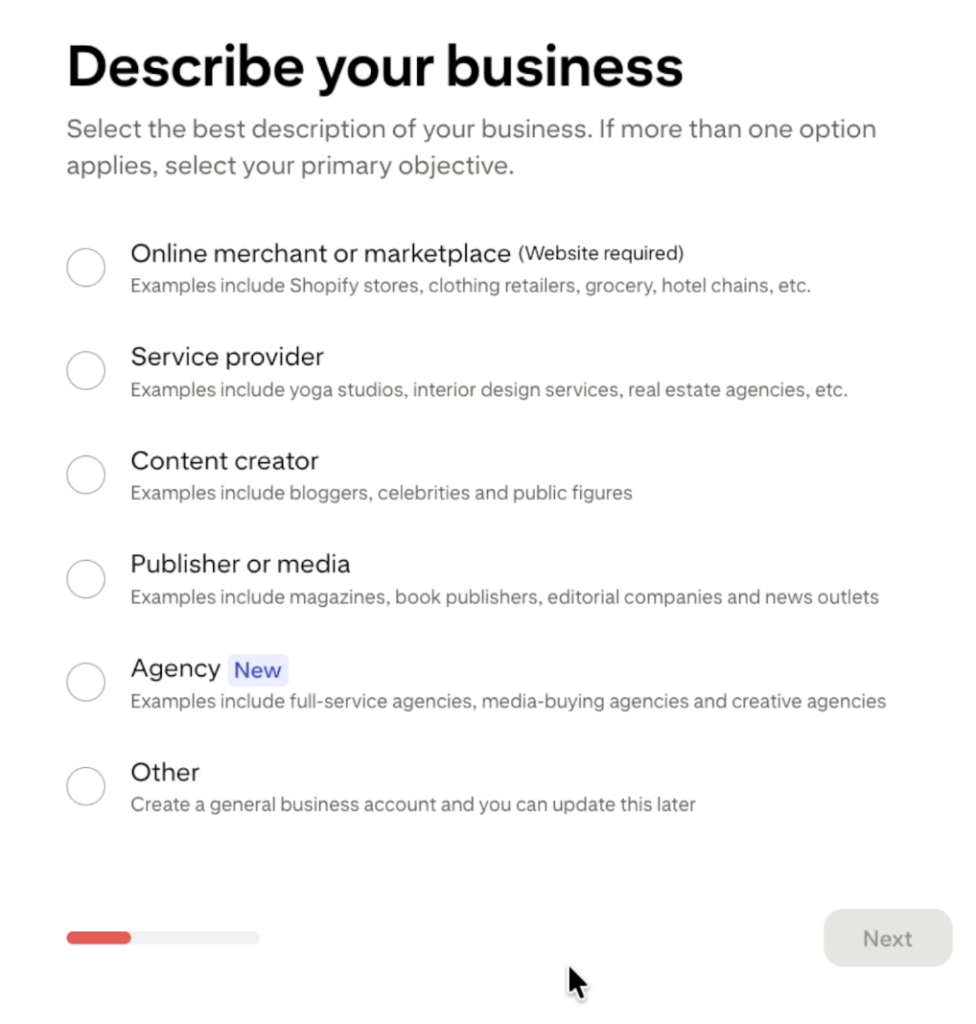
To get started, head to business.pinterest.com and click Sign Up. You’ll enter your email address, create a password, and add your birthday, then hit create account. From there, Pinterest will ask you to describe your business. Your options are online merchant, service provider, content creator, publisher or media, agency, or other. If you have a shop, choose online merchant. If you’re a blogger, influencer, or affiliate marketer, content creator is the right fit. If you’re not sure, just choose other because you can always update it later.
Next you’ll enter your business name, your country, and your website if you have one. Then you’ll choose up to three business goals and hit done. From there you’ll land in your account settings, and while there’s a lot to explore in there, things like notifications, privacy, and social permissions, don’t get lost in it. If you have questions about any of those tabs, drop them in the comments on YouTube and we’ll help.
To get to your profile page, click the circle in the top right corner. If you’re following along in real-time or with our video, then you’ll see that the profile page it’s going to look pretty bare, and that’s completely normal. We’re going to start setting that up together right now.
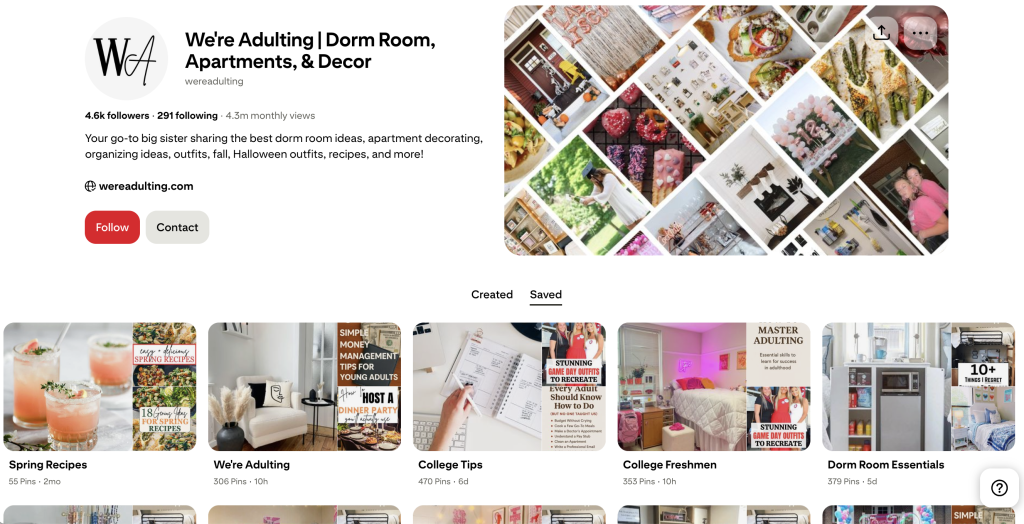
Think of your Pinterest profile like your storefront. The moment someone walks in, they should immediately understand what you sell and who it’s for. They’re going to know that from four things: your account name, your account bio, your board titles, and your board descriptions. Those are the four places to focus on, and this is how you optimize your profile. When we say optimize, we just mean using the right words in the right places so that both Pinterest and real people understand exactly what your account is about.
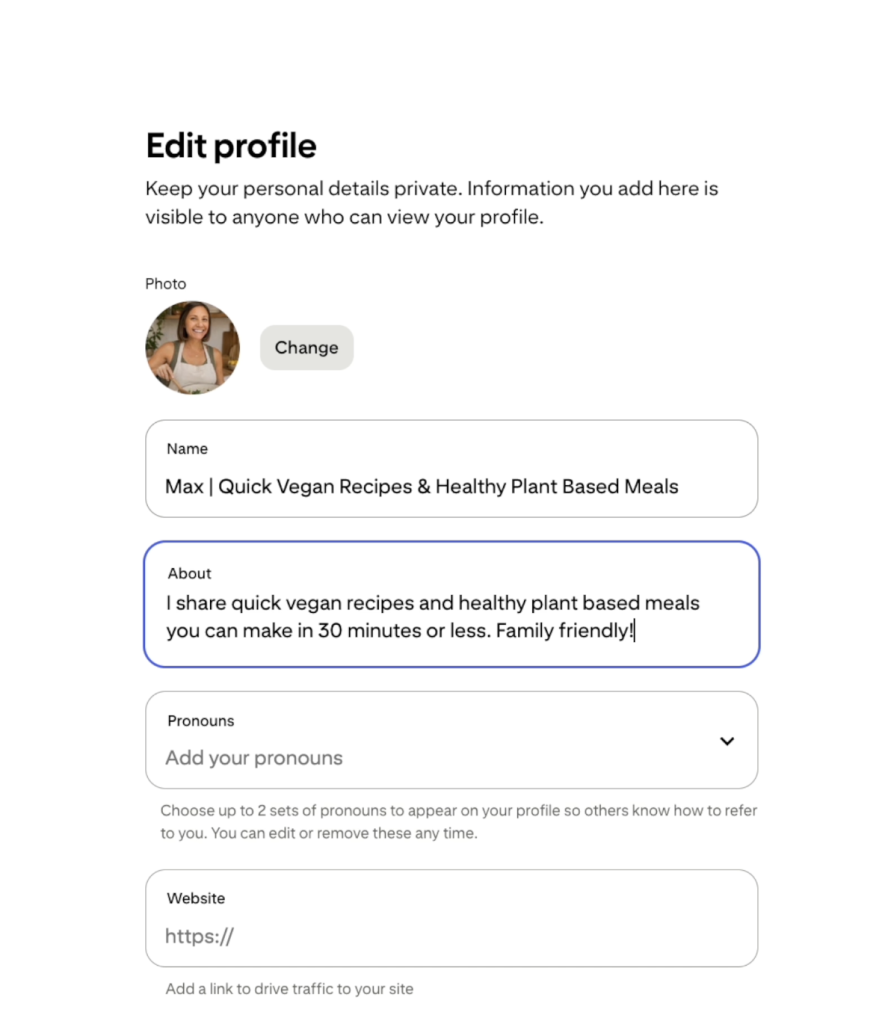
To edit your account name and bio, hit the edit profile button on your profile page. This is where you’ll add your profile photo, which should be a clean headshot or your brand logo, write out your bio, and set your username.
Let’s use a vegan recipes account as our example and run with it through the rest of the setup. For your account name, instead of just putting your first name, try something like Max, and then add a divider and include a few keywords, like quick vegan recipes or healthy plant based meals. Your bio works the same way. Instead of something vague like welcome to my page, you’d write something like, I share quick vegan recipes and healthy plant based meals you can make in 30 minutes or less.
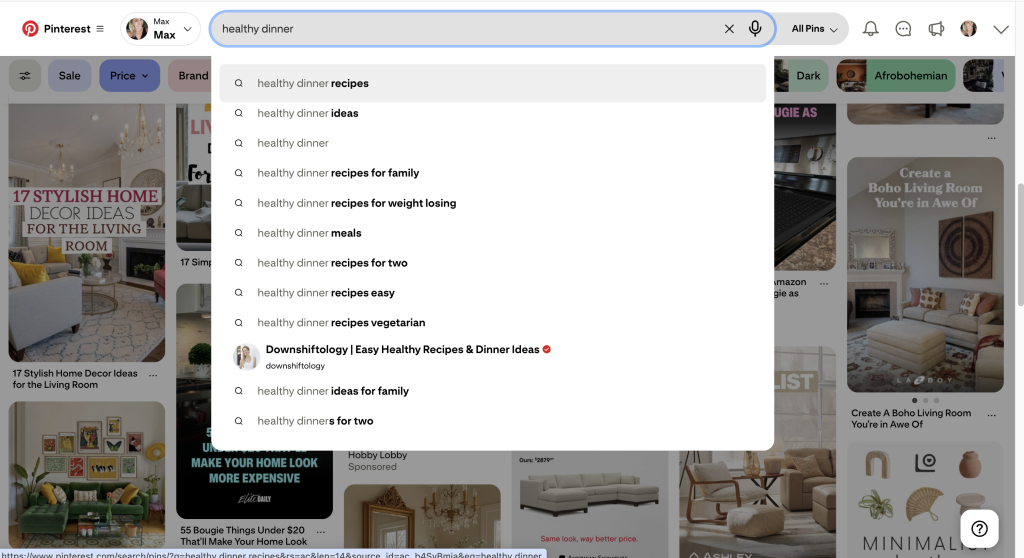
To find good keywords go to the Pinterest search bar and start typing your topic. Pinterest will automatically suggest commonly searched phrases, and those are exactly the kinds of words you want weaving through your name, your bio, and eventually your board titles and descriptions. Keep it natural because you’re writing for people first and Pinterest second.
How to Set Up and Optimize Your Boards
Your boards are how you organize your content on Pinterest. If your profile is the store, your boards are the categories that organize everything inside it. For our vegan recipes account, you might have a board for quick vegan dinners, one for vegan meal prep, one for vegan breakfast ideas, and one for vegan snacks and desserts.
To create a board, hit the create button on the right hand side of your profile and select board. Give it a name that includes keywords, so instead of just calling it dinners, you’d call it ‘Quick Vegan Dinners’ or ‘Easy Vegan Dinner Recipes.’ Then hit done.
Once your board is created, hit the three dots in the top right corner of the board and select edit. This is where you’ll add a board description. Using our example, you might write something like, “Quick and easy vegan dinner recipes made with simple ingredients, perfect for busy weeknights and beginner cooks.”
Start with somewhere between one and five boards, name them clearly, write descriptions for each one, and make sure they all connect back to your niche.
How to Create Your First Pinterest Pin
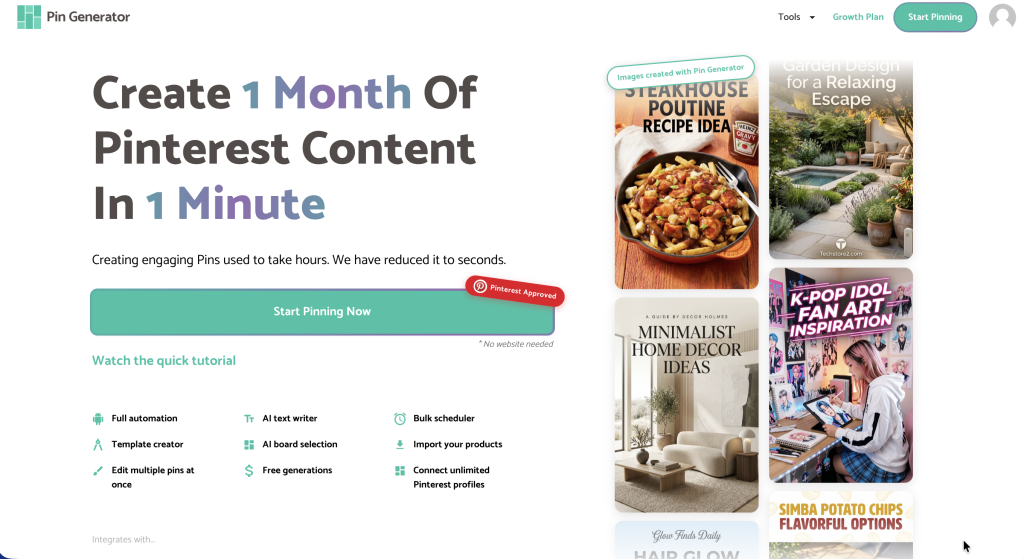
Now that your account and boards are ready, the next thing you need is pins. Most people start in Canva, which is a great option when you’re just getting started. The tool we personally recommend for creating and scaling your pins is Pin Generator, because it lets you create, schedule, and automate your pins all in one place and uses AI to generate fresh ideas, titles, descriptions, and images, even if you don’t have a website yet.
One recommendation before you start scheduling through a third party tool: during your first 30 days, consider creating your pins in Pin Generator but uploading them to Pinterest manually rather than connecting the two tools right away. Pinterest tends to trust accounts more when it sees you actively using the platform yourself. Once your account has built up some history over that first month, connecting a third party tool becomes a lot safer and that’s when the automation really starts to pay off.
Next Steps
Congratulations on setting up your Pinterest business account! Before you start pinning, be conscientious about how many pins you’re posting per day and make sure your activity doesn’t look like spamming behavior, especially in the beginning. If you want to know exactly what we’d recommend doing in your first 30 days, that’s coming up in our next video, so make sure you’re subscribed to our YouTube or newsletter so you don’t miss it.
Try Pin Generator for free at pingenerator.com and see how quickly it speeds up your pin creation.
Let’s get generating!