
How to Post Amazon Product on Pinterest in 2026
31 October 2026
You've got an Amazon product open in one tab, Pinterest open in another, and a half finished pin graphic that looks good until you shrink it to phone size. The link is pasted, the title sounds clever, and you're not sure whether the price on the image, the missing disclosure, or the cropped headline will cause trouble first. That's the normal starting point. Learning how to post Amazon product on Pinterest isn't hard, but posting it in a way that still works next month takes a tighter process. You need the right specs, a visible disclosure, an exact destination link, and a maintenance habit, because Amazon pages change after your pin goes live.
Table of Contents
- Pin Specs That Survive the Feed
- Disclosures and Rules That Keep Pins Live
- Publish One Amazon Pin Step by Step
- Fix Pins After Price and Stock Change
- Schedule Fresh Variants on a Steady Cadence
- Queue Your First Amazon Pin Drip
Pin Specs That Survive the Feed
Pinterest sends the shopper to Amazon. It doesn't check them out for you. Treat every pin as a referral creative whose job is to earn a click to the exact product page, not as a storefront. Score your draft against this table before you open a design tool, because fixing size, text, and link problems after you've polished colors is wasted work.
| Piece | Limit | What to do |
|---|---|---|
| Image size | 1000 × 1500 pixels, 2:3 | Keep the product and main benefit inside the frame; taller images can crop |
| File | PNG or JPEG in sRGB | Expect Pinterest to convert the upload to an 8-bit RGB JPEG |
| Title | 100 characters maximum | Phrase it like a search a buyer would type |
| Description | 500 characters maximum | Name category, audience, and use; the algorithm reads it even when the feed hides it |
| Destination | Exact Amazon product detail page | Use an Associates tagged URL only when the pin is monetized |
| Disclosure | #ad, (paid link), or #CommissionsEarned | Also associate the Amazon Associate statement with the account or site |
| Price in the graphic | No locked price unless you will recheck it | Prices move, and merchant product data must stay current |
Build the Image for a Crowded Feed
Start vertical. The Pinterest Merchant Guidelines support a 2:3 ratio, typically 1000 × 1500 pixels, using PNG or JPEG in sRGB, and they note that Pinterest converts uploads to 8-bit RGB JPEG. Anything taller than 2:3 may crop in feeds, so don't put a headline, logo, or product edge where a crop can eat it.
Keep the product large enough to identify at a glance and give it one benefit to carry. A desk lamp pin can say it fits a small desk or folds flat, not both plus three minor features. Put text in the middle safe area, use contrast you can read on a phone in bright light, and match the photo to the current color, size, and version on Amazon. If the listing shows the black variant and your creative shows white, you've created doubt before the click.
Practical rule: If you can't tell what the product is and who it's for within two seconds at phone size, simplify the image before you write another word of copy.
Accurate representation matters more than decoration. Use a clean product shot or a realistic use scene, but don't imply accessories are included when they're sold separately. Don't stretch a square Amazon image into a vertical canvas, either. Rebuild the layout around the product instead, with breathing room that survives Pinterest's feed crop.
Write Metadata Like a Search, Not an Ad
Your title gets 100 characters or fewer. Write it the way a buyer searches, with the product type and context up front. "Small desk lamp for home office with adjustable arm" gives Pinterest and the shopper more to work with than "My favorite find ever." Skip vague superlatives you can't support, and don't promise a discount unless you plan to monitor it.
Your description gets up to 500 characters. It may not appear visibly in home or search feeds, but Pinterest uses it to judge relevance. Use that space for natural category, audience, and use case language. Name the room, the problem, the recipient, or the task in plain sentences. Keyword stuffing reads badly and doesn't help a shopper decide.
For example, a storage bin description could mention under sink organization, small bathrooms, and renters who can't drill. That's three useful signals without turning the copy into a list of repeated phrases. If you're still learning the mechanics of building the pin itself, this guide on how to create pins on Pinterest covers the creation flow you will pair with these Amazon specific checks.
Get the Link and Product Fields Right
Link to the exact Amazon product detail page for the item in the image. Use an Associates tagged URL only when that pin is monetized, and test the destination on mobile and desktop before publishing. A search results page forces the shopper to hunt. A homepage wastes the click entirely.
Don't expect an affiliate link to create shopping fields by itself. Enriched Product Pins can display pricing, availability, product title, and description, but those fields depend on eligible merchant or product data. A standard pin with an affiliate destination is still a standard pin. That's fine, as long as you don't design it as if Pinterest will update the price for you.
That distinction explains the whole workflow. Your creative, title, and description have to do the selling, and your link has to land on the right ASIN. If any row in the table fails, fix that row first. A beautiful pin pointing to the wrong variant isn't almost ready. It's wrong.
Disclosures and Rules That Keep Pins Live
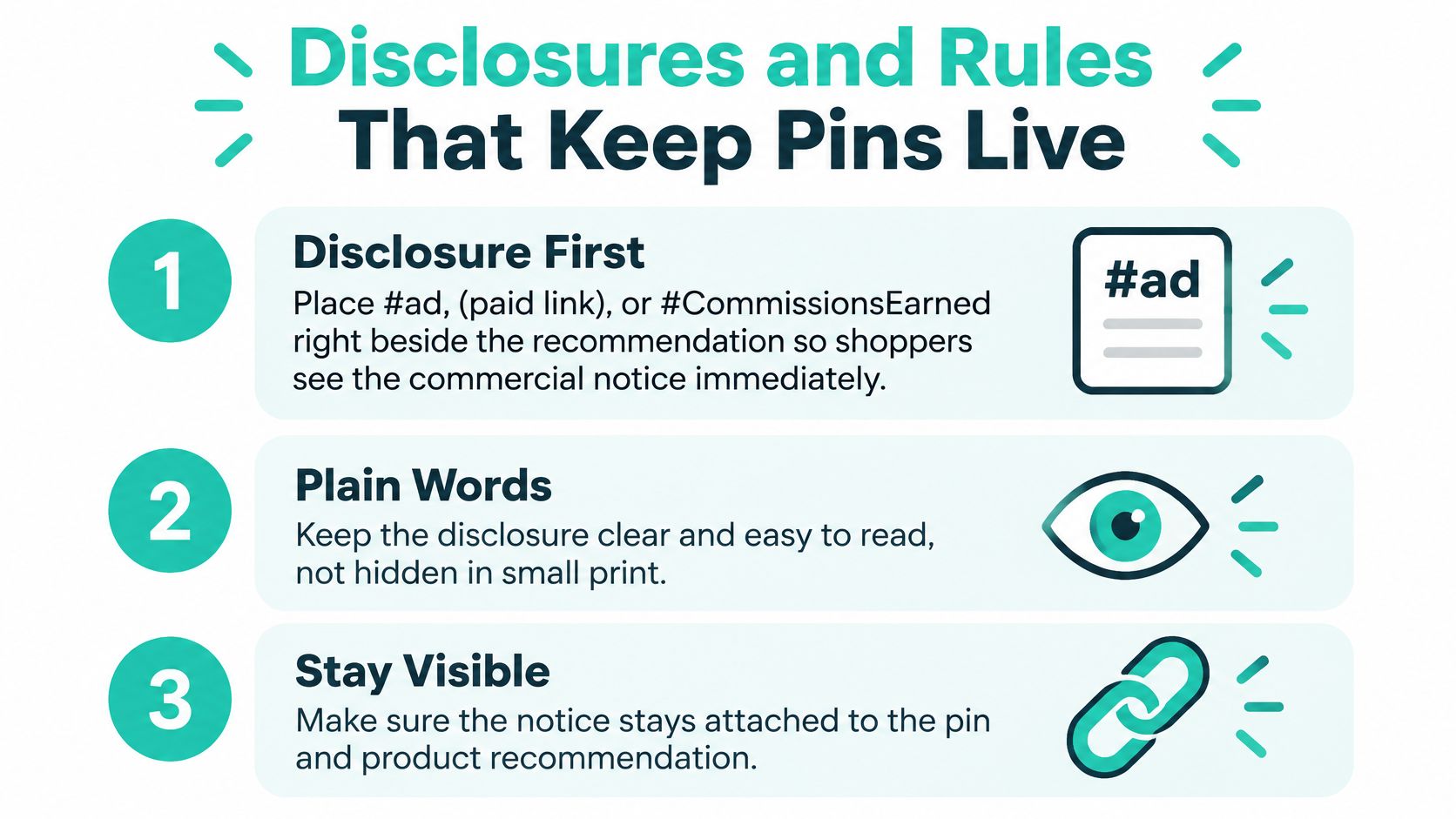
A clear commission disclosure belongs beside the product recommendation, where shoppers see it before they click. Use plain language such as #ad, (paid link), or #CommissionsEarned near the product claim and link context. Where applicable, include “As an Amazon Associate I earn from qualifying purchases” with your account or site disclosure.
Use product images and claims you have the right to use, and don't imply that Pinterest or Amazon endorses the item. For a practical review of disclosure placement and affiliate links, follow these Pinterest affiliate link compliance guidelines and check your Amazon Associates terms.
Keep affiliate pins distinct from merchant catalogs. An affiliate pin links to a product page; Pinterest merchant rules govern catalog content and eligibility. Pinterest's Digital Services Act transparency report records merchant rejections, a reminder that catalog content is moderated. Pinterest's shopping guidance says product data should be updated within the past three days; check the Pinterest shopping help page for the current freshness requirement.
Amazon price, stock, and redirects can change after a pin goes live. Avoid adding a price or availability badge unless you can keep it accurate, and revisit the destination and product details regularly. A pin can attract clicks and still be removed if its disclosure, destination, or product representation breaks the rules.
Publish One Amazon Pin Step by Step
Pick one ASIN and one shopper job, such as a desk lamp for a small office. Don't start with a storefront, a roundup of twelve products, or every board you own. Pinterest once leaned toward in platform buying, as the Timeline of Pinterest shows with Buyable Pins introduced on June 2, 2015 and about 60 million Buyable Pins by October 2015, before Product Pins replaced them in 2018. Today your job is simpler. Make a strong standard pin that links out accurately.
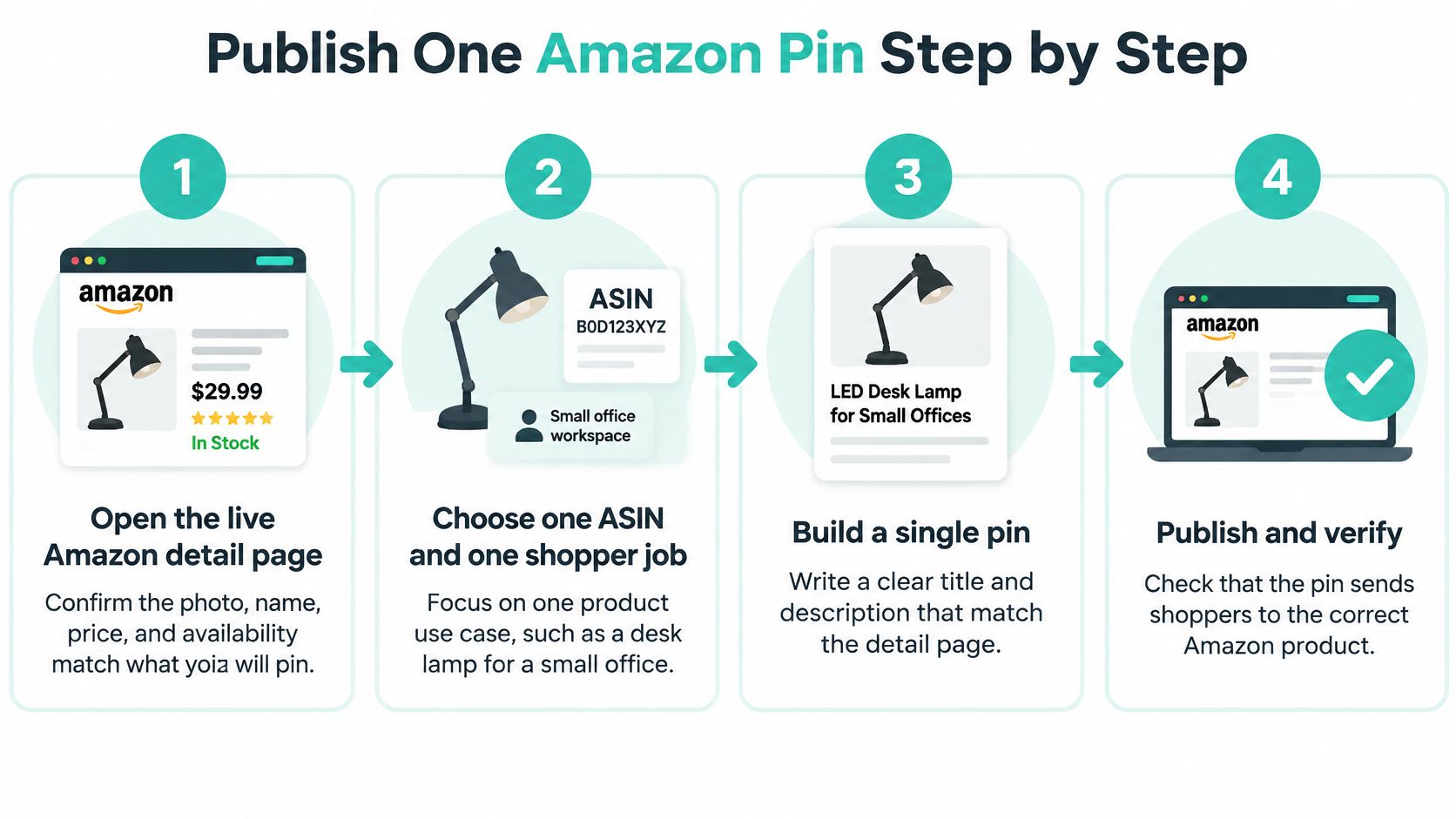
- Open the live detail page. Confirm the photo, name, price, and availability match what you'll claim. A mismatch here is the easiest mistake to prevent and a common reason pins get flagged.
- Build one vertical image. Show that exact item with one benefit line sized for a phone. If the text only works on your monitor, it's too small.
- Write the title and description. Name who the product helps and how it's used, in search language. Don't copy the full Amazon title if it's stuffed with specs nobody searches.
- Set the destination. Use the tagged Associates URL when you earn a commission, or a plain detail page URL when you don't. Never use a search results page or homepage.
- Place the disclosure in the same description. Keep it beside the recommendation, visible without detective work.
- Save to the single most relevant board. Relevance beats spreading one pin across every loosely related board you have.
- Test on phone and desktop. Confirm the click lands on the intended ASIN, not a generic page, variant page, or dead redirect.
- Publish and record the baseline. Log the ASIN, URL, disclosure used, board, and date so your first maintenance check starts from facts.
A finished pin shows the actual product, uses a working detail page link, and carries a visible disclosure. Variants and calendars come after that first pin passes.
Fix Pins After Price and Stock Change
A pin can keep looking polished while the Amazon page behind it goes out of stock, changes price, swaps a variant, or redirects somewhere useless. That's the part most posting guides skip. Publishing is the start of the job, not the end, because the destination keeps moving after your creative stops changing.
Use Pinterest's own freshness bar as your maintenance standard. Pinterest's shopping on Pinterest help page says product information shown in the United States and United Kingdom is displayed only when the item is in stock, the price is accurate, and data has been updated within the past three days. Its catalog documentation also says hosted feeds may be accessed daily and missing or incorrectly formatted required fields can cause an entire catalog to fail ingestion. Those rules describe merchant catalogs, but the lesson applies to ordinary affiliate pins too. Freshness isn't a nice extra. It's the system working as designed.
Run Audits That Catch Real Breakage
Start with pins that already get traffic. A dead link on a pin with steady outbound clicks costs you more than a flawless audit of pins nobody sees. Open each destination, confirm the ASIN, and compare the live photo, title, price, and availability against your creative and description.
Keep a simple tracking sheet with these fields:
- ASIN and product name: The exact item you intended to promote, not a family of similar products.
- Destination URL: The full tagged or plain detail page link saved on the pin.
- Disclosure used: The exact wording on that pin, so older pins don't drift from your current standard.
- Date checked: The last time a person or tool verified the destination.
- Status: Live, price changed, out of stock, redirected, variant changed, or remove.
That sheet turns maintenance from memory into a queue. Sort by date checked and traffic, then work through exceptions. If an item is discontinued, remove the pin or replace the workflow with a new pin for a current product. Don't leave a pretty graphic sending shoppers to a dead end because it once performed well.
Fix the Problem You Actually Have
Different failures need different fixes, and redesigning everything is rarely the first move.
If clicks drop suddenly, check the URL before you blame the headline. A redirect to a search page, a changed variant, or an unavailable listing can cut conversions while impressions look normal. Open the pin as a shopper would, on your phone, and follow the click all the way to the buy box.
If the price changed, look at what your pin promises. A description that says "budget friendly" may still be fair. A graphic that prints a specific old price is now wrong. That's why I wouldn't put a fixed price on the image unless someone owns updating that image when Amazon changes it. Price led creatives create maintenance debt every time you publish one.
Don't burn a working pin design to fix a link problem. Verify the destination first, then decide whether the creative, copy, or product itself needs to change.
If stock runs out, don't wait and hope. Shoppers who click into an unavailable item rarely reward you for the inspiration. Pause promotion of that ASIN in your queue, mark the sheet, and check back on a set date. If a replacement model exists, treat it as a new product. Build a new pin with accurate imagery instead of pretending the old pin still matches.
If a batch or catalog style upload fails, fix required fields before making more pins. Missing titles, broken image URLs, malformed links, and inconsistent availability fields aren't creative problems. They're data problems, and more volume multiplies them.
Make Freshness the Operating Target
Set a review rhythm you can keep. High traffic pins deserve the most frequent checks, seasonal pins need a check before the season returns, and any pin with a price in the graphic needs attention whenever you run an audit. Use a link checker for speed, then manually open the exceptions and your top performers. Automation can flag a 404. It can't always tell you the listing now shows a different color or a newer model.
Candid expectations help. A pretty pin isn't a commission machine if the product behind it is stale. Your best performers earn that status because the creative, search intent, and live Amazon page still line up. Protect that alignment and you'll waste less time wondering why clicks stopped converting.
Aim for exception handling first, volume second. When your sheet shows current links, accurate claims, and visible disclosures, you can publish more with confidence. When it shows stale checks and unknown statuses, more pins only give you a larger mess to clean up later.
Schedule Fresh Variants on a Steady Cadence
Once one pin works, don't repost the same graphic whenever you remember Pinterest exists. Build a small campaign for each ASIN, with fresh variants spaced across days. That gives Pinterest distinct creative to test and gives you data you can act on, instead of five copies competing with each other.
Start your planning session with checked products only, not a wish list of links you saved weeks ago.
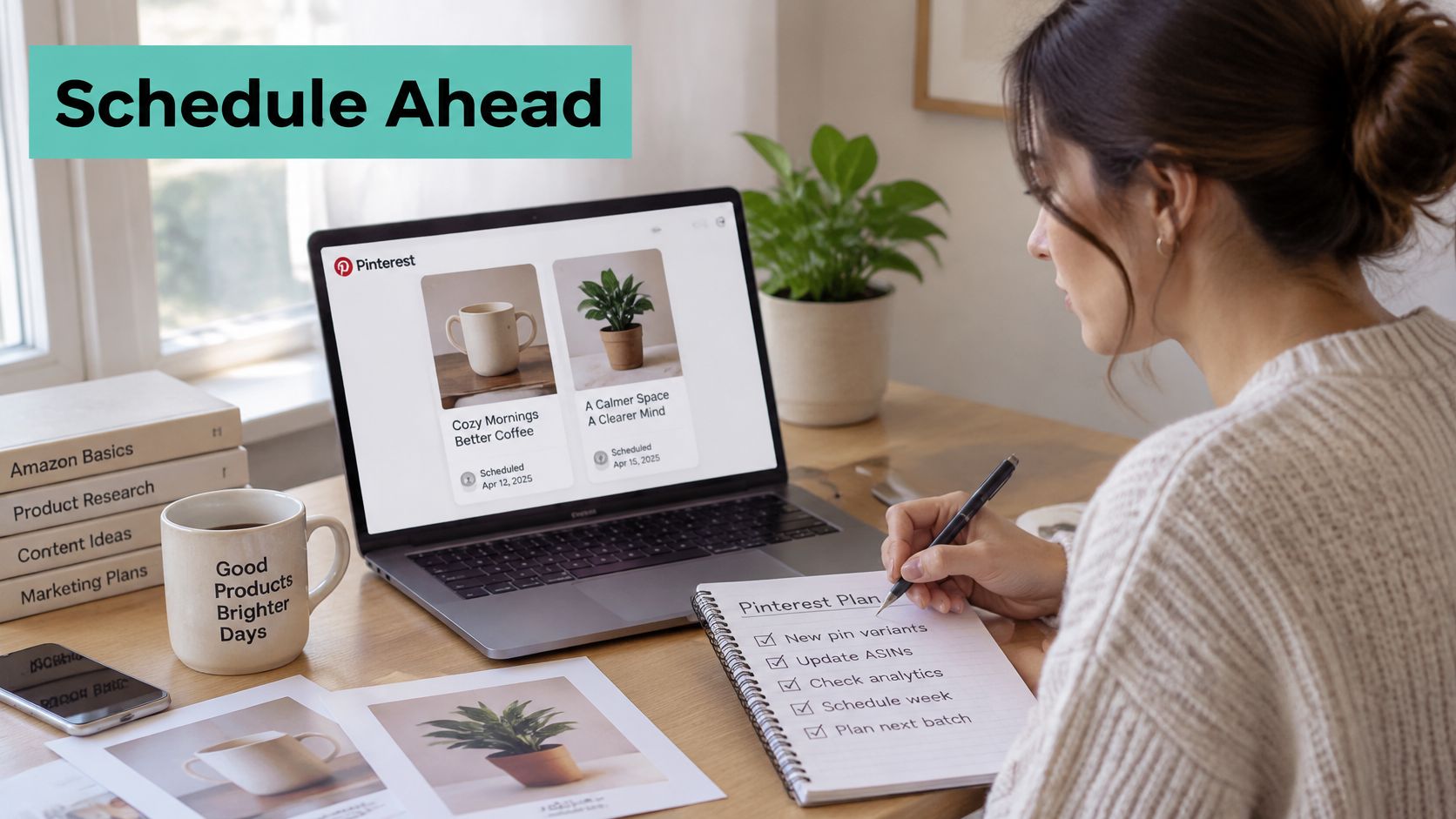
For each product, make at least two distinct variants. Change something a shopper would notice, such as the crop, the benefit line, the use scene, or the audience angle. Swapping a background from light beige to slightly darker beige isn't a variant. It's procrastination with a color picker.
Say you're promoting a compact humidifier. Variant one can target a bedroom angle with copy about dry winter air at night. Variant two can target a desk setup, with a tighter crop and copy about a small workspace. Both point to the same checked detail page, both carry the same visible disclosure, and each goes to the board that matches its angle. Rewrite each title around a different real search, such as the room, the recipient, or the problem being solved.
A One Week Slate You Can Actually Run
Keep the first week deliberately small. A handful of checked products, two variants each, spread across the week will teach you more than dozens of rushed uploads in one afternoon.
- Monday and Thursday: Publish variant one and variant two for your strongest product, on two relevant boards matched to each angle.
- Tuesday and Friday: Do the same for a second product in a related category, so your boards gain depth without turning repetitive.
- Wednesday: Add one fresh variant for a third product, then use the remaining time to recheck links on older pins.
- Weekend: Review early saves and outbound clicks, note which angle pulled interest, and draft next week's variants from that signal.
Batch the design work, then let the calendar publish. You're separating creation from posting, which makes quality control easier. You'll catch a missing disclosure or wrong URL in a batch review more reliably than while uploading one pin at midnight.
Before you lock the slate, watch how a planned workflow looks in practice so your batch, boards, and schedule stay connected.
Track Each Variant in Two Places
Give every variant its own tracking ID where your Associates setup allows it. Then read performance in two places. Use Pinterest Analytics for impressions, saves, and outbound clicks, and use your Amazon Associates reports for clicks and orders tied to each tracking ID. One source tells you whether the creative earned attention. The other tells you whether that attention turned into shopping activity.
Retirement rule: If a variant earns impressions but consistently fails to earn saves or outbound clicks while its sibling variant succeeds, retire the weak angle instead of reposting it with new hashtags.
Look for patterns by angle, not just by product. A gift framing may outperform a feature framing, or a problem led headline may beat a room led headline across several ASINs. Feed that back into next week's slate. Make another version of the winning angle with a new crop or scene, and stop spending schedule slots on angles shoppers ignore.
Skip duplicate looking pins, expired ASINs, and any variant whose only change is the hashtag set. Those fill a calendar without giving Pinterest fresh creative or giving you clean data. The metric that decides what gets another version should come from tracked clicks and orders, not from which design you personally like best. Your taste gets a vote. It doesn't get veto power over the numbers.
By the end of the week you should have a named slate for each product, the boards each variant belongs on, and one clear kill metric. That's a cadence. Random uploading is just hope with better graphics.
Queue Your First Amazon Pin Drip
Start with the one ASIN that already passed your spec, disclosure, and link tests. Not a spreadsheet with a thousand rows. Not every product in a category you might promote someday. One verified product proves the workflow, and a small drip lets you catch mistakes while they're still cheap.
In Pin Generator, Amazon product URLs can be used to generate pins for an affiliate campaign. Every generated product pin links to that product page, and the image uses the actual product photo. That matters because your pin should show the item and send the shopper to its detail page, without you rebuilding the link by hand for every variant.
Set Up the Drip Without Skipping Review
After import, generate pins for the products you chose, apply a template, and queue them on the scheduler so they publish as a steady drip. Let the AI pick the Pinterest search phrase most likely to bring traffic, with titles and descriptions written around that phrase. Keep the product record's real name intact even when the pin title is rewritten to read like a search. That separation keeps your catalog honest while your public copy stays discoverable.
Automation doesn't remove your review step. Check titles, descriptions, and alt text against your character limits and disclosure line before the first scheduled slot. Read the copy out loud once. If it sounds like a claim you wouldn't defend to a shopper who clicked through, rewrite it.
Also remember that pin credits are consumed when you pin, download, or schedule. That's another reason a checked drip beats a huge unreviewed batch. You spend credits on pins you've verified, not on drafts you'll delete after finding the wrong variant in the image.
Your First Verified Setup Checklist
Use this exact sequence for the first ASIN:
- Confirm the source product. Open the Amazon detail page and verify the name, image, variant, and availability one final time.
- Import that product URL. Generate pins from that URL for your affiliate campaign, rather than typing product details from memory.
- Generate two distinct variants. Apply a template, then change the angle or benefit line so each version targets a different search intent.
- Review every text field. Check the title, description, and alt text for accuracy, plain language, and the disclosure beside the recommendation.
- Queue a small drip. Schedule the variants on different days and relevant boards instead of publishing both in the same hour.
- Check the first live pin on mobile. Tap through and confirm it lands on the intended ASIN with the correct variant showing.
- Log the baseline. Add the ASIN, destination, disclosure, publish date, and next check date to your tracking sheet.
- Add products only after the first pin passes. Scale the queue when the workflow is proven, not while you're still guessing.
That order protects you from the most expensive beginner mistake, which is automating an unverified process. A scheduler will happily publish a wrong link at scale, on time, every day. Your review is what makes the drip useful instead of merely consistent.
Keep the decision simple this week. Choose one verified product, build two distinct variants, keep the disclosure visible, and run a calendar you can audit when the price changes. If that pin earns saves and outbound clicks, you've earned the right to add a second ASIN. If it doesn't, you've learned something from a small test instead of burying the lesson inside a giant batch.
I'd rather see a modest queue you trust than a full calendar you have to apologize for. Pinterest rewards fresh, relevant creative, and Amazon rewards clicks that turn into purchases. Your drip connects those two only when every pin in it still points to the right product, with honest copy, at the moment a shopper taps it.
Ready to turn that first checked Amazon product into a steady, auditable pin drip without designing every variant by hand? Pin Generator can generate pins from your Amazon product URLs, write search focused titles and descriptions, apply your template, and queue everything on a scheduler you control. Start with one verified ASIN this week, review the disclosure and destination before it publishes, and build from a workflow you can trust.