
How to Create Pins on Pinterest Step by Step
29 October 2026
The most popular advice about Pinterest is to make an attractive vertical graphic, add a few keywords, and hit publish. That skips the decision that matters most: once a Pin is live, you can't replace its image, video, or audio. A typo, a cropped headline, or an outdated price baked into the creative can stay visible even after you fix the text around it.
A better workflow treats every Pin as a publishing decision, not just a design task. Set the right canvas before choosing fonts, give the image and metadata distinct jobs, and check the finished Pin before posting. That discipline works whether you're promoting a shop product, a blog tutorial, or an affiliate recommendation.
Table of Contents
- Why the Image Locks After You Publish
- Pin Size File and Text Specs
- Titles Descriptions and Alt Text
- How to Create and Publish a Pin
- Habits That Earn Saves and Clicks
- Run the Preflight Then Pin Again
Why the Image Locks After You Publish
A careless Pin can have a wide audience. In the second quarter of 2025, Pinterest reported 578 million global monthly active users, including 102 million in the United States and Canada, 146 million in Europe, and 329 million in the rest of the world. Pinterest's rest-of-world audience grew 14% year over year, faster than its overall user base. The company defines a monthly active user as an authenticated person who visits its website, opens its mobile app, or interacts through a browser or site extension at least once during a 30-day period, according to Pinterest's second-quarter 2025 results.
A Pin combines a visual asset with a title, description, alt text, destination URL, and board. Pinterest lets you edit the title, board, and some descriptive details after publishing, but not the image, video, or audio. If a shop owner publishes a product image with an old price, a blogger's headline is clipped, or an affiliate's recommendation points to the wrong offer, changing the metadata won't repair the visual file.
The practical answer is to start with the canvas, not the font menu. Build a vertical creative that reads clearly on a phone, then check the image and its destination before you publish. The process below moves from specs to text, publishing, and repeatable habits, with the final decision reserved for a preflight check.
Pin Size File and Text Specs
Set the design constraints before opening your design tool. This table gives you a working spec sheet for a standard image Pin, a full-screen video, and the three text fields.
| Asset or field | Size or limit | Format | What breaks if you ignore it |
|---|---|---|---|
| Standard image Pin | 1000 × 1500 px, 2:3 | PNG or JPEG, 20 MB desktop or 32 MB in the app | Images taller than 2:3 may be cropped in the feed |
| Video Pin | 1080 × 1920 px, 9:16 | Video for full-screen mobile | The wrong ratio won't fit the phone frame cleanly |
| Safe zone | 65 px left, 195 px right, 270 px top, 790 px bottom | Keep text, logo, product, and call to action inside | Edge content may be cut off on mobile |
| Color and export | sRGB | PNG when quality matters; Pinterest converts uploads to 8-bit RGB JPEG | Brand colors may shift or look dull |
| Title | Up to 100 characters | Plain text | The offer may truncate in the feed |
| Description | Up to 500 characters | Plain text used for relevance | It often won't appear in home or search feeds |
| Alt text | Up to 500 characters | Plain text, editable after publishing | Screen-reader users may miss useful image information |
Pinterest recommends a standard 2:3 image at 1000 × 1500 pixels and warns that taller images may be cropped in feeds. Keep the product, logo, price, and call to action away from the edges, using the safe-zone measurements as a practical guide. Its Pinterest product specifications also recommend PNG or JPEG uploads, with sRGB PNG useful when preserving image quality matters. Pinterest converts uploads to standard 8-bit RGB JPEGs before they become Pins or ads.
The description field still matters for relevance, but it may not appear in home or search feeds. Put the essential promise in the image or title rather than hiding it in a description a viewer might never see. For a broader look at selecting and framing real-estate photos, Pinnacle Property Media's guide to listing images offers useful visual principles you can adapt to product and editorial creatives.
Before moving on, reject any template that's square, crowded against the edges, or over the file-size cap. If you need another reference for dimensions, use this Pinterest Pin dimensions guide. A reusable template should lock in the canvas, safe margins, typography, and contrast so you're not solving the same production problems on every new Pin.
Titles Descriptions and Alt Text
Treat the title, description, and alt text as three different tools. The title names the Pin and its payoff in ordinary language. The description explains the topic and value, while alt text describes what's visible for people using screen readers.
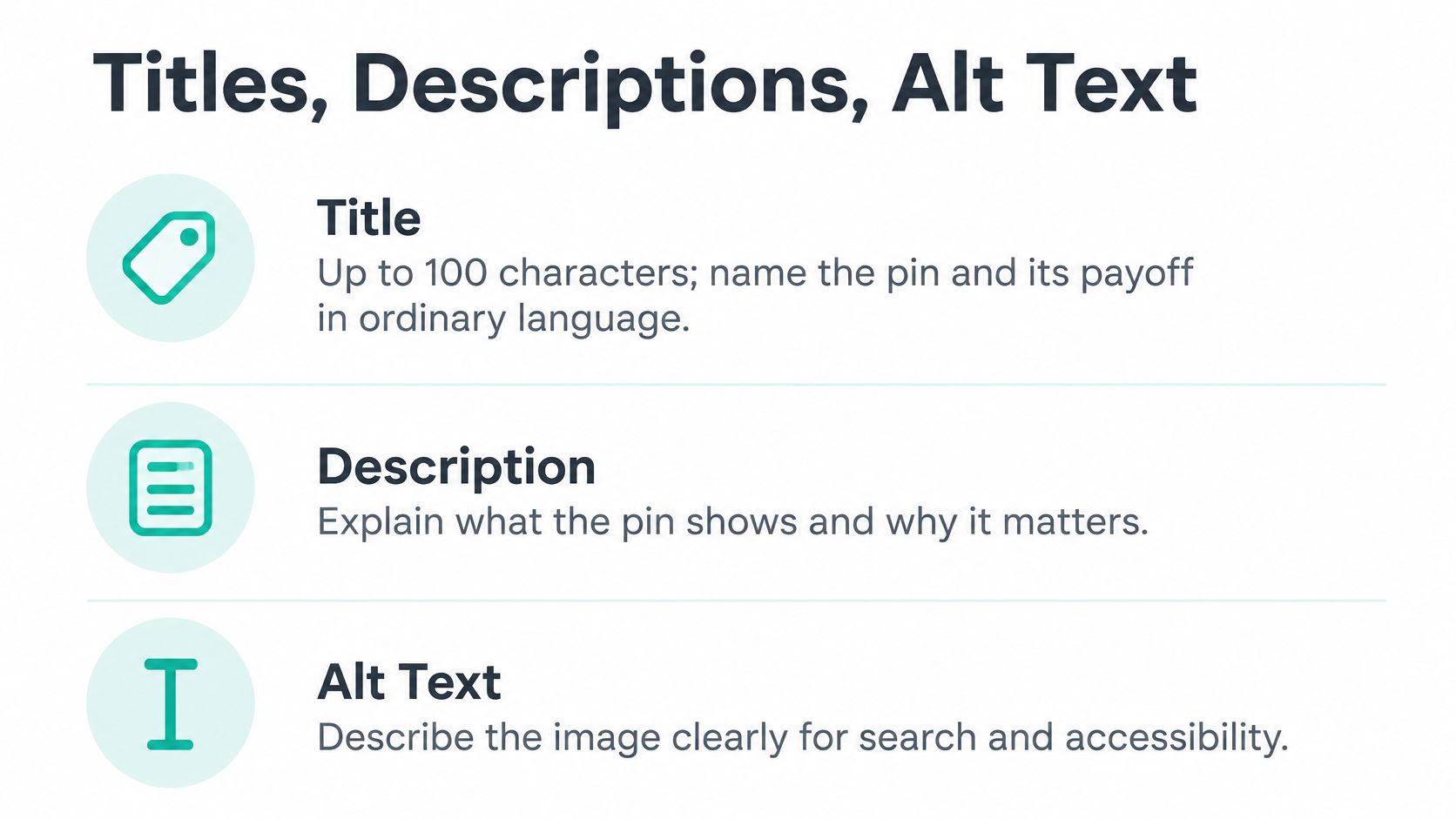
A title such as “Weekend ceramic pour-over set for small kitchens” tells the viewer what the Pin offers without turning the line into a pile of search terms. In the description, say what the Pin helps someone do, name the product or topic, and add one natural phrase a person might search. Don't put the only useful claim there, since descriptions may not show in the home or search feed.
Pinterest says alt text is read by screen-reader users on desktop and mobile, can be edited after publication, and supports up to 500 characters. Its alt-text guidance separates that accessibility job from the description's relevance role. Alt text should tell someone who can't see the picture what it contains. It isn't a hidden keyword box.
Four examples that keep the jobs separate
- Product Pin: Alt text: “Matte white kettle on a walnut counter, with the lid open.” Description: “A 1-liter kettle sized for a small kitchen. See the product details.”
- Recipe Pin: Alt text: “Finished pasta topped with chopped herbs.” Description: “Make this pasta with a quick 20-minute method for an easy weeknight meal.”
- Infographic Pin: Alt text summarizes the chart's subject. If the graphic is mostly text, repeat the visible wording so a screen-reader user gets the same central information.
- Text-led quote Pin: Alt text repeats the sentence printed in the image, rather than vaguely saying “quote on a background.”
If you're organizing book content and want a separate perspective on descriptive labels, this guide to improving book discoverability with tags can help clarify how topic labels differ from accessible image descriptions. For Pin copy planning, the Pinterest keyword research guide can help you find language people use, but it shouldn't change what alt text is for.
Finish with a quick screen-reader check: read the alt text aloud and ask whether someone who can't see the image would know what's pictured. If not, describe the visible content more clearly. Don't paste the same keyword list into all three fields.
How to Create and Publish a Pin
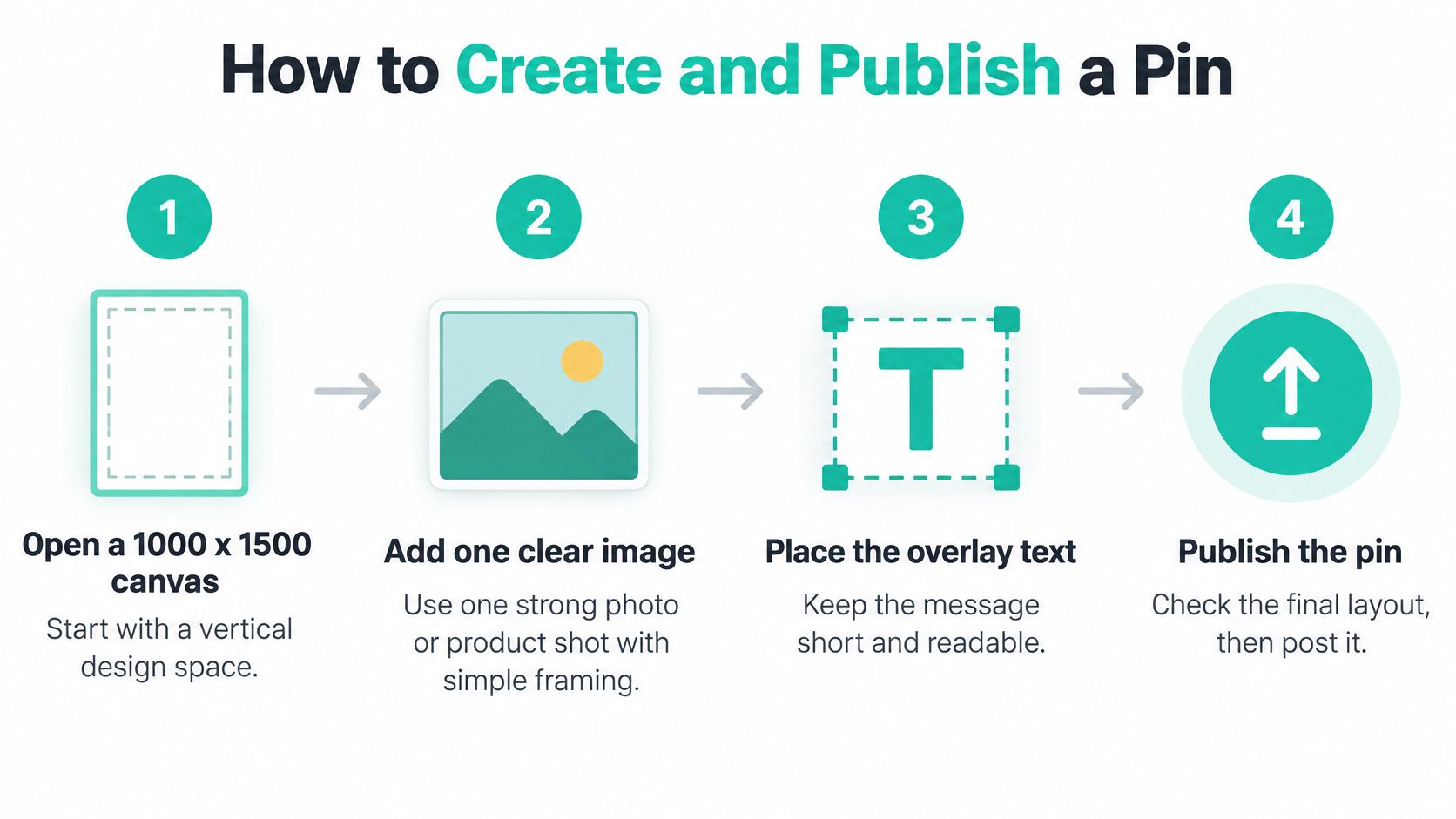
Create the file and validate its destination before you publish. Pinterest's guide to creating Pins makes the key publishing trade-off plain: you can update some metadata later, but you can't replace the published image, video, or audio. Follow these steps in order so a fixable mistake doesn't become part of the live creative.
Open a 1000 × 1500 canvas in your design tool. That gives you a vertical workspace suited to a standard image Pin; starting with the right proportions prevents a square or excessively tall layout from becoming a last-minute crop job.
Add one clear photo or product shot with strong light and simple framing. Give the main subject room to stand out. A cluttered image makes the Pin harder to understand at a glance, especially on a phone.
Place a short line of text, the product or idea, and the logo inside the safe zone. Keep the main message concise and check it at phone size. If someone has to zoom in to read it, simplify the design.
Export as PNG or JPEG within the applicable file-size limit. Check the preview for cropping before uploading. Keep important details away from the extreme top and bottom, where a tall image may lose them in the feed.
In Pinterest, choose Create, then Pin, and upload the file. Confirm that the preview looks like a vertical Pin rather than an oddly tall image. If the crop is wrong, return to the source file and fix it before continuing.
Paste in the destination URL and open it once. Send the viewer to the relevant product page, recipe, or article, and confirm that the page loads. A polished Pin with a broken destination still fails its basic job.
Add the title and description, then choose one relevant board. Keep the board connected to the Pin's topic instead of saving it indiscriminately to unrelated collections.
Add alt text that says what the picture shows. Describe the visible subject in useful language, including text that needs to be conveyed when it's central to the image.
Read the creative one last time, then publish. Check spelling, price, brand, crop, and the accuracy of any claim. This is the decision point: metadata can be edited later, but the image, video, or audio can't. If a price or photo is wrong after publishing, make a new Pin with the corrected file rather than expecting an edit to replace it.
A simple process-flow view can help a team keep the essential actions in order:
For visual projects that need more than a single product shot, a tool such as design your backyard online free can help you explore layouts and concepts before turning a finished idea into a Pin.
Habits That Earn Saves and Clicks
One Pin, one idea. A graphic that tries to show five products, explain every feature, and carry a long headline usually leaves the viewer with a cramped image and no clear next step. Split a collection into separate Pins, each linked to the matching page, so the creative makes one promise and the destination fulfills it.
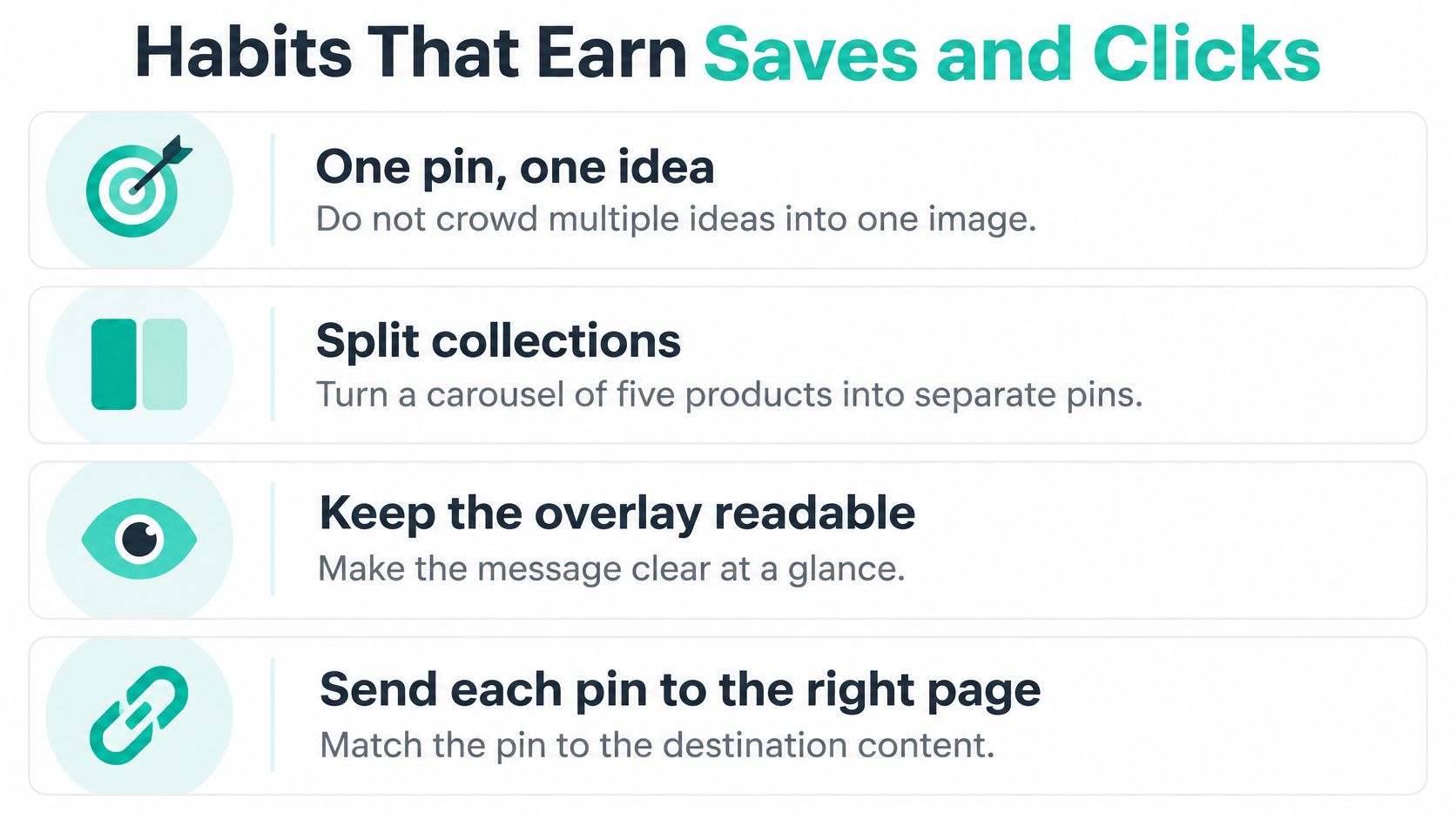
Make the title sound like a phrase a person might type, then use the description for one supporting detail rather than a string of near-duplicate terms. Keep the image's main message readable at a glance. If the headline needs a zoom on a phone, edit the design before it goes live.
A single URL can support more than one creative, but the versions should have a real visual difference. For a kettle, that could mean a lifestyle crop, a close-up that highlights a useful feature, and a text-led design that names the benefit. Recoloring the same layout without changing the message or composition adds files, not meaningful choice.
A reusable template should make Pins look related without making them look interchangeable.
Match each board to the Pin's purpose, such as saving a pasta recipe to a Recipes board and a kettle to a Kitchen gear board. Avoid boards that exist only as dumping grounds for links. Also think carefully before placing claims in the image that can become stale: if a price, shade, or stock statement changes, you may need a replacement Pin with updated creative.
Finish every design by checking it on a phone. For a manageable publishing rhythm, make solid Pins when you have a working destination page instead of releasing a burst of near-identical files. Consistency helps only when each Pin has a clear job and a trustworthy destination.
Run the Preflight Then Pin Again
Before publishing, run this go-or-no-go checklist against the Pin in the composer:
- Destination: Does the URL load and lead to the page the Pin promises?
- Visual: Is the image 2:3 at 1000 × 1500 pixels, with the logo, price, product, and call to action safely inside the edges?
- Claim: Is every statement shown in the image still accurate?
- Title and description: Does the title state the payoff, and does the description add useful context?
- Accessibility: Does the alt text describe the picture clearly?
- Board: Does the board match the topic?
If a visual item fails, correct the source file and upload a new Pin. If the title, description, alt text, or board is wrong, edit that field. A change to the photo or price after publication calls for a replacement Pin, not an overwrite.
For future batches, a reusable template can lock in canvas, type, contrast, and margins. Pin Generator is an official Pinterest partner, and its tools can generate Pins from a URL in one click and bulk edit a batch. Use automation to repeat a Pin that has passed your checks, not to skip the checks themselves. Publish one approved Pin, then make a second distinct creative for the same URL.
Pin Generator can create on-brand Pin designs and copy from a URL, then let you review and bulk edit a batch before publishing. Use it to turn a preflight-approved template into repeatable creative, and visit Pin Generator to start building your next set of Pins.