
How to Edit Pinterest Boards for SEO
14 October 2026
You've just rebranded a Pinterest profile, launched a new product range, or inherited an account where every board is called something like “Ideas,” “Stuff,” or “Yummy.” The Pins may be attractive, but the account's structure is sending mixed signals to people and to Pinterest search.
Learning how to edit Pinterest boards properly means more than changing a title. Board names, descriptions, dates, headers, sections, visibility, and permissions all shape how your content is organized and maintained. Pinterest's own board-editing workflow treats these as connected management tasks, including the choice to archive a board instead of deleting it permanently. Pinterest's official board-editing guidance was published in July 2018 and updated in October 2024, which reflects how central board management remains to the platform.
Table of Contents
- Updating Board Details Across Desktop and Mobile
- Organizing Content With Board Sections
- Optimizing Board Titles and Descriptions for Search
- Managing Collaborators and Edit Permissions
- Automating Board Selection and Publishing Workflows
- Troubleshooting Common Board Editing Problems
Updating Board Details Across Desktop and Mobile
Start with the board itself, not with individual Pins. On desktop, open your Pinterest profile, select the relevant board, and choose the edit option near the board title. You can then change the name, description, date, and header image. Review the board's visibility settings before saving, especially if the board supports a public campaign or contains internal planning material.
On the mobile app, open your profile, tap the board, select the menu icon, and choose the edit command. The labels can vary slightly by app version, but the same core fields are available. If you manage a business profile, it's also worth confirming that your account setup supports the analytics and publishing features you need. This guide to switching to a Pinterest business account covers that broader account decision.
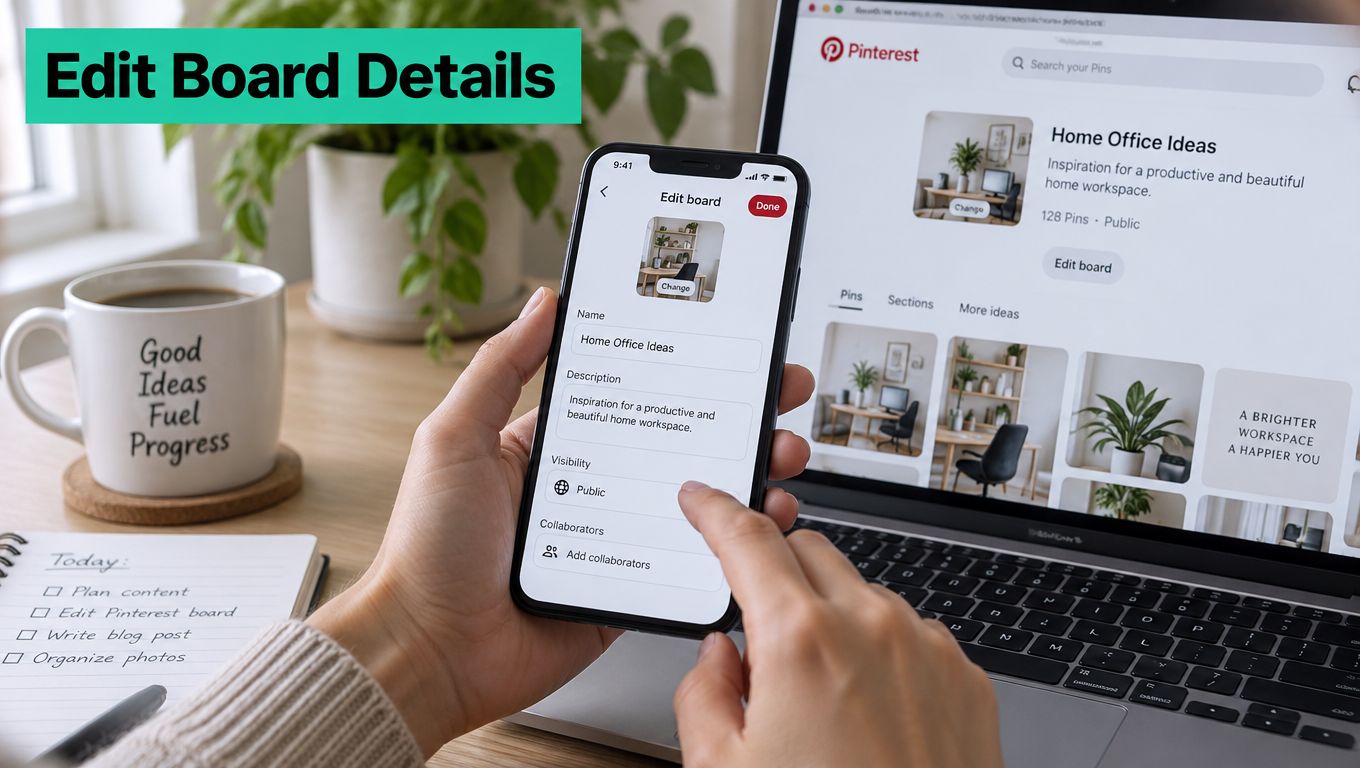
Change the fields that carry meaning
The board name should describe the actual topic in language a user might search for. “Stuff I Like” gives visitors no useful context. “Small Bedroom Storage Ideas” establishes a clear subject and leaves less room for the board to drift.
Use the description to clarify the scope. Mention the audience, use case, and closely related topics naturally. A board about “Easy Weeknight Dinner Recipes” could describe quick family meals, make-ahead dishes, and practical menu inspiration. Don't turn the field into a keyword pile. Humans still have to decide whether the board is worth opening.
The date can help you keep a project or campaign organized, while the header image establishes the board's visual identity. Refresh the header when the imagery no longer represents the collection. A dated cover paired with a current name makes even a well-maintained account look neglected.
Choose visibility deliberately
A public board belongs on your profile and can support discovery. A secret board is useful for private planning, drafts, client work, or a campaign that hasn't launched. If a public board suddenly disappears, check whether it was switched to secret before assuming the Pins are gone.
Practical rule: Change the board name and description together. A polished title paired with an outdated description creates a confusing topic signal.
Pinterest also separates archiving from deletion. Archive a board when it's obsolete but still worth retaining for historical reference or future review. Delete only when you're certain the collection has no continuing role, because deletion is a much less forgiving form of housekeeping.
Organizing Content With Board Sections
A board with hundreds of unrelated Pins is difficult to browse, even when the title sounds precise. Sections turn one broad collection into a usable hierarchy. Pinterest introduced sections so users could divide Pins within a board into separate topics, and later guidance added tools for reordering sections, collapsing them before rearrangement, and organizing related planning information.
On desktop, open the board and choose the option to add or organize sections. Create labels that reflect real user needs, then move Pins into the appropriate section. On mobile, open the board and use its organize controls to select Pins and assign them to existing or new sections. Interface labels can shift, but the underlying task is the same: define the taxonomy first, then place content inside it.
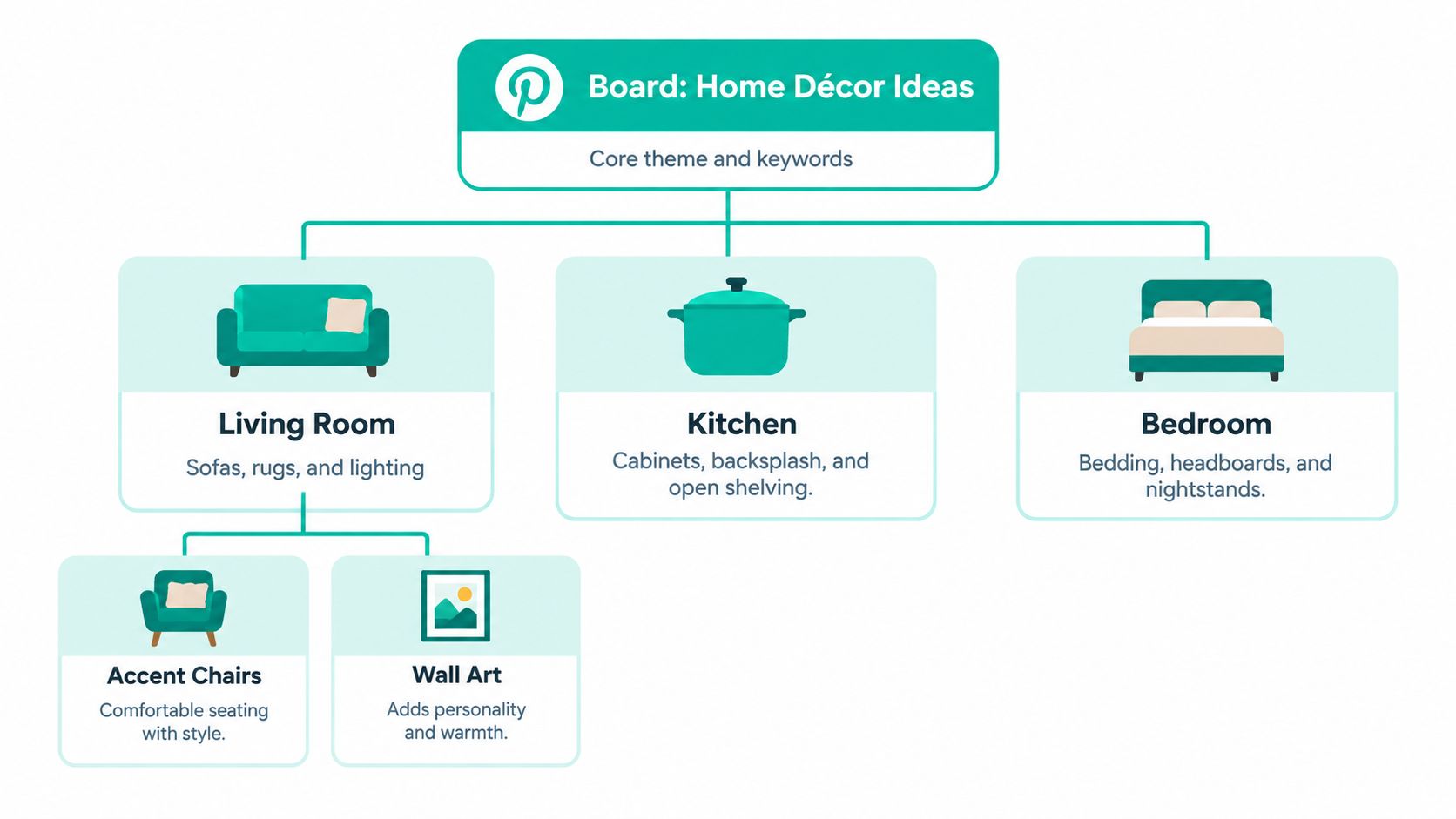
Build sections around intent
Good sections answer a question a visitor already has. A home décor board might use Living Room, Kitchen, and Bedroom, then divide the living room collection into Accent Chairs and Wall Art. A food publisher might separate recipes by meal type, dietary need, or preparation style. Someone planning weekly cooking can also use a weeknight meal planning guide to create a clearer content system before translating that logic into Pinterest sections.
The wrong approach is to create sections based on whatever happens to be in the board today. That produces labels such as “Random,” “Old,” and “Other,” which describe your filing problem rather than the user's intent. Sections should remain useful as new Pins arrive.
Use ordering as navigation
Section order affects how quickly someone understands the board. Put the most important or broadest category first, then follow with supporting topics. Pinterest guidance describes dragging sections on iOS or the web, and the Organize function can collapse sections before you rearrange them. Use that view when a board has become too crowded to manage comfortably.
Board notes can help contributors understand what belongs in each section. Write a short internal rule such as, “Use this section for renter-friendly storage solutions,” rather than leaving teammates to guess. Notes are particularly valuable when several people publish to the same account.
A clean board is a filing system, not a storage bin. If a new contributor can't tell where a Pin belongs, the taxonomy needs work.
Avoid creating a new board every time a topic gets slightly narrower. A structured board can often handle related themes more effectively through sections, while separate boards make sense when the audience, search intent, or brand purpose is genuinely different.
Optimizing Board Titles and Descriptions for Search
Board metadata deserves the same care you'd give a page title and opening paragraph on a website. Pinterest is a visual discovery platform, but users still search with words, and the platform needs clear language to understand what a collection contains. A board called “Recipes” is technically accurate and strategically weak. “High-Protein Vegetarian Dinner Recipes” gives both the visitor and the platform a sharper subject.
Research wording before rewriting. Pinterest's keyword tools can reveal related topics and long-tail queries, while search suggestions can show how people phrase a need. Look for a primary topic, then add supporting language that explains the board's boundaries. For instance, a board about “Small Balcony Garden Ideas” might naturally mention container planting, vertical planters, herbs, and renter-friendly layouts.
Write for relevance, not repetition
Place the main phrase in the board title when it fits naturally. Use the description to explain what users will find, who it helps, and which closely related questions the Pins address. Read the finished copy aloud. If it sounds like a robot has swallowed a keyword list, remove repetition.
Descriptions should be easy to scan. Use short sentences, plain wording, and a clear promise. Don't rely on a string of synonyms to create relevance. A focused description attached to well-matched Pins is more useful than a long paragraph that tries to cover every possible variation.
The cover image supports recognition, but it doesn't replace text. Choose a header that reflects the board's dominant topic and visual style. Accessibility fields belong to individual Pins and images, so keep those descriptions accurate as well. Metadata should describe what a person will see after clicking.
Audit the metadata before publishing
Use this checklist when reviewing a board:
| Metadata Field | Best Practice | Common Mistake |
|---|---|---|
| Board name | State the main topic in familiar search language | Using vague labels such as “Inspiration” |
| Description | Explain scope, audience, and related subtopics | Repeating the same phrase unnaturally |
| Header image | Match the visual to the board's current theme | Keeping an outdated or unrelated cover |
| Sections | Group content by intent, use case, or category | Filing Pins into “Other” |
| Visibility | Choose public or secret status intentionally | Forgetting that secret boards disappear from the profile |
For a deeper look at keyword-led profile structure, see this guide to Pinterest search engine optimization. The important distinction is that optimization doesn't mean stuffing every field. It means making the board's purpose obvious, then keeping the Pins inside it consistent with that promise.
Managing Collaborators and Edit Permissions
Many teams treat a group board as if every collaborator needs the same access. They don't. Pinterest distinguishes between contributors who can save and comment and those who can add, move, or delete Pins and sections. Owners can also control whether collaborators may invite others and whether board requests are enabled.
Use the least-permission setting that supports the work. A contributor responsible for commenting doesn't need structural rights. Someone adding approved Pins may not need authority to delete sections. Reserve taxonomy changes for an accountable owner or a trusted operator who understands the account's content architecture.
Keep structural access narrow
Pinterest Business Manager's Publisher role is broader. It permits users to create, edit, and organize Pins and boards, including public and secret boards. It also covers actions such as deleting, archiving, merging boards, and managing collaboration. Pinterest notes that these permissions aren't individually customizable, so assigning Publisher access should be a deliberate decision rather than a casual shortcut.
Before a campaign begins, record the intended board structure in a shared change log. Include the destination board, section, visibility, and the person responsible for approval. This simple document gives the team something to check against when the live account becomes busy.
A safer operating process looks like this:
- Assign narrowly: Give routine contributors only the access their task requires.
- Document changes: Record planned renames, section moves, merges, and archives before making them.
- Use a review window: Perform structural edits when an owner can inspect the result.
- Check invitations: Disable or restrict collaborator invitations when the campaign doesn't require them.
- Audit afterward: Review the collaborator list and remove access that no longer serves an active role.
Access should follow responsibility, not enthusiasm. The person who can publish content shouldn't automatically control the account's entire taxonomy.
Pay special attention to automated workflows. A wrong board selection can repeat across scheduled Pins before anyone notices, while an incorrect permission can let a structural change spread further than intended. After editing, verify board visibility, section placement, and ownership before returning to normal publishing.
Automating Board Selection and Publishing Workflows
Manual organization works until the account has a steady stream of products, articles, or seasonal content. At that point, the board taxonomy has to become an operating system for publishing. The cleaner the structure, the easier it is to route new content without reviewing every Pin from scratch.
Pin Generator is one option for this workflow. It can generate on-brand Pin designs, write Pin metadata, suggest or select relevant Pinterest boards, and schedule publishing on a recurring cadence. It also supports inputs such as product catalogs and content feeds, which means an ecommerce shop or publisher can connect content at the source instead of preparing every upload manually.
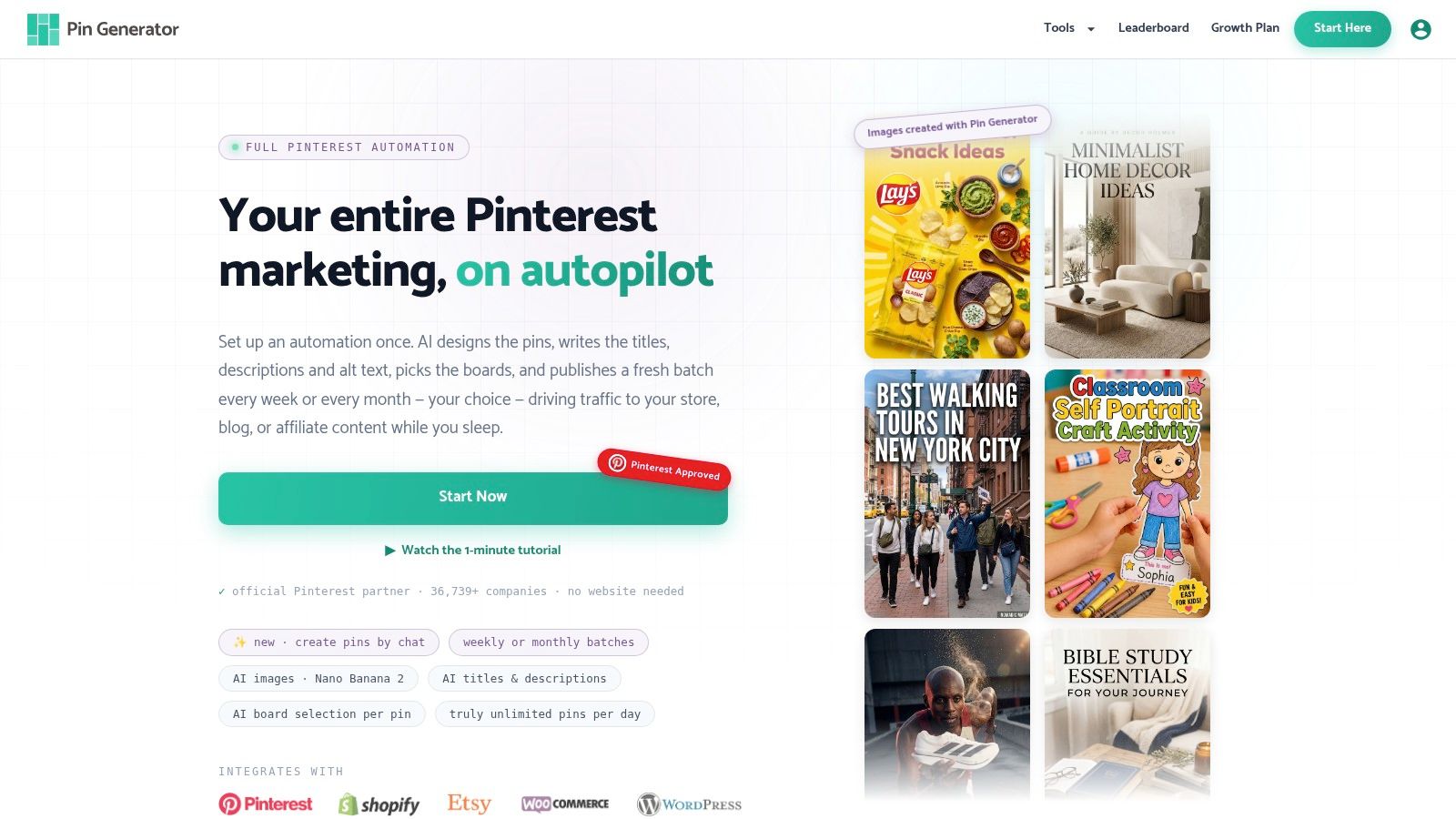
Connect automation to a deliberate taxonomy
Automation doesn't repair vague boards. If your account contains overlapping titles, inconsistent sections, and outdated descriptions, a tool can distribute confusion more efficiently. Clean the board structure first, then define rules for which topics belong in which destinations.
For a Shopify, Etsy, WooCommerce, or Amazon workflow, product categories can map to board themes. A recipe publisher can use an RSS or Atom feed to generate Pins from new articles, then route vegetarian dinners, desserts, or meal-planning content into the relevant collections. CSV imports and other feed options can support teams working from structured content data.
Recurring publishing is useful when it follows a review process. Create a batch, inspect the generated creative and metadata, confirm the selected boards, then allow the schedule to run. Keep a history of what was published so you can spot repeated destinations, stale product information, or Pins that need a different visual treatment.
Treat board suggestions as recommendations
Smart board selection can reduce repetitive decisions, but it shouldn't replace governance. Review suggested destinations when a topic is new, when a product spans several categories, or when a board has recently been renamed. The human decision is still important for ambiguous content.
The strongest workflow combines taxonomy discipline, feed ingestion, template controls, and scheduled review. That keeps automation from becoming a black box and lets the account scale without turning every publishing day into a drag-and-drop endurance test.
Troubleshooting Common Board Editing Problems
Pinterest's interface occasionally behaves like it has strong opinions about your plans. A header refuses to update, a board vanishes from the profile, or a section appears on desktop but not in the app. Most problems become easier to isolate when you separate account settings from board content.
When the cover image won't change
First, confirm that the new image was saved at the board level rather than selected only as a temporary preview. Reopen the board after saving, refresh the browser, and check from another device if possible. If the old cover persists, sign out and back in, then clear the app cache or browser cache. Don't keep uploading variations before confirming whether the original change registered.
When a board disappears
Check visibility before moving Pins or recreating the board. A board switched to secret won't appear publicly on your profile, but that doesn't mean its content has been deleted. Open the board settings, change visibility when appropriate, and save again. Also check whether it was archived, since archiving removes it from active profile browsing without using the same final step as deletion.
When sections look inconsistent
If a newly created section isn't visible in the mobile app, open the board on desktop and confirm that the section exists there. Update the app, close it completely, and reload the board. If Pins seem stuck in the wrong place, use the board's organize function rather than repeatedly dragging individual items in a view that may not have refreshed.
When edits create a mess
Stop publishing while you diagnose a structural mistake. Compare the live board with your written taxonomy, restore visibility or section names first, and then review recent Pin placement. Archive obsolete collections instead of deleting them when you're unsure whether the historical content may still be useful.
The best troubleshooting habit is prevention. Keep board names specific, record structural edits, limit permissions, and review automated destinations before a publishing schedule runs unattended.
Pin Generator can help turn a cleaned-up Pinterest taxonomy into a repeatable workflow by generating branded Pins, writing supporting metadata, selecting relevant boards, and scheduling content from stores or feeds. Visit Pin Generator to connect your publishing sources and reduce the manual board-selection work that makes Pinterest management harder than it needs to be.