
How to Switch to Business Account on Pinterest
13 October 2026
You've been pinning from a personal Pinterest profile, your boards already contain useful content, and you're ready to treat the account like a real marketing channel. The obvious question is how to switch to a business account on Pinterest without starting over. The less obvious question is what happens to your measurement history after you convert.
Pinterest's business account gives you access to analytics, advertising tools, and the Business Hub, but conversion also creates a reporting break. Native analytics from before the conversion date won't be available afterward, so your preparation matters as much as the click path. Record your baseline first, then switch with a clear plan for rebuilding your measurement system.
Table of Contents
- Why Switching to a Pinterest Business Account Matters
- Converting Your Profile on Desktop and Mobile
- Claiming Your Website and Optimizing Your Profile
- Unlocking Analytics and Automating Your Pin Strategy
- Troubleshooting Common Conversion and Analytics Issues
- Next Steps for Scaling Your Pinterest Traffic
Why Switching to a Pinterest Business Account Matters
A personal account is fine for collecting ideas. A business account is built for publishing, measuring, and promoting content. Pinterest describes business accounts as similar to personal accounts, while adding the Pinterest Business Hub, Pinterest Analytics, and advertising capabilities through its official business account documentation.
That difference changes how you judge success. Instead of relying on saves or a general sense that your profile is active, you can review defined metrics such as impressions, engagements, engagement rate, Pin clicks, and outbound clicks. Pinterest calculates engagement rate by dividing total engagements by the number of times Pins were seen. Impressions represent the occasions when Pins or ads appeared on screen.
The analytics gap many guides omit
Conversion does not create a complete historical dashboard. Pinterest states that analytics may take up to 48 hours to begin loading after conversion, while a full week of data can take about 10 days to appear. Historical data from before the conversion date is unavailable in the new business analytics view. These reporting limitations are documented in Pinterest's archived analytics guidance.
That means you should create a baseline before pressing the conversion button. Save your strongest Pins, board-level performance, outbound-click totals, and relevant website analytics. A spreadsheet is enough. Record the date, Pin URL, destination URL, impressions or views available to you, clicks, and any sales or sign-ups recorded in your website analytics.
Practical rule: Treat conversion as the start of a new measurement period, not as a way to unlock a perfect archive of past performance.
What you gain, and what you don't
The strategic value is measurement and paid distribution, not a guaranteed organic reach increase. A business account lets you inspect performance for Pins published through the business profile and use advertising tools with targeting based on factors such as location, interests, keywords, or demographics.
It also gives you a more reliable basis for decisions. You can compare creative themes, identify Pins that earn outbound visits, and decide which content deserves further production. You can't assume every Pinterest click equals a website visit or a sale, though. Pinterest's dashboard and your analytics platform may count different actions, so your baseline should include both sides wherever possible.
Converting Your Profile on Desktop and Mobile
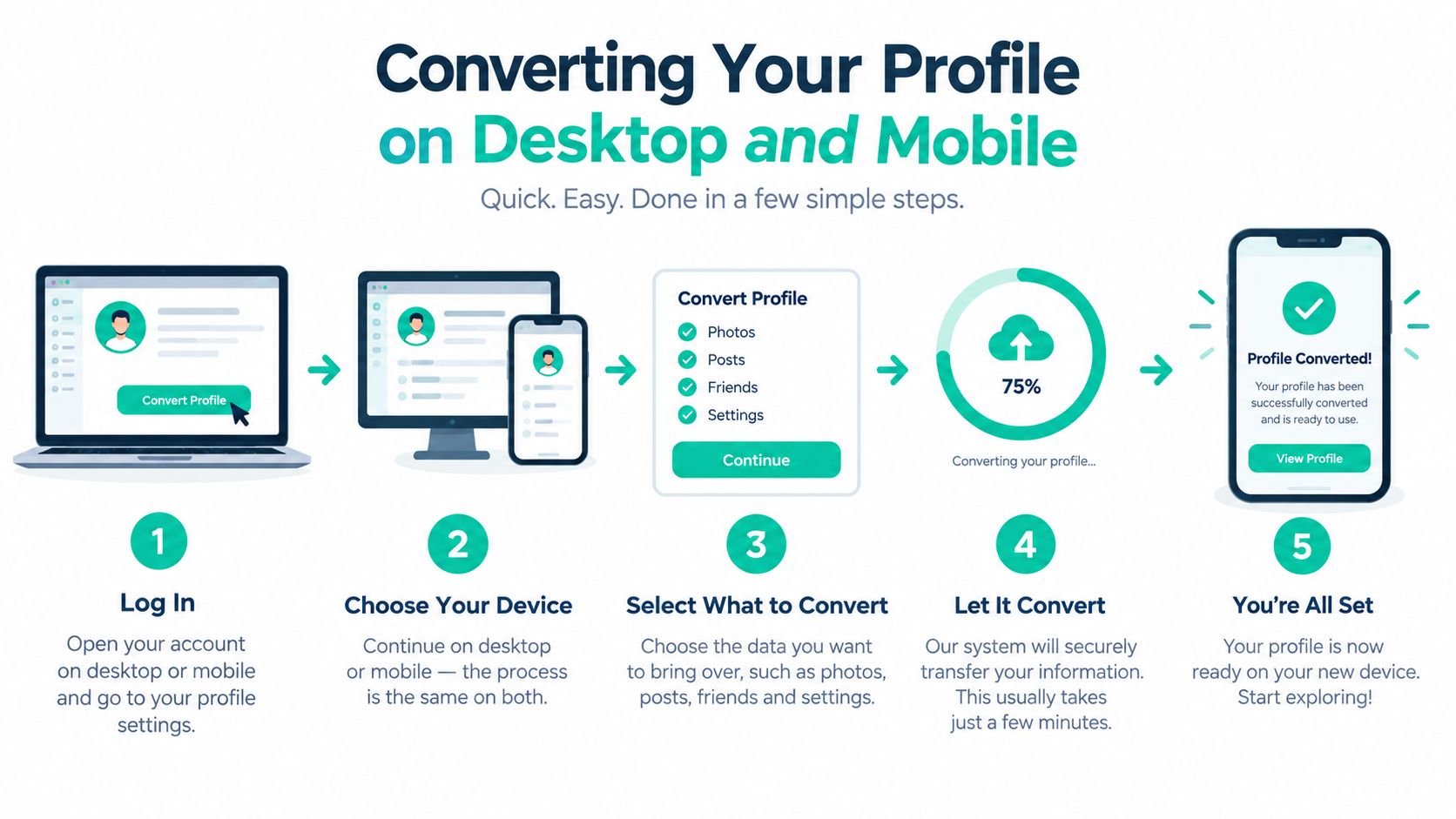
Before converting, make sure the profile is public. Pinterest states that a private personal account must be made public before it can become a business account. This is the most common prerequisite people miss, especially when an account was originally used for personal inspiration rather than public publishing.
On desktop, sign in to Pinterest and open your profile menu. Go to Settings, choose Account management, select Convert to a business account, and then choose Convert account. Pinterest will guide you through the business-profile setup, which can include your business name, website, business type, country, and language.
Desktop and mobile checkpoints
The labels can vary slightly by app version, but the logic is the same on mobile:
- Open your profile: Tap your profile picture in the Pinterest app.
- Open settings: Use the menu to access Settings.
- Find account management: Look for Account management within the account settings.
- Start conversion: Tap Convert to a business account, then confirm Convert account.
- Complete the profile: Add the requested business details and save the setup.
Conversion is generally the better option when your existing profile already has useful Pins, boards, followers, or recognizable branding. Pinterest introduced business accounts in October 2012, and the basic choice remains familiar: preserve an existing profile by converting it, or create a separate business account for commercial activity. The historical overview is available through Pinterest's business account background.
Don't create a second account just because the business setup feels more official. A new profile separates your commercial activity from your existing audience and content. Choose a fresh account only when that separation is intentional, such as when your current profile is personal, private in purpose, or unrelated to the brand you're building.
Claiming Your Website and Optimizing Your Profile
Conversion changes the account type, but it doesn't automatically make the profile useful for search or traffic acquisition. Start by adding your website in the business profile settings, then follow Pinterest's verification flow. Depending on your site and hosting setup, Pinterest may provide a meta tag to add to your site or an HTML file to upload.
The verification step proves that you control the domain. It also connects your Pins and profile to a destination you can measure outside Pinterest. Confirm the site after adding the required verification method, then check that the correct domain appears in the business settings.
Build a profile around user intent
Replace a vague personal bio with a concise description of what you publish or sell. Use language that matches the searches your audience might perform, but don't fill the bio with disconnected keywords. A home decor shop, for example, should describe its product category and visual point of view rather than writing a generic phrase such as “inspiration and ideas.”
Your boards need the same treatment. Personal boards can be broad and private in meaning. Business boards should help visitors understand what they'll find and where each topic leads. Name them around clear themes, such as:
- Product category: Organize items around the way shoppers browse.
- Problem or use case: Group content around a task, need, or decision.
- Editorial topic: Give blog or educational content a focused destination.
- Seasonal collection: Use a relevant theme when it supports your publishing plan.
Keep board descriptions useful and specific. Add relevant keywords naturally, then make sure the Pins saved to each board actually match the promise. For a deeper practical framework, use this guide on how to use Pinterest for business.
Claiming the website also gives you a cleaner path for reconciling Pinterest activity with website sessions, outbound clicks, sign-ups, and purchases. Those systems won't always report identical figures, but a verified destination makes the comparison possible.
Unlocking Analytics and Automating Your Pin Strategy
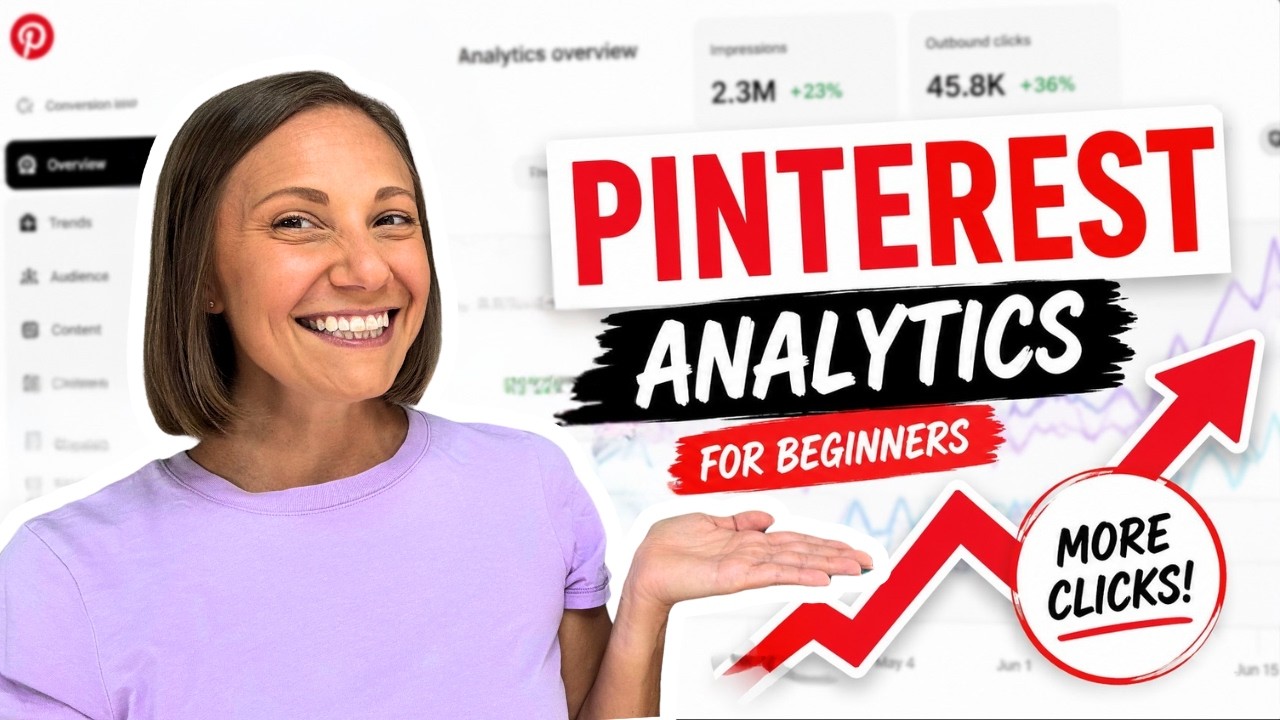
Once the account is converted, use analytics to answer operational questions rather than admire dashboard totals. Impressions tell you how often content appeared. Engagements show interactions within Pinterest. Pin clicks indicate activity on the Pin, while outbound clicks are more relevant when your goal is to send people to a website.
Engagement rate can help compare content with different levels of exposure, but it shouldn't replace destination measurement. A Pin may attract interaction without producing meaningful website activity. Start with the business objective, then select the Pinterest metric that sits closest to it.
Turn reporting into a publishing loop
Analytics becomes useful when it changes what you publish next. Review which subjects earn outbound clicks, which layouts generate engagement, and which boards consistently attract activity. Then create more relevant variations without copying the same Pin repeatedly.
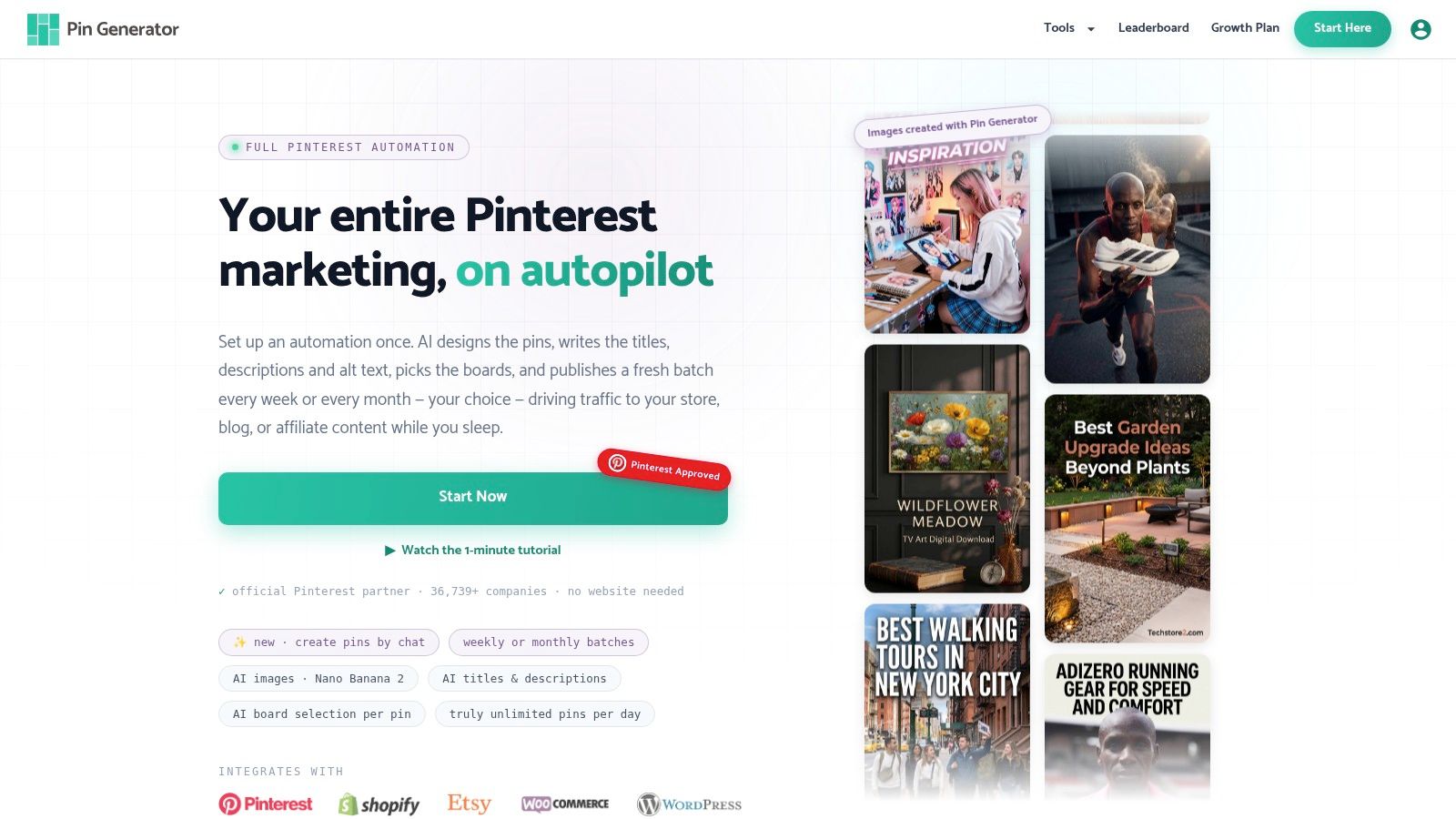
Manual production often breaks at the same point. You have product pages, blog posts, or a feed full of possible destinations, but designing each Pin, writing metadata, selecting boards, and scheduling every item takes more time than the strategy itself. Pin Generator can ingest product catalogs, RSS or Atom feeds, CSV files, and connected stores, then generate Pin designs, titles, descriptions, and alt text for scheduled publishing.
That workflow supports recurring production while leaving room for human review. Use brand templates for consistent colors and typography, inspect the generated copy, and reject anything that doesn't accurately represent the destination page. Automation should reduce repetitive preparation, not remove editorial judgment.
For measurement discipline beyond Pinterest's native dashboard, Bruce and Eddy's measurement tips offer a useful reminder to connect platform activity with business outcomes. Your reporting sheet should distinguish exposure, interaction, traffic, and conversion instead of placing every click in one column.
A practical review cycle looks like this:
- Review the content: Identify themes and formats that deserve more variations.
- Check the destination: Confirm that the landing page matches the Pin promise.
- Inspect the board: Look for mismatched topics or weak organization.
- Schedule deliberately: Maintain a repeatable cadence you can sustain.
- Record the result: Compare new data with the baseline captured before conversion.
For a closer look at the dashboard and its available metrics, see this guide to Pinterest Analytics.
Troubleshooting Common Conversion and Analytics Issues
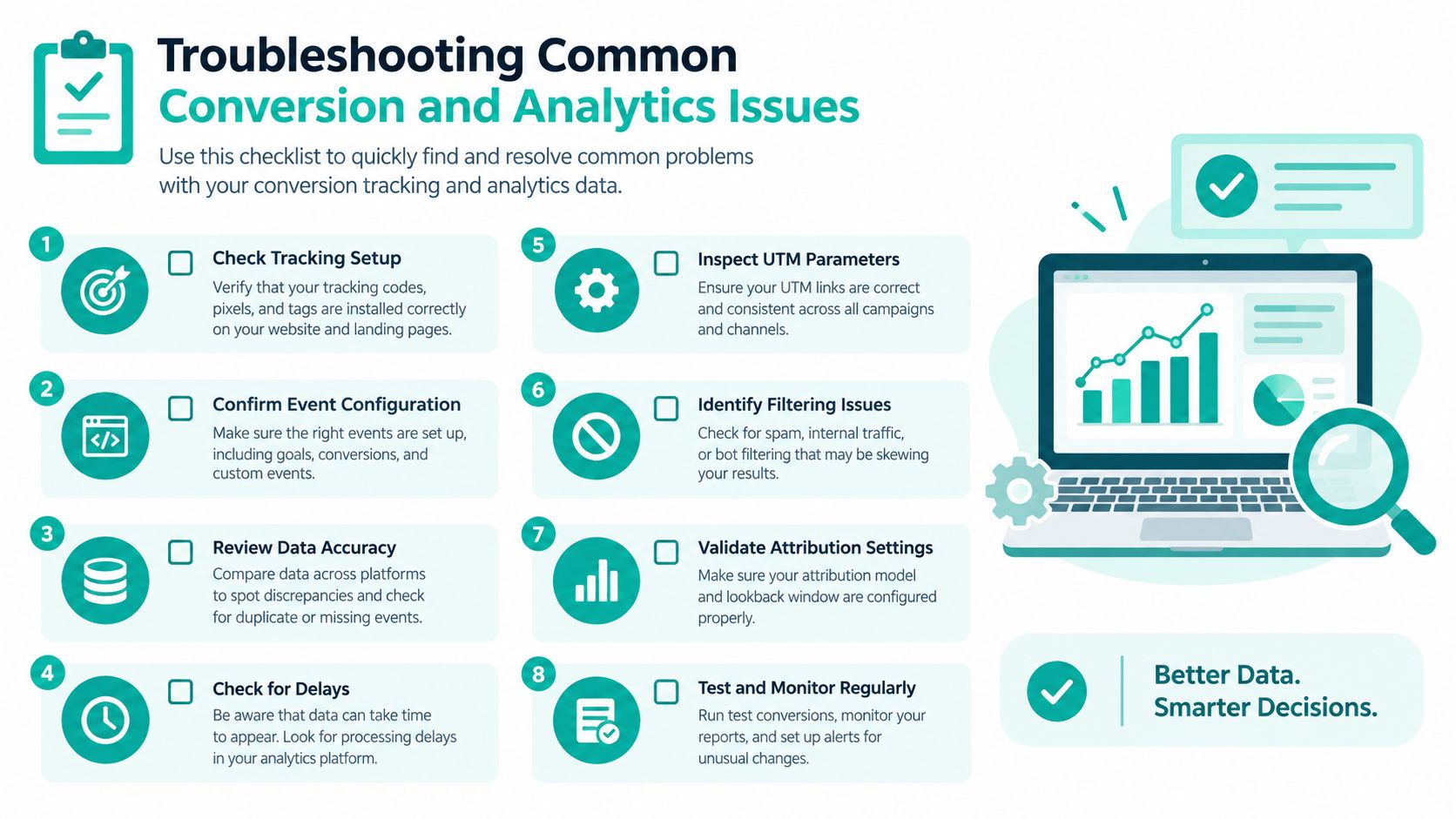
The first problem is usually simple: Pinterest won't let you convert because the account is private. Change the profile to public, return to Account management, and start the conversion again. If the option still doesn't appear, check that you're working in the correct account and that the app or browser session is current.
The second problem causes more confusion: the new analytics area looks empty. That doesn't necessarily indicate a failed conversion. Pinterest says reporting may take up to 48 hours to start loading, and a full week of data may take about 10 days to appear. Don't judge the account during that initial reporting window.
Why old performance doesn't reappear
Conversion preserves the profile's public presence, but it doesn't reconstruct native analytics for the period before conversion. Your saved baseline is therefore essential. Keep the evidence you collected before switching, and label the first post-conversion reporting period clearly in your spreadsheet or reporting tool.
You should also expect differences between Pinterest and website analytics. Pinterest can count clicks that happen within Pinterest, while another analytics platform may count a visit only when the website successfully loads. Pinterest explicitly warns that its click counts can exceed other analytics platforms for this reason.
| Metric | What it helps you understand |
|---|---|
| Impressions | How often a Pin or ad appeared on screen |
| Engagements | Interactions recorded within Pinterest |
| Pin clicks | Activity on the Pin itself |
| Outbound clicks | Visits initiated toward an external destination |
| Website conversions | Results recorded by your own analytics or commerce system |
Do not force these metrics to match. Compare them by definition, annotate reporting differences, and use outbound clicks alongside website sessions and conversions. If Pinterest records a Pin click but your site records no session, investigate loading, tracking, redirects, and the destination experience before declaring the dashboard inaccurate.
Next Steps for Scaling Your Pinterest Traffic
Your first priority after conversion isn't publishing more content at random. It's establishing a clean operating cycle. Finish the profile, verify the website, preserve the pre-conversion baseline, and wait for the new reporting window to stabilize before making strong judgments.
Then build a focused production queue from your actual destinations. Select product pages, articles, guides, or collections that deserve traffic. Use Pinterest keyword research to identify relevant search language, review trend signals before creating timely content, and map each Pin to a specific board and landing page.
A sustainable workflow should include:
- Choose content inputs: Start with a product catalog, RSS feed, or editorial list.
- Create controlled variations: Change the visual angle and message while keeping the destination accurate.
- Schedule recurring publishing: Use a cadence your team can maintain without constant manual uploads.
- Review performance: Compare outbound clicks and engagement with website behavior.
- Refine the queue: Produce more of what earns qualified activity and remove weak destinations.
The business account is valuable because it turns Pinterest into a feedback system. The baseline protects you from losing context, analytics shows what happens after conversion, and automation makes consistent testing practical.
Pin Generator helps turn product catalogs, RSS feeds, and content sources into branded Pinterest Pins with generated designs, metadata, board selection, and recurring scheduling. Visit Pin Generator to connect your sources and build a more consistent publishing workflow after switching to a business account.