
How to Organize Pinterest Boards Into Sections That Convert
16 October 2026
You open Pinterest to find a board for a product, recipe, or design idea, then spend several minutes scrolling past vague names, duplicate topics, and Pins that have no obvious home. The profile may contain strong content, but visitors have to work too hard to understand it.
The fix isn't always another board. Sections create a second level of organization inside an existing board, so you can keep a broad topic together while separating the narrower subjects, formats, and buyer intents within it. The result is a profile that's easier to browse, easier to maintain, and easier to connect to a consistent Pinterest SEO strategy.
Table of Contents
- The Pinterest Profile That Actually Gets Found
- Planning a Section Strategy Before You Touch a Single Pin
- Creating and Editing Sections on Web, iOS, and Android
- Writing SEO-Friendly Names and Descriptions That Match Search Intent
- Scheduling and Recurring Publishing Into the Right Sections
- Why Section Order Is a UX Layer, Not a Ranking Trick
- Troubleshooting and a 30-Minute Section Audit You Can Run Today
The Pinterest Profile That Actually Gets Found
A creator once showed me a profile with boards named “Ideas,” “Inspo,” “Home,” “Products,” and “Favorites.” The account had plenty of useful Pins, but the structure told visitors almost nothing. The creator had responded to every new topic by making another board, and the profile had become a collection of disconnected shelves.
That approach feels organized while you're publishing. It becomes a problem when someone lands on your profile and can't tell where to look. It also makes related content compete for attention across several lightly defined boards instead of giving each major subject a clear home.
Pinterest introduced board sections in November 2017 as a way to organize Pins inside one board, after testing the feature with selected beta users that began in September of the same year. The rollout covered iOS, Android, and the web, and Pinterest positioned sections as a way to consolidate similar boards while making individual ideas easier to locate later. You can read the original announcement in Pinterest's explanation of board sections.
Think in two levels
Use boards for high-level topics and sections for narrower groupings.
A home decor merchant might use:
- Board: Living Room Ideas
- Sections: Small Spaces, Color Palettes, Furniture, DIY Projects
A food creator might use:
- Board: Dinner Recipes
- Sections: Weeknight Recipes, Vegetarian Meals, Slow Cooker Ideas, Family Favorites
This model is more useful than creating a separate board for every variation. It keeps the account's broad subject visible while giving visitors a clear path to the specific idea they want.
Practical rule: Create a new board when the subject deserves its own top-level identity. Create a section when the topic belongs naturally inside an existing board.
For a visual example of how a broad home theme can split into more specific collections, browse Jessie's Home wall art collection. The important lesson isn't the products themselves. It's the way a broad design category can lead visitors toward narrower aesthetic and room-based choices.
Sections aren't independent boards, and they shouldn't be treated as secret SEO channels. They are subdivisions inside a board. Your board title, Pin titles, descriptions, creative, and landing pages still carry the core discovery work. Sections improve the path people take after they arrive, while giving your content a more coherent information architecture.
Planning a Section Strategy Before You Touch a Single Pin
Don't start by moving Pins. Start by deciding what your profile is supposed to communicate.
Open every public board and write down its current subject, the type of person it serves, and the intent behind its Pins. A board filled with products, tutorials, inspiration, and seasonal promotions usually needs a clearer structure than a tightly focused collection.
Build from stable intent
Your section names should describe durable subjects, not temporary publishing activity. Good labels reflect what a visitor wants, such as Small-Space Kitchens, Weeknight Recipes, or Gift Guides. Weak labels describe your internal workflow, such as “March Campaign,” “New Collection,” or “Content Batch A.”
Avoid dates in section names unless the date is the actual subject. A seasonal board can use a section such as “Holiday Gift Guides,” but a section called “December 2026” will age badly and force a later cleanup.
Use one canonical section for each main topic. If “Neutral Living Rooms” and “Neutral Room Ideas” contain the same kind of Pins, choose one name and merge the other into it. Consistency matters more than clever wording.
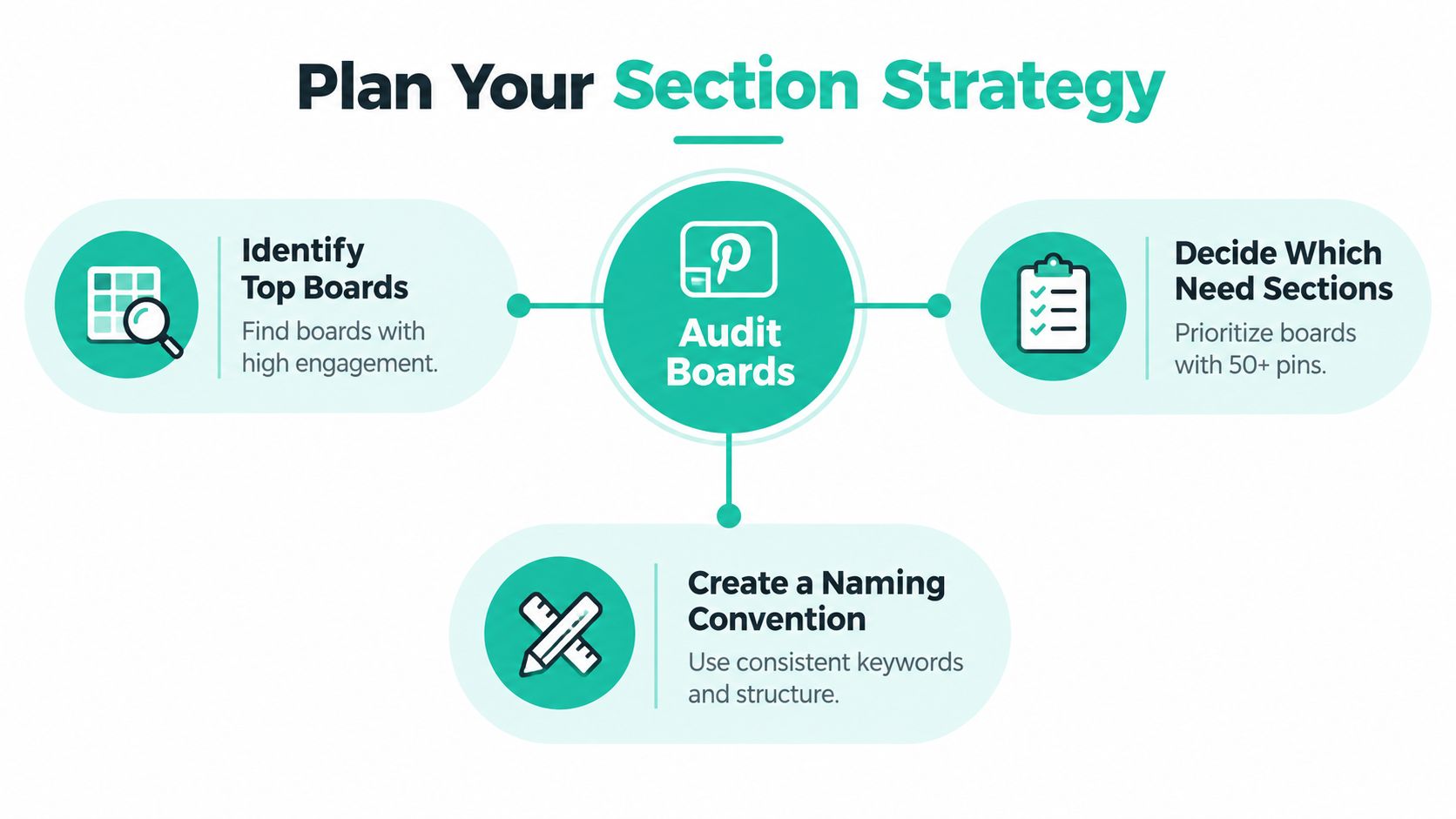
A practical audit separates boards into three groups:
- Keep broad and focused. These already represent a strong top-level subject.
- Consolidate and section. These overlap enough to belong under a shared theme.
- Hide or retire carefully. These no longer fit the profile or serve a meaningful audience.
For example, a home decor creator might have separate boards for “Kitchen Decor,” “Apartment Kitchen Ideas,” and “Small Kitchen Inspiration.” Instead of maintaining three overlapping destinations, the creator could consolidate the topic into Kitchen Ideas, with sections for Small-Space Kitchens, Apartment Layouts, and Kitchen Storage.
That structure gives each Pin a logical home without turning the profile into a maze. It also makes future publishing decisions easier because the team can classify a new idea before uploading it.
Naming patterns for sections that stay useful
| Intent Type | Pattern | Example |
|---|---|---|
| Audience or space | Specific audience plus topic | Small-Space Kitchens |
| Use case | Activity or need plus topic | Weeknight Recipes |
| Commercial intent | Product need plus category | Gift Guides |
| Style | Style descriptor plus subject | Neutral Living Rooms |
| Format | Content format plus subject | DIY Storage Projects |
For adjacent inspiration, a resource such as Cedar & Lily Clothier's closet organization tips for 2026 can help you see how a broad organization topic breaks into practical user needs. Borrow the underlying intent logic, not the exact labels.
Creating and Editing Sections on Web, iOS, and Android
Pinterest's current workflow lets you reorganize existing Pins instead of rebuilding a board from scratch. Open the relevant board, use Organize, select the Pins, choose Move, and assign them to the destination section. When you create a section, Pinterest lets you type a name or choose from suggested names.
The labels and controls vary slightly by device, so don't assume a mobile tutorial will match the web interface.
On the web
- Open Pinterest and go to the board you want to restructure.
- Select Organize.
- Choose the Pins you want to classify.
- Select Move.
- Choose an existing section or create a new one.
- Enter the section name and save the changes.
The web interface is usually the easiest place to handle a large cleanup because you can review more Pins at once. Start with the most obvious groups, then inspect the leftovers instead of forcing every ambiguous Pin into the first category you see.
On iOS
Open the board in the Pinterest app and tap the edit control. Choose Add Section when you need a new category, then name it. To relocate Pins, enter the board's organizing workflow, select the relevant Pins, tap Move, and choose the destination section.
Pinterest also supports drag-and-drop reordering for sections on iOS. Use that after classification, not before. Ordering a half-empty taxonomy only creates extra work when you later merge or rename categories.
On Android
The Android workflow also begins inside the board's edit or organize controls. Create a section by selecting Add Section, enter the name, and save it. To move existing Pins, use Organize, select the Pins, choose Move, and assign the destination.
Pinterest's current guidance places section reordering behind the Organize control on Android, so the path differs from the drag-and-drop experience available on iOS and the web.
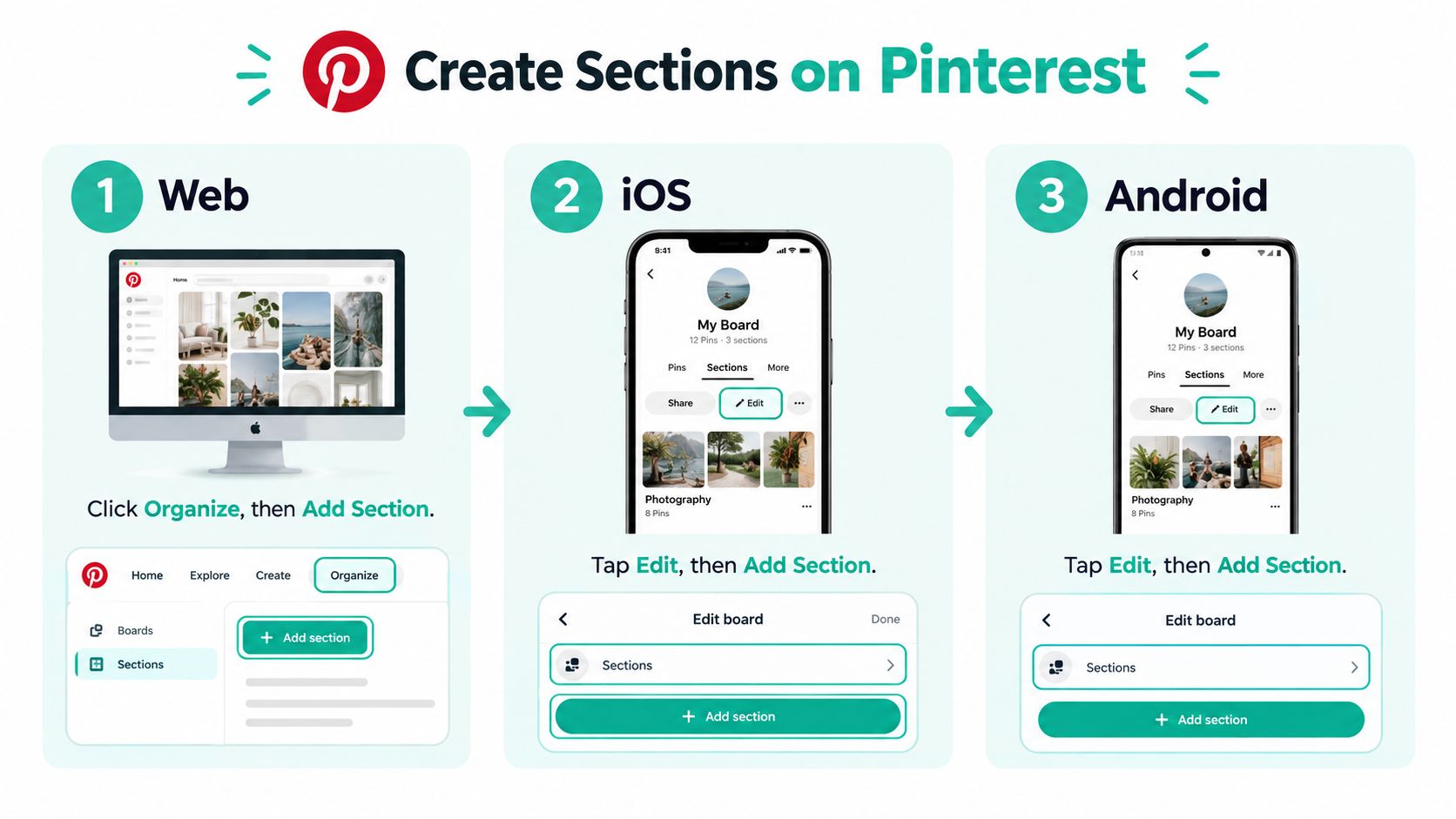
Device checklist
- Web: Open the board, choose Organize, select Pins, then move them to a section.
- iOS: Use the board edit controls to add sections, and drag sections into order where supported.
- Android: Use Organize for Pin moves and section reordering.
- All devices: Save the destination section, then confirm that the Pins appear where expected.
Merging is reversible in practical terms. Move the Pins from one section into another, then delete the empty section. You can also move Pins between boards and sections, which means you don't need to delete valuable content just because your original taxonomy was poor.
The same principle works for educational collections. A beauty creator, for example, could separate a broad skincare board into routines, ingredient education, and product application. For broader tutorial inspiration, Finding Favourites' skincare tutorial resources show how a general subject can support several distinct learning intents.
Writing SEO-Friendly Names and Descriptions That Match Search Intent
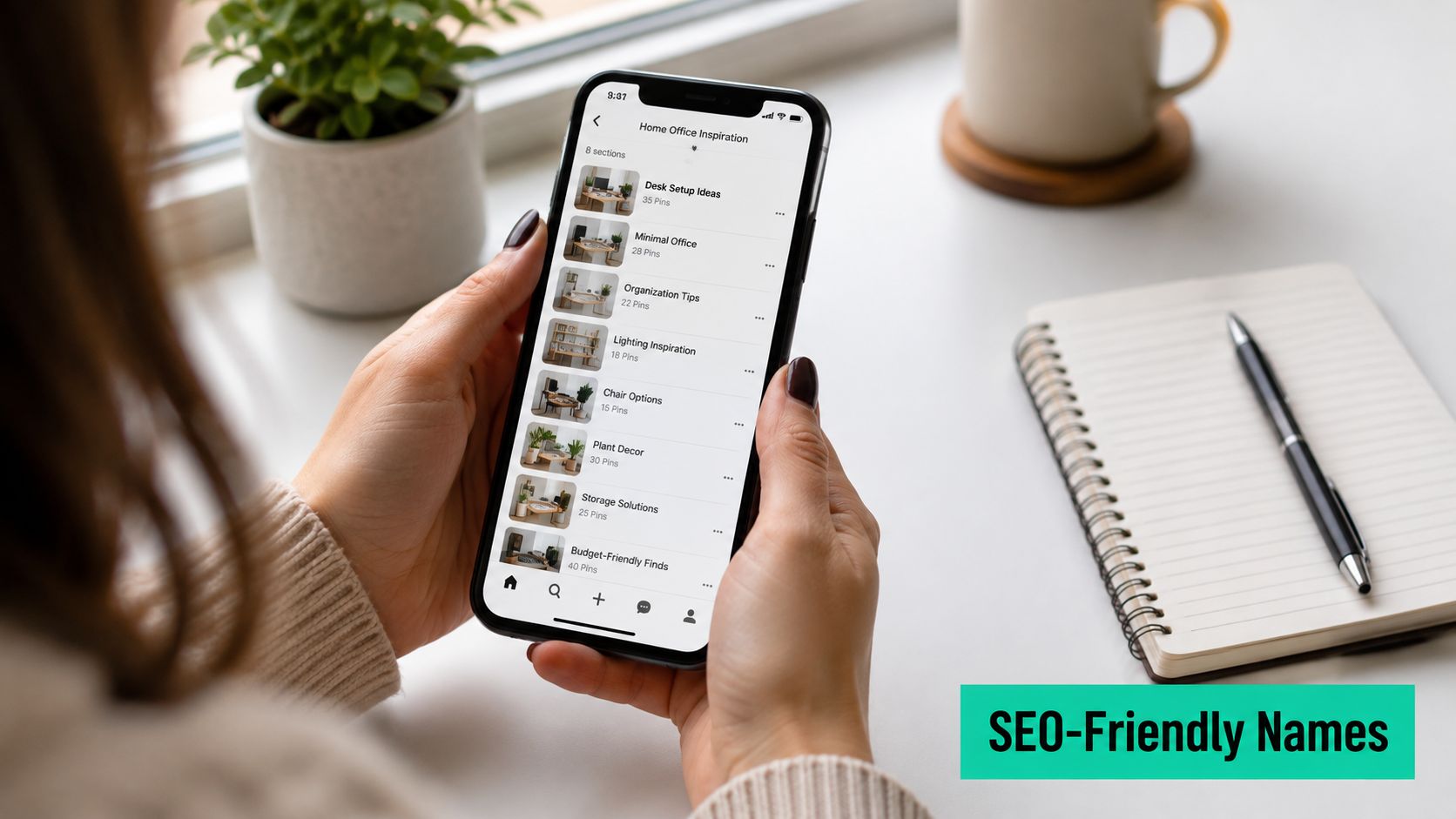
A section name should help a human understand the category quickly, then support the language used throughout the board and its Pins. It shouldn't read like a pile of keywords.
Start with Pinterest search suggestions. Type the broad topic into the search bar and note the related phrases Pinterest surfaces. Compare those phrases with Pinterest Trends for the relevant market, then review competitor profiles to see how they describe similar content. Pinterest Trends data is region-specific, so don't assume that one market's preferred label will work everywhere.
Turn vague labels into useful labels
“Kitchen Stuff” tells visitors almost nothing. Small-Space Kitchens and Apartment Layouts gives them a subject, audience, and use case.
“Pretty Rooms” is similarly weak. Neutral Living Room Ideas identifies both the visual style and the room.
“Gift Things” becomes Gift Guides for New Homeowners when the buyer intent is clear.
The best section names usually contain one primary phrase and, when necessary, a clarifying modifier. Keep the name readable. If you need to explain every possible variation in the label, the board itself may be too broad.
Write descriptions for people first
A section description can clarify the scope of the category and naturally include related terms. Explain what the visitor will find, who it's for, and what action or outcome the content supports.
For Small-Space Kitchens, a useful description might mention apartment kitchen layouts, compact storage, renter-friendly organization, and efficient meal-prep areas. Don't repeat the same phrase unnaturally. Pinterest can understand related language, and visitors can recognize keyword stuffing immediately.
Sections are not independent SEO channels. Pinterest's official help documentation frames them as tools for organizing Pins within a board, not as separate distribution destinations. Search visibility still depends on the relevance and quality of the Pin, the board context, the creative, the description, and the page that receives the click.
Use the section as a classification layer, then optimize the assets that matter. For practical board-editing workflows, see this guide on editing Pinterest boards.
A simple review standard works well:
- Clarity: Can a visitor understand the section without opening it?
- Intent: Does the name match a real search or shopping need?
- Consistency: Does it follow the same naming pattern as neighboring sections?
- Scope: Can you classify most relevant Pins without inventing exceptions?
Scheduling and Recurring Publishing Into the Right Sections
A clean taxonomy becomes much more valuable when new content enters it automatically. Otherwise, every product launch or blog post creates another manual sorting task, and the structure gradually decays.
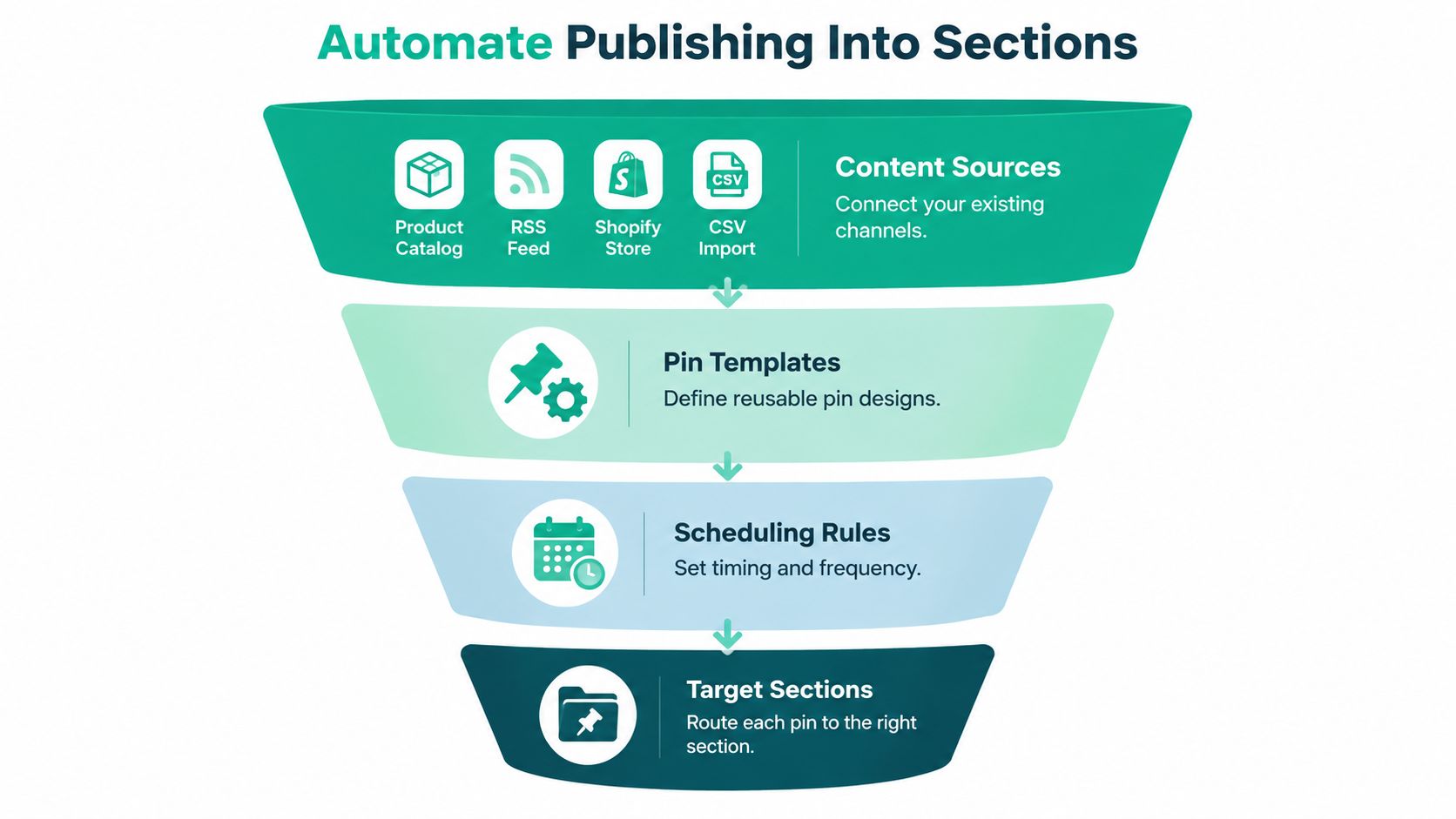
Map each content source to a board and section before you create a publishing schedule. A product catalog might feed a board for a product category, while an RSS feed for recipes might route Pins to sections based on meal type. Shopify, Etsy, WooCommerce, WordPress, RSS, Atom, and CSV sources can support different publishing streams, but the classification rule must come first.
Build the routing logic
Think of the workflow as a funnel:
- Content sources: Product records, blog posts, feeds, or imports provide the raw material.
- Pin templates: Reusable designs keep typography, colors, and layouts consistent.
- Scheduling rules: A recurring schedule determines when each content stream publishes.
- Target sections: Board and section assignments determine where the finished Pin belongs.
A merchant selling home goods might route storage products to Home Organization, then use sections for Closet Storage, Kitchen Storage, and Small-Space Solutions. A publisher might send recipes to Dinner Recipes, with sections based on cooking occasion or dietary intent.
The rule should be specific enough that a new item can be classified without a daily debate. If a product belongs equally to two themes, choose a canonical destination and document the exception. Duplicate placement often feels helpful but can create a messy library that nobody maintains.
For teams that want generated designs, metadata, board selection, and recurring publishing in one workflow, Pin Generator's Pinterest scheduling guide describes the scheduling side of this process. Pin Generator can work with content sources and reusable templates, then provide history and leaderboard views for reviewing published output.
Review the automation instead of trusting it blindly
Automation doesn't remove the need for editorial judgment. It moves that judgment into the setup and review process.
Check Pin History for content that repeatedly lands in the wrong section. Look at the results leaderboard to identify patterns in what gets published, then adjust the source mapping, template, or destination rule. A section structure should become more accurate over time, not merely more populated.
The right automation rule is boring. It sends the right content to the right section without asking you to make the same decision again.
Why Section Order Is a UX Layer, Not a Ranking Trick
Section order is useful, but not for the reason many tutorials claim. Pinterest's official guidance describes sections as subdivisions inside a board. It doesn't establish section order as an independent ranking signal.
Put your most commercially important or visitor-friendly category first because profile visitors are more likely to notice it there. Don't move it to the top expecting a search boost.
Keep the two ordering systems separate
Pinterest treats board order and section order as different actions.
At the profile level, boards can be sorted alphabetically, by the board receiving the most recent saves, or through a manual custom order with drag and drop. Section order applies inside an individual board, and Pinterest supports drag-and-drop reordering on the web and iOS, while Android users access reordering through Organize. The distinction is covered in Pinterest's board organization guidance.
Use this checklist when the order looks wrong:
- Profile view: Reorder the boards themselves using the board sorting controls.
- Board view on web: Open the board and manually drag sections into the preferred order.
- Board view on iOS: Use the section arrangement controls and drag categories into place.
- Board view on Android: Open Organize and use the available reordering action.
- Search optimization: Edit Pin titles, descriptions, creative text, board titles, and landing pages separately.
The most useful section belongs first, not necessarily the section with the highest search volume. For a retailer, that might be a category closest to purchase. For a publisher, it might be the most popular reader need. For a creator building an audience, it may be the entry point that explains the profile's main promise.
Regional differences matter too. Pinterest Trends data is region-specific, so labels that work for one market may sound unnatural or miss the dominant search language in another. Test your taxonomy by market instead of forcing one universal naming system across every audience.
Troubleshooting and a 30-Minute Section Audit You Can Run Today
Most section problems come from rushed classification, not from Pinterest's interface. The cleanup is ordinary work, but it prevents a tidy-looking profile from becoming difficult to use later.
Fix the common failures
- Duplicate names: Merge sections that describe the same intent, then delete the empty duplicate.
- Taxonomy sprawl: Replace temporary campaign labels with stable subjects, audiences, or use cases.
- Nearly empty sections: Move their Pins into a stronger neighboring category unless the subject deserves a deliberate future collection.
- Misrouted Pins: Use Organize and Move to place them in the canonical destination.
- Overlapping topics: Choose one primary home and record exceptions rather than creating a new section for every edge case.
- Broken structure after a merge: Check the destination section and confirm that its Pins, name, and order still make sense.
Pinterest supports moving Pins between sections and boards, so reorganization doesn't require re-uploading content. The current help workflow also supports merging sections by moving their Pins into another section and deleting the old one, as described in Pinterest's section organization instructions.
Run the audit now
Set aside a focused block of time and work through the profile in this order:
- Count the sections inside each active board and flag boards with unclear or overlapping categories.
- Scan for duplicate names and near-duplicates that represent the same intent.
- Check every section title for stable, visitor-facing language.
- Review section order on the web and on the device your team uses most.
- Confirm active Pins have a deliberate home, including an exception list for mixed topics.
- Review Pin History for misrouted content and correct the publishing rule that caused it.
- Merge redundant sections instead of allowing the taxonomy to expand indefinitely.
Finish by writing down the naming convention and the decisions that aren't obvious. That small record keeps the next cleanup from becoming another round of guesswork.
If your boards are growing faster than your team can sort them, Pin Generator can generate branded Pins, write supporting metadata, connect content sources, and schedule recurring publishing with board selection. Use it to route new content into the structure you've already planned, then review the history to keep section assignments accurate.