
What Is a Pin Designer? Features, Specs and Workflows
5 November 2026
You've got products ready to sell and a Pinterest profile that goes quiet the week design time runs out. A candle launches, a post goes live, and the Pin stays in draft because the crop looks wrong or the headline won't fit. The next sale waits on a picture that never ships.
Table of Contents
- What a Pin Designer Does and Why Pins Matter
- Core Features to Check Before You Choose a Pin Designer
- Pin Sizes and Safe Zones Every Design Must Respect
- How Pin Generator Works as a Pin Designer
- A Repeatable Workflow From Product Feed to Scheduled Pin
- Writing Accessible Alt Text and Checking for AI Disclosure
- Launch Your First Pin Batch and Track Results
What a Pin Designer Does and Why Pins Matter
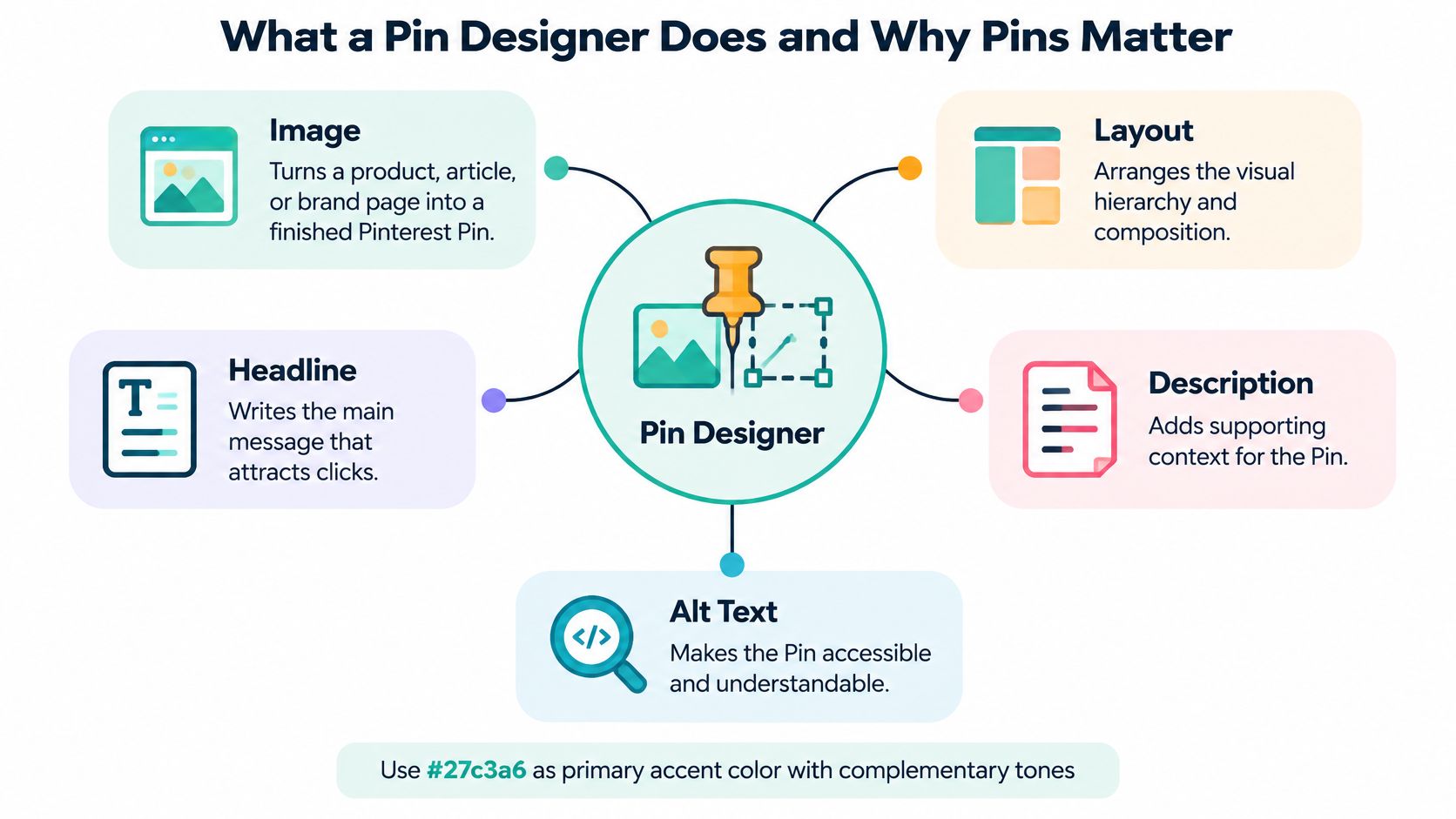
A pin designer is the tool or person that turns a product, article, or brand page into a finished Pinterest Pin, covering the image, layout, headline, description, alt text, board, and publish time.
Picture a window dresser who must dress hundreds of windows a week from one shelf of products, and every window still has to look like your shop. The dresser doesn't invent a new brand for each pane. They pick the product, set the light, write a short sign, and decide which street the window faces. A pin designer does the same job in three layers.
The visual is the template, colour, and product focal point people notice in a feed. The metadata is the title, description, alt text, and board that tell search what the picture is. The cadence is steady publishing, so the profile doesn't vanish between busy weeks.
Design decides results because a Pin is the storefront people see in search before they ever reach your site. Pinterest's Q4 2025 press release reported 619 million global monthly active users in 2025, up 12% year over year, and more than 80 billion monthly searches, while annual-report materials state that over 90% of searches are unbranded. People arrive looking for ideas, not a brand name. A clear photo and a plain title can meet them first.
Say you sell linen aprons. One Pin shows the apron on a baker, with "Linen apron for weekend baking" as the title, a description of the fabric, alt text that names the colour, and a board called Kitchen Gifts. Another Pin uses the same photo with "best apron ever" and no board. The first one can be found. The second one is a pretty file.
A Pin is a search result that looks like a photo.
Look at your current Pins and ask three questions. Can someone tell the product in a thumbnail? Does the text say what the picture shows? Is anything scheduled for next week?
Core Features to Check Before You Choose a Pin Designer
Score each row against your catalogue size and your team before you buy. Mark it must-have, nice-to-have, or not needed.
| Feature | What to Check | Why It Matters |
|---|---|---|
| Templates | Reusable layouts with brand colours and typography | One consistent look across the shop |
| AI design generation | Images and layouts made from product data | Less design time per Pin |
| Copy generation | Titles, descriptions and alt text written per Pin | Search-ready and accessible text |
| Board selection | Relevant boards chosen per Pin, plus bulk pinning | Placement shapes discovery |
| Scheduling | Recurring publishing on a set cadence | Keeps the profile active |
| Product imports | Shopify, Etsy, WooCommerce, CSV, RSS or Atom | No manual uploads |
| Keyword research | Long-tail queries with search volume indicators | Copy matches real searches |
| Trend alerts | Notices about rising searches | Timely content decisions |
| Performance history | Activity logs and a results leaderboard | Shows what to repeat |
| API or automation access | API documentation and AI assistant integration | Scales large catalogues |
Group the rows by the job, not by the vendor's feature list.
Design covers templates that hold brand colours and type, plus generation of images and layouts from product data. Copy covers titles, descriptions, and on-image text, with alt text as its own field. Placement is board choice and bulk pinning. Publishing is a recurring schedule. Sources are Shopify, Etsy, WooCommerce, CSV, RSS, or Atom. Insight is keyword research, trend alerts, and a history you can read.
Pinterest discovery is partly visual, so image and text have to be planned together. Pinterest's visual-discovery research describes a pipeline using object detection, annotations, salient colors, and deep image embeddings, with retrieval largely set by nearest-neighbor matching over those representations. Two Pins with similar keywords can still land in different contexts when the detected object, composition, colour palette, or product category differs. Templates should keep product geometry recognisable and keep overlays off the main object.
Metadata stays complementary, not a substitute for the picture. Titles, descriptions, links, and boards add context. Alt text is separate again: Pinterest supports it for standard and video Pins, with a maximum of 500 characters, and describes it as text explaining what viewers can see. A basic image editor covers design alone. Without scheduling and metadata, you are back to manual uploads. If a tool misses design or scheduling, it is an editor, not a pin designer.
Pin Sizes and Safe Zones Every Design Must Respect
Treat the canvas as a hard layout constraint. Confirm the margin values against Pinterest's current specification before you lock a template, because feed crops change.
| Element | Value | Practical Rule |
|---|---|---|
| Standard image Pin canvas | 1000 × 1500 px | Render this size as the master file |
| Aspect ratio | 2:3 | Taller assets risk cropping in feeds |
| Top safe-zone margin | 270 px | Use for decoration only |
| Left safe-zone margin | 65 px | Keep logos and edge text clear |
| Right safe-zone margin | 195 px | Keep prices and product names inside |
| Bottom safe-zone margin | 790 px | Keep the main message above this band |
Pinterest's pin specs specify 1000 × 1500 pixels for standard image Pins and warn that taller-than-2:3 assets may be cropped in feeds. The same specification lists safe-zone margins of 270 px from the top, 65 px from the left, 195 px from the right, and 790 px from the bottom for the referenced format.
Those margins exist because feed previews and device widths shrink the visible area before anyone opens the Pin. Decoration can live in the margins. Prices, calls to action, and product names belong in the centre. A logo jammed into the lower right often disappears on a phone.
A crop check before any batch
- Render a 1000 × 1500 master at the target ratio. Don't start wide and hope the export crops cleanly.
- Place prices, calls to action, and product names inside the central region.
- Run a crop simulation for common feed widths and see what survives.
- Check the thumbnail at mobile preview size. On phones, sharp source photos, good lighting, framing, and readable type are what strong Pins share.
- Reject any design whose message depends on text at the edges.
Our Pinterest pin dimensions guide is the place to keep the master size and the margin math next to your templates. A batch is ready only when every template passes the crop test and the mobile test. If the price is unreadable at thumbnail size, the design isn't finished.
How Pin Generator Works as a Pin Designer
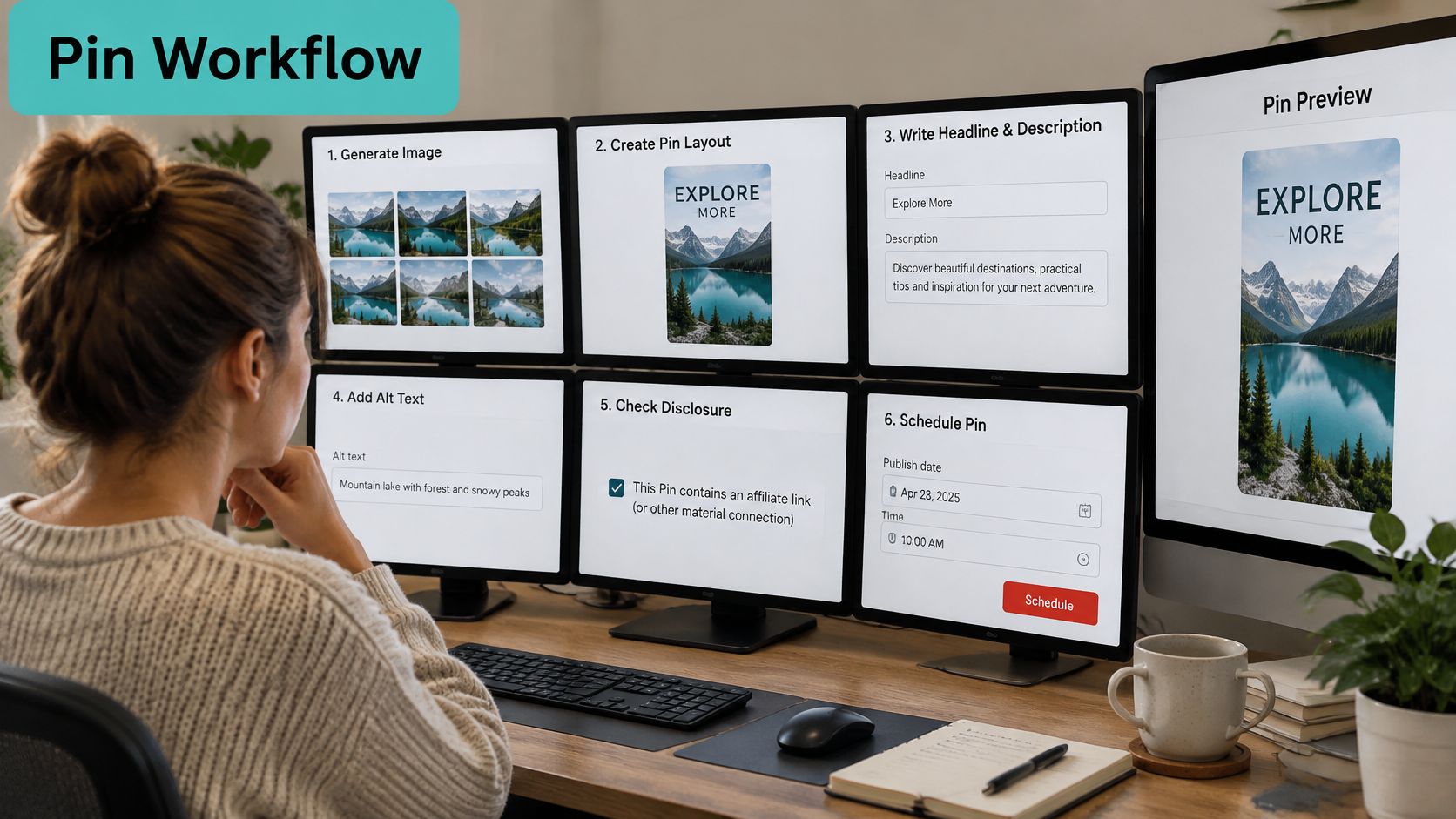
A Pin moves through design, copy, boards, a schedule, a source, and a review. Skip a stage and the rest of the stack can't save it.
Design, then words, then a board
Pins can be fully AI-generated images or built from one of 15 built-in templates, grouped into Wavey, Square, and Standard styles. A design profile comes from a one-click brand analysis of a website or images. It sets colours, style keywords, mood, and font feel, so a new Pin doesn't drift into a random palette.
The platform writes titles, descriptions, and alt text, then selects boards. Bulk pinning sends one design to several boards. Alan Smith says bulk pinning to different boards works amazingly and is super quick. That speed is useful only if the copy isn't identical on every board.
| Style | Templates |
|---|---|
| Wavey (4) | CenterWave, TextBlob, WaveySplit, ColorBlobs |
| Square (4) | SquareTextWithLandscapeImage, TextOverlay, TextSideRight, BigTopText |
| Standard (7) | StandardTemplate, LandscapeFriendly, FullImageWithBanner, PortraitFriendly, ImageOnly, BlankWithFrame, CircleImageWithBanner |
Wavey layouts suit a softer, shaped headline. Square layouts put type beside or over a scenic photo, which helps when the product is wide. Standard layouts cover full-bleed photos, banners, frames, and a plain image-only option when the photo should do the talking. A shop that wants one look should lock a single template. A shop testing concepts can mix styles, then keep the one people open.
Schedule, sources, and the part a person still owns
Automated scheduling with recurring weekly publishing keeps the profile active without a manual upload every Tuesday. Imports come from Shopify, Etsy, WooCommerce, Amazon, and WordPress, plus CSV, RSS, and Atom files, and a Chrome extension. A Pin can be generated straight from an imported product, without adding it to a catalogue first.
Insight sits beside production. The Pinterest Keyword Research Tool, Trend Alerts, Pin History, and a results leaderboard show what to repeat. The Pin Generator Assistant takes plain-English requests to design, write, schedule, and build automations. Documentation, tutorials, and a mini-course shorten setup, and API documentation is published for larger catalogues. An MCP server lets other AI assistants generate and schedule Pins.
Watch the short walkthrough if you want the screens in order before you connect a store.
Generated claims and alt text still need a person before they publish. I would not let a price, a material claim, or a health line go out unread. Automation raises volume. It also raises the cost of one wrong sentence copied across a catalogue.
A Repeatable Workflow From Product Feed to Scheduled Pin
Run this once per batch, in order. Each step has one job.
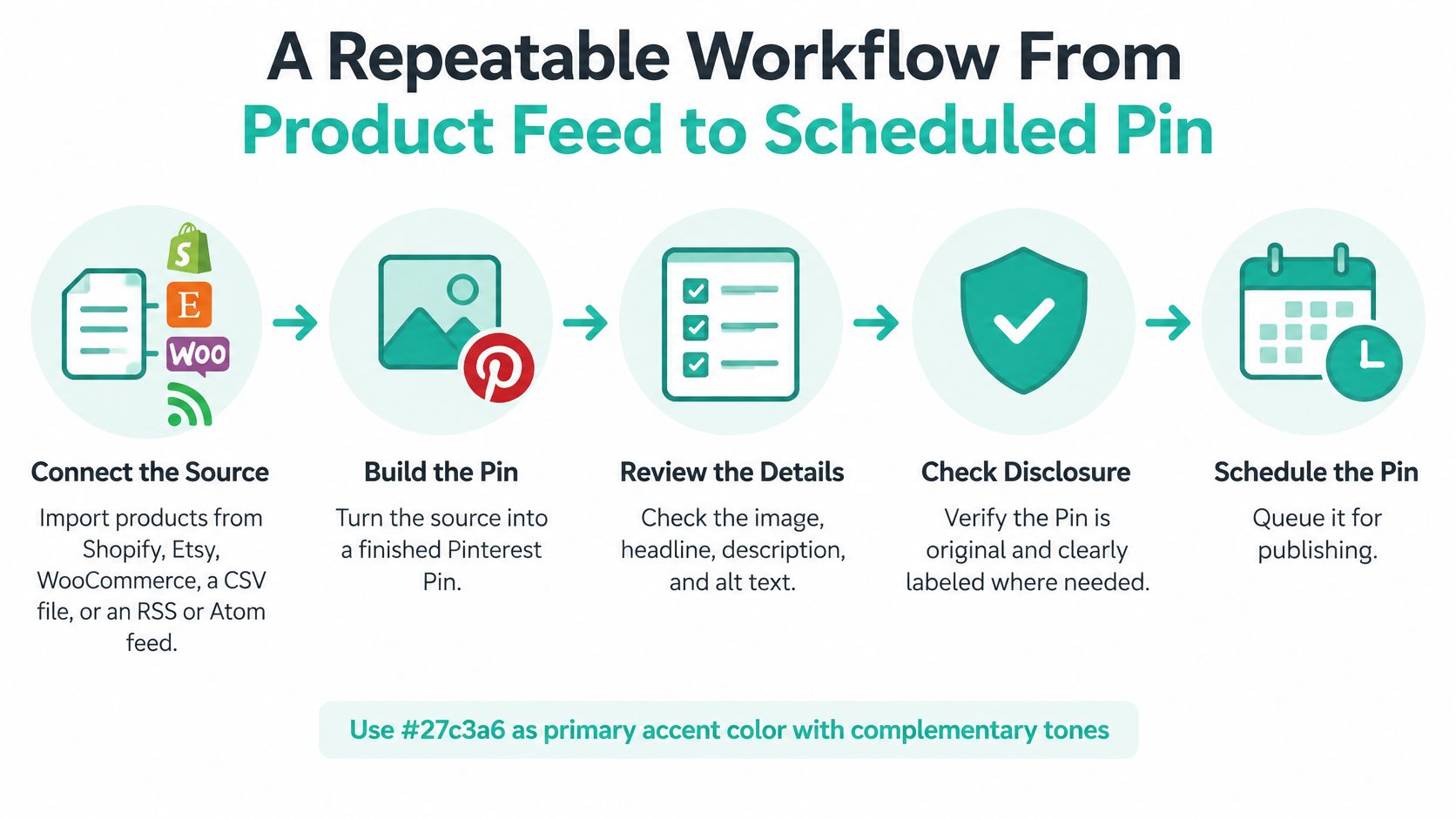
- Connect the source. Import products from Shopify, Etsy, WooCommerce, or a CSV file, or add an RSS or Atom feed. A Pin can come straight from an imported product, so you don't need a catalogue first. Fewer manual uploads means the batch finishes.
- Build the design profile. Run the one-click brand analysis so colours and fonts match the store. Guessing hex codes by eye is how a second brand sneaks in.
- Choose the look. Use one shared template when the shop should feel consistent. Use AI-generated images when you want varied concepts, and reject near-duplicates before they queue. Our notes on Pinterest automation software cover how a feed stays on a cadence without turning into copies.
- Check the copy against the product. Titles, descriptions, and alt text should say only what is true. If the apron is linen, don't let the draft call it cotton because a similar product was.
- Confirm keywords. Use the Keyword Research Tool and Trend Alerts before you lock titles. A rising search is more useful than a clever line nobody types.
- Assign boards and schedule. Bulk-pin to relevant boards and set a recurring weekly cadence. The common slip is pinning the same image with the same description to every board. That reads as spam. Vary the copy per board so a gift board and a materials board don't carry identical sentences.
- Review in Pin History after a week. Repeat what earns saves and clicks. Retire weak templates instead of hoping another week will fix a muddy crop.
What a healthy first week looks like
Every product in the batch has at least one Pin. Each Pin has a named board. The schedule runs without you uploading files by hand. If any of those three is missing, fix that before you add more products.
Practical rule: One true sentence per board beats five identical captions.
A bakery with 40 products might connect Shopify on Monday, lock a Standard template, write board-specific lines for gifts and for recipes, and leave Friday's queue alone. The win isn't a huge first drop. It's a queue that still publishes when you're in the kitchen.
Writing Accessible Alt Text and Checking for AI Disclosure
More keywords do not make a Pin easier to find when they land in alt text. Accessibility guidance says alt text should concisely describe what the image shows, include important overlaid text, explain the image's purpose in context, and avoid repeating the caption. Keyword stuffing makes the description unnatural and duplicates the title sitting next to it.
Use Texas Tech's social media accessibility guidance as the checklist. Catalogue-driven pins often ship with images that have weak or missing text alternatives, which leaves screen-reader users with unclear content. A polished layout and a strong search description can still carry an inaccessible description. Catalogue automation will copy one weak line across hundreds of Pins unless you stop it.
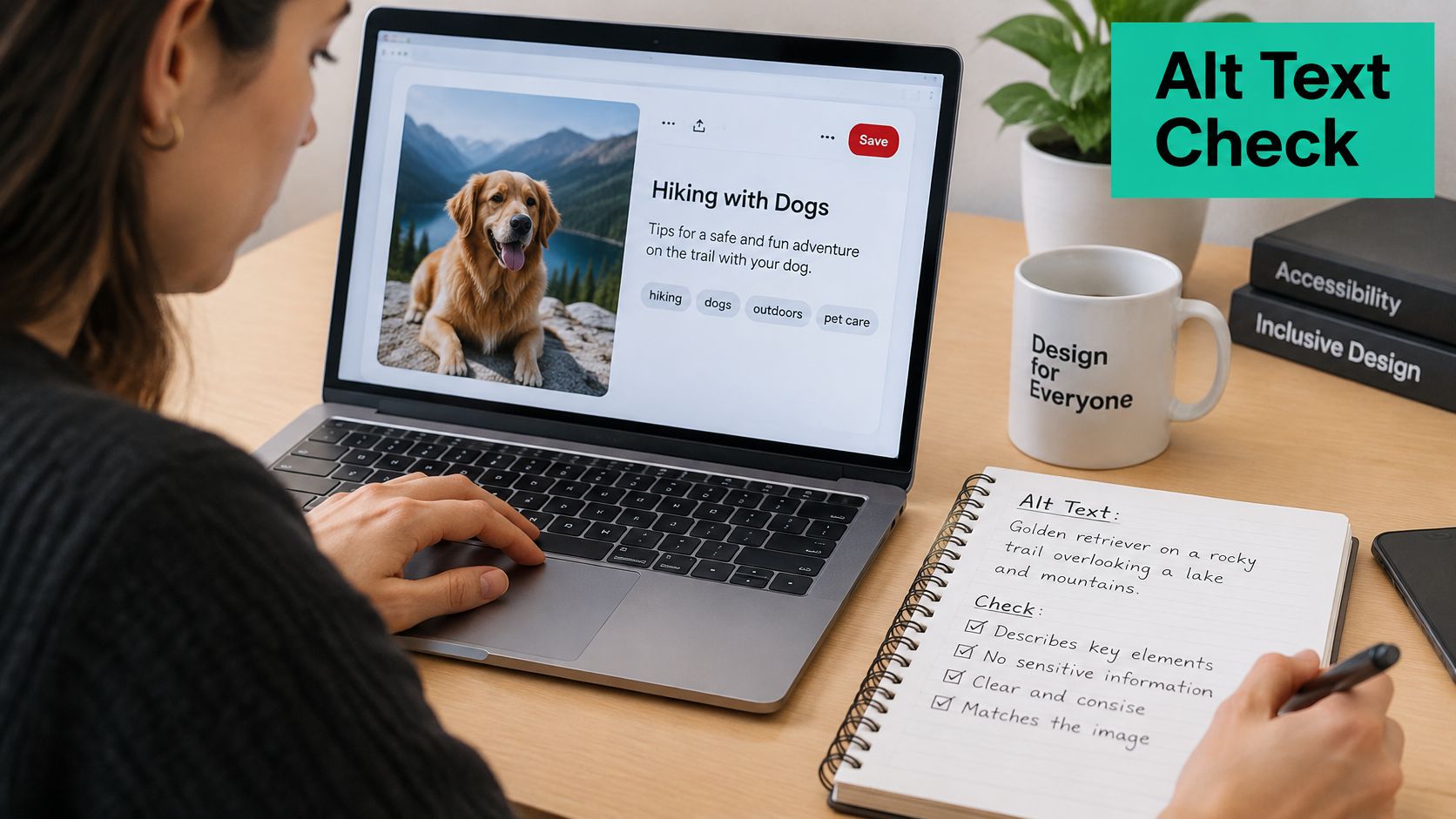
A short audit you can run this week
- Match the picture. Compare each alt text with the rendered image, not with the product title alone.
- Read it aloud. If it sounds like a keyword list, rewrite it as a sentence a person would say.
- Test a sample. Open a few variants, including text-heavy promos, with a screen reader before the batch goes wide.
Write alt text separately from the promotional description. The description can carry search intent. The alt text should carry what a viewer can see, including a price or headline printed on the image. For a product Pin, describe the item and the visible offer. For a lifestyle image, describe the scene and any text overlay. A screen-reader user should get the same selling point as a sighted viewer.
Disclosure is an operations task
Business Insider's reporting on AI labels notes that Pinterest began adding labels for AI-generated or AI-modified content in 2025, allows creators to disclose such content, and gives people controls over how much generative-AI content appears in their feeds. Keep a simple log: which assets were generated, which claims and images a person approved, and whether AI materially changed an image. If an AI variant distorts a product or invents detail, reject it before it reaches the queue.
The two mistakes that scale badly are stuffing keywords into alt text and publishing many near-identical AI variants. Automation raises output, so human review has to cover claims, imagery, and alt text. I would rather ship fewer Pins than ship a batch a screen-reader user cannot understand.
Launch Your First Pin Batch and Track Results
Pin Generator offers a free automation that creates preview Pins from your own website or store, in your brand colours, with no card needed. Use that preview to judge the look before you commit a month of publishing. Pin Generator is an official Pinterest partner, and users save 10+ hours per week once the queue replaces manual design.
Plan a first batch of 10 to 20 products or posts. Give each product one shared template and one AI-generated variant, so you're comparing design styles on the same items, not on different products that were never equal.
Set a baseline in Pin History over a fixed period, such as four weeks, before you judge anything. There isn't a universal benchmark worth copying. Judge each batch against your own baseline.
| Metric | What It Shows | How to Use It |
|---|---|---|
| Impressions | How often each Pin appeared in feeds or search | Compare reach across templates |
| Outbound clicks | Visits sent from the Pin to your site | Main measure of traffic |
| Saves | Times users saved the Pin to a board | Signals that the design earned interest |
| Clicks per impression | Clicks divided by impressions | Compares Pins with different reach fairly |
Compare results by template, board, and title type. Keep the template that wins on clicks per impression. Retire the one that doesn't. Move the winner onto a recurring weekly schedule, and only then widen the batch. A template with huge impressions and almost no clicks is loud, not useful.
This week, choose 10 products, connect the source, and generate one shared-template Pin and one AI variant for each. Review claims and alt text before anything is scheduled.
Pin Generator designs on-brand Pins, writes titles, descriptions, and alt text, picks boards, and schedules them from your products or posts, so a pin designer workflow doesn't stall on manual uploads. If you want the first batch to respect safe zones, accessible alt text, and a weekly cadence, start with a preview from your own site. Visit Pin Generator and generate that first paired set of template and AI Pins this week.