
Mastering the Pinterest Image Creator
15 October 2025
A dedicated pinterest image creator isn't just another design app; it's a strategic weapon built from the ground up to play nice with Pinterest's visual algorithm and how real people actually search for things.
This is what separates the accounts that feel like a hamster wheel from the ones that see real, exponential growth. Unlike generic graphic software, it’s all about creating a high volume of optimized Pins that actually drive traffic.
Why a Pinterest Image Creator Is a Non-Negotiable Tool
Let's be real for a second. Trying to create all your Pinterest content by hand is a massive bottleneck. You can easily burn hours tweaking a handful of Pins in a tool like Canva, only to have them completely disappear into a feed packed with visually stronger content.
A specialized Pinterest image creator cuts right through that problem. It's built for efficiency and, more importantly, effectiveness—not just making things look pretty.
The secret sauce is in the features designed specifically for Pinterest's unique demands. Instead of staring at a blank canvas, you’re starting with templates that are already proven to perform well on the platform. These aren't just random layouts; they're structured to grab attention in a fast-scrolling feed, with clear text overlays and the perfect aspect ratios.
Scaling Your Content Production
Imagine turning one single blog post into 10 or more unique Pin variations in just a few minutes. That's the power of bulk generation. A dedicated tool can pull images, titles, and descriptions straight from your URL and instantly populate dozens of templates. This alone can save you hours every single week.
This infographic breaks down the workflow and shows just how much more efficient this process is.
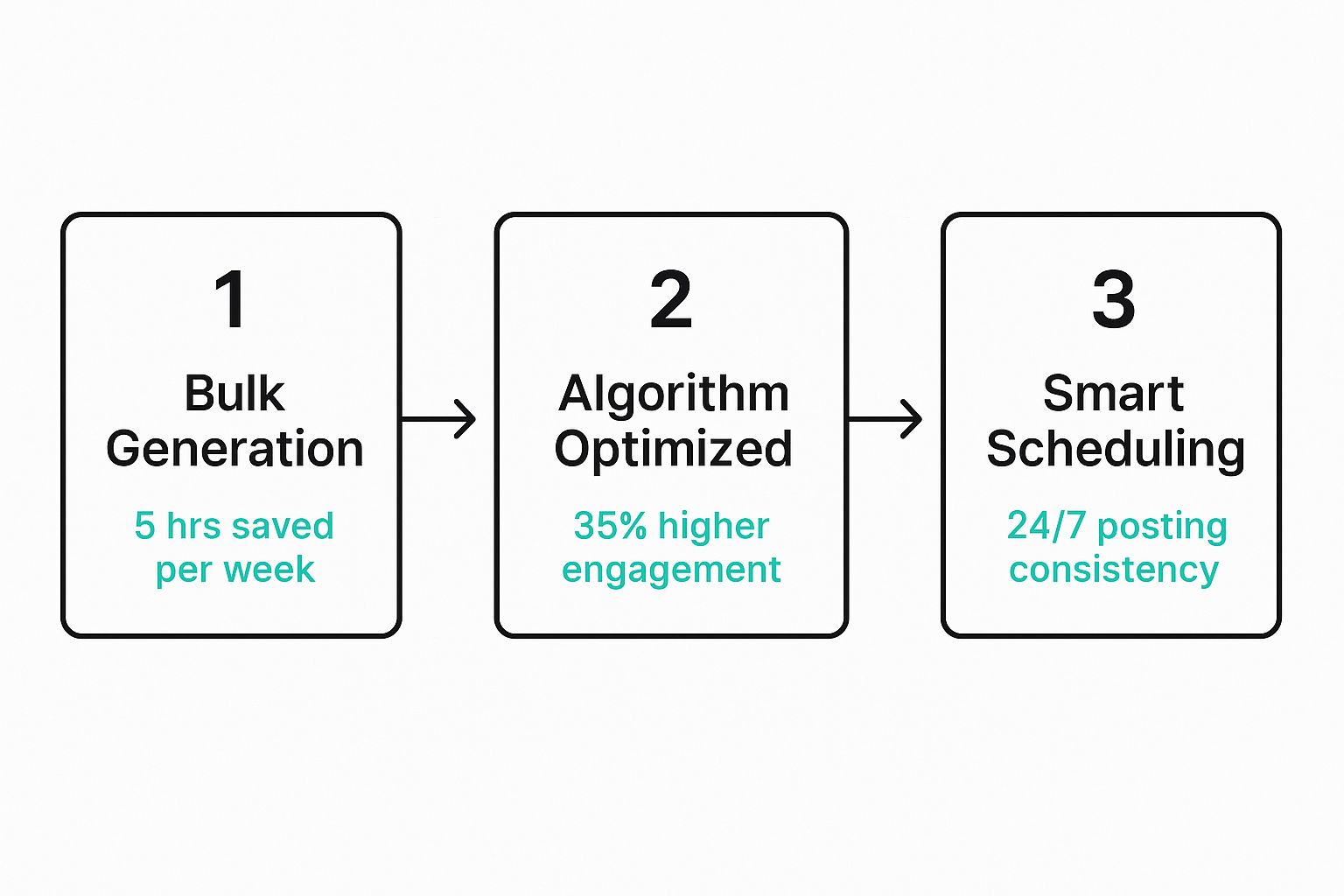
As you can see, it’s not just about making Pins faster. It’s about how bulk creation, smart scheduling, and algorithm-friendly designs all work together. This turns content creation from a dreaded chore into a smooth, almost automated system.
Driving Commercial Intent and Traffic
Pinterest is an absolute powerhouse for e-commerce. People on the platform are in a buying mindset—a staggering 85% of weekly Pinners have bought products they discovered in brand Pins. To tap into that, your images need to be both compelling and easily discoverable.
A good Pinterest image creator helps you produce content that meets this need at a scale you could never achieve manually. To see how these specialized tools fit into the bigger picture, it's worth checking out some insights on finding the best AI for image creation for different business goals.
The efficiency gains of using a dedicated creator are pretty stark when you compare it to the old manual way of doing things.
Manual Pin Design vs Using a Pinterest Image Creator
| Feature | Manual Design (e.g., Photoshop/Canva) | Dedicated Creator (e.g., Pin Generator) |
|---|---|---|
| Creation Speed | Slow; one Pin at a time. | Fast; generate dozens of Pins from one URL. |
| Template Quality | General-purpose templates, not Pinterest-specific. | Proven, high-performing Pinterest templates. |
| AI Features | Limited or non-existent. | AI-powered title/description rewriting. |
| Scheduling | Requires a separate scheduling tool. | Integrated, direct-to-Pinterest scheduling. |
| Optimization | Relies on user knowledge of best practices. | Built-in optimization for titles, descriptions, and boards. |
| Content Variety | Time-consuming to create multiple variations. | Effortlessly creates numerous unique designs. |
The table really makes it clear: a specialized tool isn't just a minor upgrade. It fundamentally changes your workflow, freeing you up to focus on strategy instead of getting bogged down in repetitive design tasks.
Your First Steps with Pin Generator
Diving into a new tool can feel like a lot, but getting set up with a powerful Pinterest image creator like Pin Generator is surprisingly quick. The whole point of the initial setup is to get you from zero to creating beautiful Pins in minutes, laying the groundwork for a content machine that pretty much runs itself.
It all starts with two key connections: linking your Pinterest account and your website. These aren’t just boring technical steps; they’re what unlock the tool's best features.
Connecting Your Accounts Securely
First things first, you'll authorize your Pinterest account. This is handled through an official, secure process using Pinterest's own API. That means Pin Generator is a recognized partner, so your account info stays safe and you're always playing by Pinterest's rules.
Hooking up your account gives the tool permission to do two crucial things:
- Publish Pins Directly: This lets the scheduler post your generated images right to your boards, no manual uploading required.
- Access Board Information: It syncs your existing boards, making it a breeze to choose exactly where your new Pins should go.
This secure link is what makes the scheduling feature a genuine "set it and forget it" system. That’s a game-changer for keeping up the consistent posting schedule the Pinterest algorithm absolutely loves.
Linking Your Website for Content Generation
Next up, you'll link your website just by popping in the URL. This is where the real magic of this Pinterest image creator kicks off. Once connected, the tool can automatically crawl your blog posts or product pages and pull content directly into your Pin designs.
Honestly, this saves an unbelievable amount of time. Forget manually copying and pasting titles, descriptions, and images. For instance, if you have a blog post called "10 Easy Weeknight Dinner Recipes," Pin Generator gets to work:
- It grabs the post title as a potential text overlay.
- It pulls images straight from the article to use in your Pin designs.
- It even uses your article's meta description as a great starting point for the Pin description.
Key Takeaway: Linking your site turns Pin Generator from a simple design editor into a full-blown content automation engine. It handles the most tedious part of making Pins—gathering the raw materials—so you can focus on the fun stuff: design and strategy.
This initial setup doesn't just get you ready to use the tool; it completely changes your workflow. You're no longer painstakingly creating Pins one by one from scratch. Instead, you're just feeding it a source of content and letting it generate a ton of Pin variations for you to tweak and schedule. With these first steps out of the way, you’re ready to start designing your first batch of killer Pins.
Designing Your First Batch of High-Performing Pins
Alright, this is the fun part—where all the theory turns into actual, clickable Pins. We’re going to take a single piece of content, like one of your blog posts, and multiply it into a dozen or more unique Pins ready to drive traffic. This is really where a dedicated Pinterest image creator shines, compressing what used to be hours of tedious design work into just a few minutes.
Let's walk through it with a real-world example. Say you just hit 'publish' on a new blog post: "Our Top 10 Cozy Fall Recipes." The goal is to flood Pinterest with a variety of Pins promoting this post, each with a slightly different vibe to see what your audience loves most.
This is what that initial design phase looks like. You can see a bunch of different Pin variations generated from just one URL, all lined up and ready for your finishing touches.
Selecting Your Content and Templates
Kicking things off is incredibly simple. Just grab your blog post URL and paste it into Pin Generator. The tool gets to work right away, pulling in your title, description, and every image from the post. All the raw materials are there in seconds.
Now, you’ll see a spread of professionally designed templates. Don't just pick one at random. Think like a marketer.
- For our list post ("10 Recipes"): I'd gravitate toward templates that feature big, bold numbers or have a clear list-style layout.
- If it were a how-to guide: I'd look for templates with plenty of clean space for text overlays to spell out the steps.
- For a single product showcase: Designs that put one stunning image front and center are the way to go.
For our "Cozy Fall Recipes" example, I might grab three totally different styles to start—maybe one that’s very visual and image-heavy, another with a huge, can't-miss text overlay, and a third that has more of an infographic feel. Variety is your best friend when you're testing.
Customizing for Brand and Readability
With your templates chosen, it's time to make them undeniably yours. This isn't a ground-up redesign; it’s about making quick, smart tweaks that have a big impact. This is a great time to apply proven content marketing best practices to ensure your designs don't just look good, but actually work.
First up, the text. Pin Generator might pull "Our Top 10 Cozy Fall Recipes" as the default title. That's a good start, but let's create a few variations to cast a wider net:
- "Easy Fall Recipes You Need to Try"
- "10 Cozy Dinners for Autumn"
- "The Best Fall Recipe Collection"
Each of these hits a slightly different angle and search query. Next, I'd pop in my brand's hex codes to get the colors just right and switch the fonts to match our brand kit. It seems small, but these little touches create a cohesive presence and build brand recognition over time.
Pro Tip: Readability is everything. A gorgeous Pin is worthless if people can't read the text on a tiny phone screen. Stick to high-contrast colors and simple, bold fonts. If someone can't grasp what your Pin is about in two seconds, you've lost them.
Don't forget to think about Pin dimensions, too. For a complete rundown on getting the sizes just right, check out our guide on https://pingenerator.com/blog/pinterest-image-dimensions. It'll make sure your Pins are perfectly optimized for every device.
The real magic here is the workflow. You started with one URL, picked a few templates, and with a few minor changes to text and color, you've churned out 10 or more unique, on-brand Pins. This is how you scale your Pinterest marketing without burning out, keeping your schedule packed with fresh content that all points back to your awesome work.
Building a Recognizable Brand on Pinterest
Making Pins that perform well is a great first step. But the real endgame? Building a brand that people know and trust on sight.
You want someone scrolling through their crowded feed to see your Pin and think, "Oh, I know them!" That flicker of recognition is what turns a casual browser into a loyal follower—and eventually, a customer.
This is where a dedicated Pinterest image creator becomes your secret weapon. It’s about more than just one-off designs; it's about building a system. A system that ensures every single Pin you publish reinforces who you are. We're moving away from just throwing things at the wall and hoping they stick. Instead, we're building a deliberate, strategic visual story.
Crafting and Saving Your Brand Templates
The bedrock of any solid Pinterest brand is a set of custom templates. This is where you nail down your unique style so you can apply it to new content with just a click. Think of it as creating a brand uniform for your Pins.
Inside Pin Generator, you can build and save your own templates with your branding already baked right in. It’s pretty straightforward and usually involves setting up:
- Your Logo: Find a consistent spot for it on every template. Most people stick it in a corner where it's visible but not screaming for attention.
- Brand Fonts: Lock in your specific fonts for headings and body text. No more searching for the right one every single time.
- Color Palette: Plug in your brand's hex codes. This guarantees every background, text color, or design element is perfectly on-brand.
Once you save these templates, the guesswork is gone. Every time you generate a new batch of Pins from a URL, you can apply your custom templates and know they’ll look exactly right. It's a massive time-saver, cutting out hours of tedious little tweaks.
Key Insight: Brand consistency builds trust. When your Pins look cohesive, it signals professionalism and authority. A follower who recognizes your style is far more likely to click because they already know and trust the quality of your content.
This systematic approach means that even when you're cranking out dozens of Pins, your brand identity stays strong and clear.
Diversifying Your Content with Different Pin Formats
A powerful brand presence isn’t just about looking the same; it's about showing up everywhere your audience is. Pinterest has a few different Pin formats, and a good creation tool makes it easy to create content for each one without starting over from scratch every time.
To really maximize your reach and engagement, you should be mixing it up.
Common Pin Formats:
- Standard Pins: These are the bread and butter of Pinterest. They're your classic vertical images that link straight to your website, perfect for driving traffic to blog posts or product pages.
- Video Pins: Short-form videos are amazing for tutorials, product demos, or just some behind-the-scenes action. They grab attention in the feed way better than a static image ever could.
- Idea Pins: This multi-page format is built for storytelling. Think step-by-step guides, recipes, or listicles. While they don't link out, they are absolute gold for building your on-platform audience and establishing yourself as an expert.
With a tool like Pin Generator, you can easily adapt your branded templates for any format. That static design you love can become the background for a quick video, or you can slice up a blog post into a killer multi-slide Idea Pin. This kind of agility helps you build a brand identity that’s not only consistent but also dynamic and engaging across the whole platform.
Automating Your Pinning with a Smart Schedule
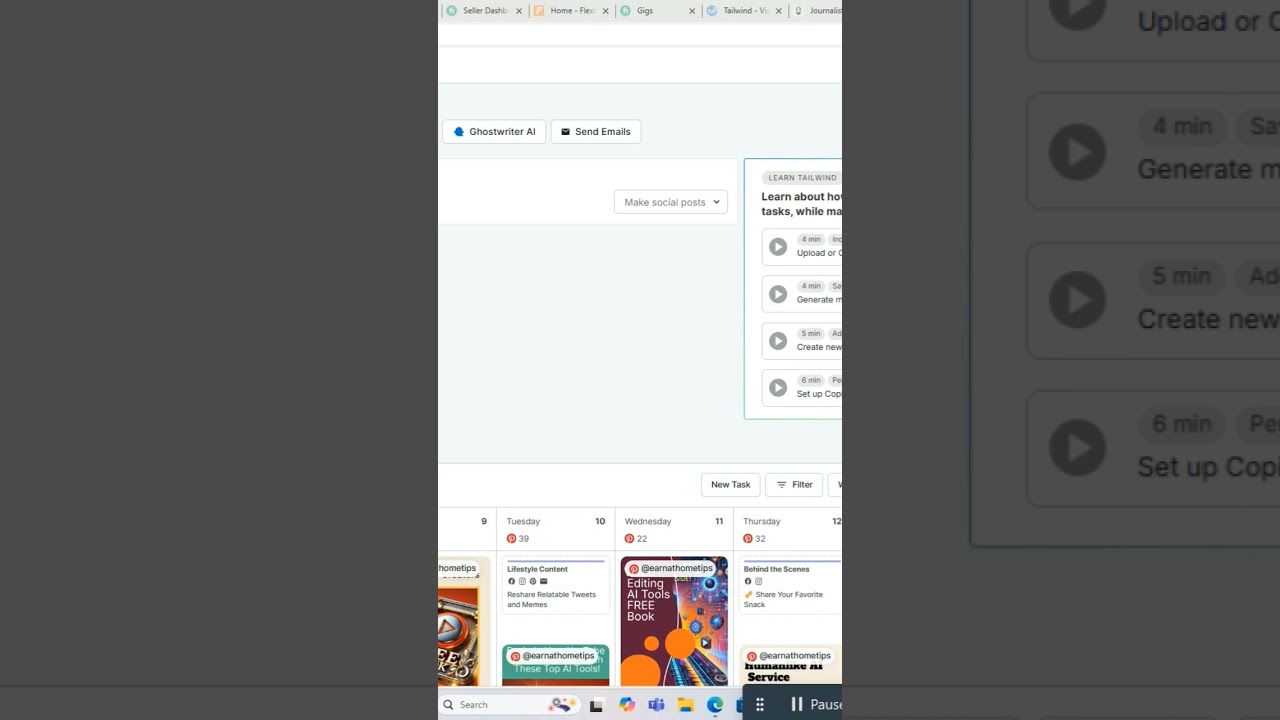
Making a big batch of beautiful Pins is a great start, but it's really only half the battle. If you publish them all at once and then your account goes silent for a week, you're not tapping into the real power of Pinterest: consistency. This is where we tackle the other half of the puzzle—building a smart, automated content calendar that works for you.
A top-tier Pinterest image creator has scheduling built right in. It transforms your workflow from a frantic, daily chore into a strategic, "set it and forget it" process. This way, your content is always working for you around the clock, even when you're completely offline. The goal is to build a content pipeline that keeps driving traffic back to your site without you having to constantly be present.
Planning Your Content Pipeline
The absolute key to smart scheduling is to avoid looking like a spammer. You never, ever want to dump the same exact Pin onto a bunch of different boards at the same time. Pinterest's algorithm is smart, and it rewards fresh content that's distributed thoughtfully over time.
A good scheduler lets you set intervals, spacing out your Pins so they feel natural. Let's say you created ten unique Pin designs for a single blog post. You can easily set them up to be published across five of your most relevant boards over the next two weeks. This simple step maximizes the reach of every single design without annoying your followers or, worse, triggering Pinterest's spam filters.
This strategy gets even more powerful when you think about who you're trying to reach. Did you know women make up nearly 70% of Pinterest's global users? A huge chunk of them are in the 25-34 age group. With that knowledge, you can time your Pins to go live exactly when your ideal audience is most likely to be scrolling, making sure your hard work lands in front of the right eyes. You can find more details about Pinterest's user demographics on ocoya.com.
Key Takeaway: Pinning consistently sends a strong signal to the Pinterest algorithm that you're an active creator providing value. A scheduler isn't just a time-saver; it's a strategic tool for maintaining that constant presence and keeping your content circulating.
Best Practices for Smart Scheduling
Getting the most out of your automated schedule isn't just about filling up slots on a calendar. It’s about being intentional with your publishing cadence. By sticking to a few best practices, you can build a solid schedule that feels organic and drives steady, reliable growth.
Here’s a simple checklist I always follow:
- Set Your Intervals: Always put some breathing room between Pins going to different boards. I find a minimum interval of 2-3 days is a great place to start.
- Mix Up Your Content: Don't just schedule Pins for your newest blog post. Make sure to weave in content pointing to your older, evergreen articles to keep them alive and kicking.
- Analyze and Adjust: Keep an eye on your Pinterest Analytics. If you notice certain times of day consistently get more engagement, tweak your schedule to hit those peak hours. It can make a huge difference.
Once you master the scheduling features inside your Pinterest image creator, you're well on your way to building a resilient marketing machine. For a really deep dive into setting up your calendar, check out our complete guide on how to schedule Pinterest posts. It'll help you turn content creation from a daily grind into a powerful, automated system.
Got Questions About Pinterest Image Creators?
Whenever you're thinking about adding a new tool to your workflow, it's smart to have a few questions. Bringing a Pinterest image creator into the mix is all about working smarter, not harder, so let's clear up some of the common things people wonder about.
Getting solid answers helps you jump in with confidence, knowing you’re making a good call for your content strategy. The idea here is to tackle those nagging doubts so you can get back to what you love: creating awesome Pins that get results.
Can This Really Replace a Graphic Designer?
For the day-to-day grind of creating Pinterest content, the answer is a big, fat yes. A tool like Pin Generator is built specifically to churn out optimized Pins at a scale a human designer just can't match, especially for the price and speed. It's all based on templates created by pros who know what actually works on Pinterest.
Now, a graphic designer is still crucial for your big-picture branding, logo design, and major campaigns. But a Pinterest image creator gives you the power to handle the high volume of content you need for steady growth. Think of it as a specialized tool that works with your designer's broader role, not against it.
How Many Pins Should I Be Making Every Day?
There's no single magic number here, but the name of the game is consistency. For most creators, a solid goal to start with is 5-10 new, unique Pins per day. A dedicated creator tool makes this totally doable without breaking a sweat.
The real secret sauce is using a scheduler to spread those Pins out across your most relevant boards over a few days.
Important Takeaway: Whatever you do, don't dump all your Pins at once. Spacing them out with a scheduler gives each Pin a much better shot at getting noticed by the Pinterest algorithm. It also keeps you from looking spammy to your followers.
Always keep an eye on your Pinterest Analytics. It'll tell you what frequency and timing your audience responds to best, and you can tweak your strategy from there.
Will Using an Automation Tool Get My Account Suspended?
This is a totally valid concern, but the answer is a firm no—as long as you stick with an official Pinterest Marketing Partner. Tools like Pin Generator are fully approved and use the official Pinterest API. This means they play by all of Pinterest's rules.
These platforms are designed to help you manage your content more efficiently, not to get you in trouble. Problems usually pop up with shady, unauthorized tools that scrape content or automate spammy actions like mass following. By choosing an official partner, you can be sure your account stays safe and sound while you scale up your content.
Ready to stop wasting time and start generating traffic? Pin Generator gives you all the tools you need to create, schedule, and automate your Pinterest marketing in minutes. Try Pin Generator for free and see the difference it makes.